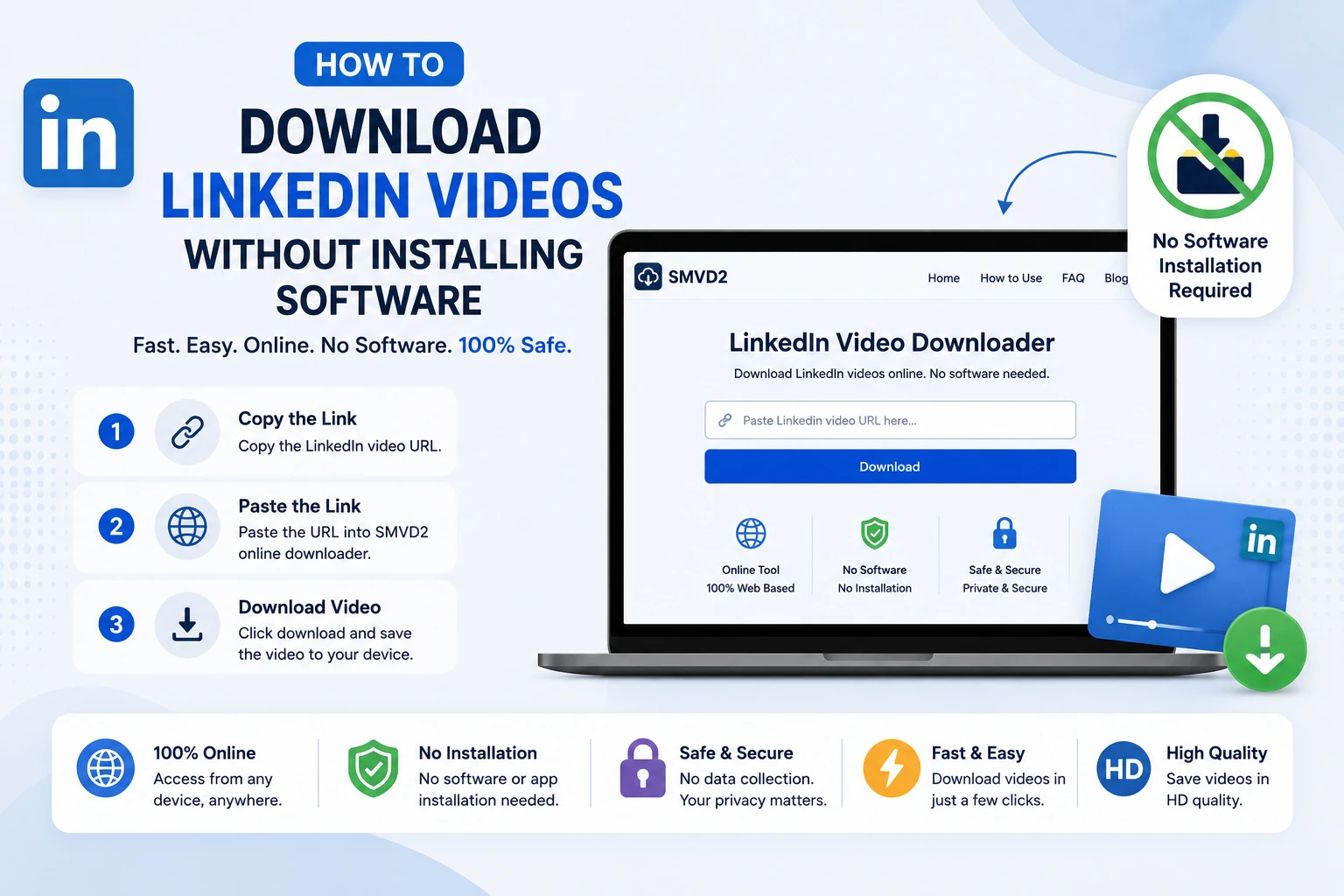
How to Download LinkedIn Videos Without Installing Software
LinkedIn has evolved from just a networking platform to a content based platform. Today, it’s one of the most popular places for discovering industry insights, career advice, marketing strategies, leadership lessons, product demonstrations, and educational video content.
Whether you’re a recruiter saving interview tips, a marketer collecting campaign inspiration, a student learning from industry experts, or a business owner researching trends, there are times when you may want to watch LinkedIn videos offline. However, many users don’t want to install browser extensions, desktop applications, or mobile apps just to save a single video.
The good news is that you can download LinkedIn videos without installing any software by using a browser-based LinkedIn video downloader such as SMVD2.com.
Unlike downloadable applications, browser-based tools work directly online, making the process faster, simpler, and more convenient. During our evaluation of different download methods, we found that many users prefer web-based solutions because they eliminate installation steps, reduce storage usage, and work consistently across multiple devices.
In this guide, you’ll learn how to save LinkedIn videos directly from your browser, why browser-based downloading has become increasingly popular, and why SMVD2.com stands out as one of the easiest ways to download LinkedIn videos without installing software.
Why Download LinkedIn Videos Without Software?
While there are desktop applications and browser extensions available for downloading videos, many users prefer not to install additional software for a simple task.
Downloading LinkedIn videos without software offers several advantages:
- No installation required
- Works directly from your browser
- Saves device storage space
- Compatible with Windows, Mac, Android, and iPhone
- No account creation required
- Faster setup and usage
- Eliminates extension permission requests
- Convenient for occasional downloads
One thing many users don’t realize is that browser extensions often require extensive permissions to access website data. For people who only need to save a LinkedIn video occasionally, installing software can feel unnecessary.
A browser-based LinkedIn video downloader allows you to complete the entire process within minutes without modifying your browser or device.
Additional benefits include:
Better Cross-Device Compatibility
Software downloads are often limited to specific operating systems. Browser-based tools work across multiple devices, whether you’re using Windows, macOS, Android, or iOS.
Faster Access
Instead of downloading, installing, updating, and configuring software, you can simply open a website and begin downloading immediately.
Ideal for Professional Users
Recruiters, HR professionals, sales teams, marketers, consultants, and students frequently discover valuable LinkedIn videos during their daily work. Browser-based downloading provides a quick way to save useful content for future reference without interrupting workflow.
Useful for Offline Learning
Many professionals save LinkedIn videos before traveling, attending events, or working in areas with limited internet access. Having videos available offline ensures uninterrupted learning whenever needed.
The Best Way to Download LinkedIn Videos Without Installing Software
If you’re looking for a quick, reliable, and user-friendly solution, SMVD2.com is one of the easiest ways to download LinkedIn videos directly from your browser.
SMVD2 is a free online LinkedIn video downloader that requires no software installation, browser extension, or mobile application. Everything happens online, allowing users to download videos in just a few clicks.
Whether you’re using:
- Google Chrome
- Microsoft Edge
- Mozilla Firefox
- Safari
- Opera
SMVD2 works seamlessly across major browsers and operating systems.
During practical testing of browser-based download workflows, one of the biggest advantages we noticed was convenience. Instead of switching between applications or managing extension permissions, users simply copy the LinkedIn video URL, paste it into SMVD2, and start the download process.
This streamlined approach makes SMVD2 particularly useful for professionals who want a fast and distraction-free experience.
Why SMVD2 Stands Out
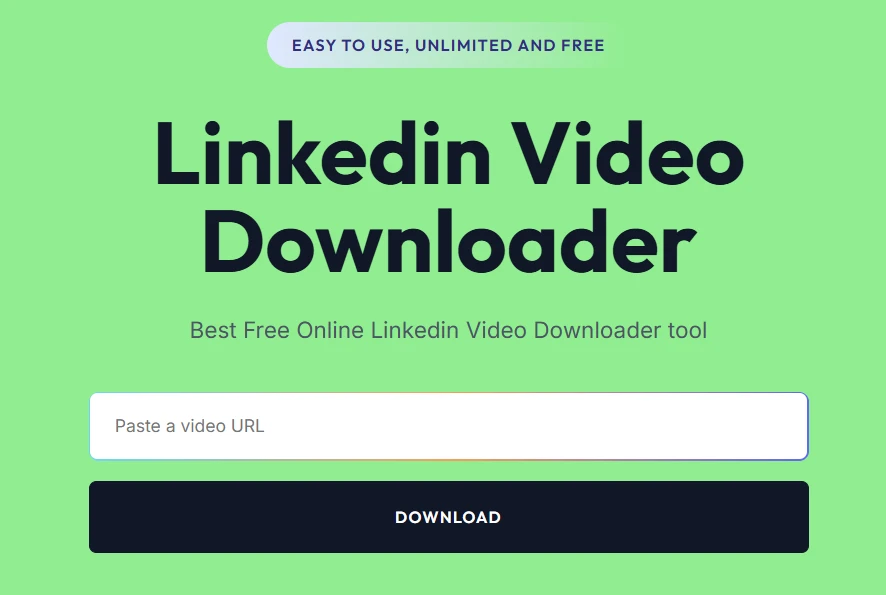
Many online downloaders promise quick results, but users often encounter issues such as excessive advertisements, complicated interfaces, slow processing times, or unnecessary redirects.
SMVD2 focuses on simplicity and usability.
Key benefits include:
- 100% browser-based downloader
- No software installation required
- No browser extensions needed
- Free to use
- Fast video processing
- User-friendly interface
- Mobile and desktop compatibility
- Supports quick access across multiple devices
Another practical advantage is flexibility. Whether you’re working from a laptop in the office, using an Android phone while traveling, or accessing LinkedIn from an iPhone, the same workflow remains simple and familiar.
For users searching for a LinkedIn downloader without software, a LinkedIn video saver online, or a browser-based LinkedIn video downloader, SMVD2 offers a straightforward solution that removes unnecessary complexity while helping users save videos for offline viewing.
One of the reasons browser-based downloading has become so popular is its simplicity. You don’t need to install software, create accounts, configure settings, or grant browser permissions. The entire process can be completed in just a few minutes using a LinkedIn video downloader like SMVD2.com.
Whether you’re saving a leadership webinar, marketing tutorial, recruitment tip, product demonstration, or industry presentation, the steps remain the same across most devices.
How to Download LinkedIn Videos Without Installing Software
Follow these simple steps:
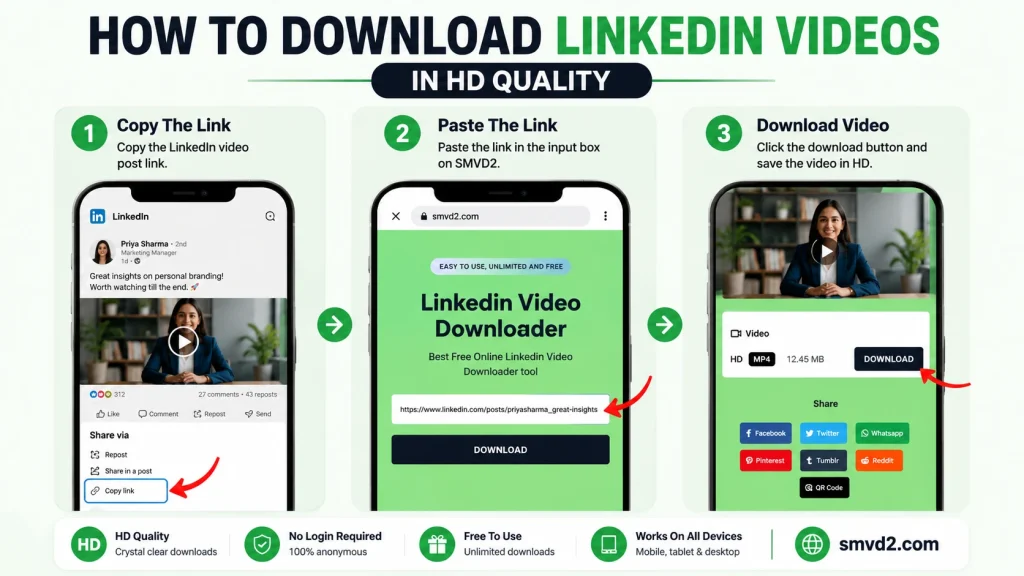
Step 1: Open LinkedIn
Visit LinkedIn and locate the video you want to save.
You can do this from:
- Your LinkedIn feed
- A company page
- A creator’s profile
- A LinkedIn group
- A shared LinkedIn post
Before proceeding, make sure the video is publicly accessible and that you have permission to access the content.
A common mistake users make is attempting to download videos from restricted or private posts. In such cases, the video may not be accessible through browser-based download tools.
Step 2: Copy the LinkedIn Video URL
Find the LinkedIn post containing the video and copy its URL.
On desktop:
- Click the three-dot menu on the post.
- Select Copy Link to Post.
- Save the copied URL.
On mobile:
- Tap the three-dot menu.
- Select Copy Link.
- The URL will be copied to your clipboard.
One thing we’ve noticed is that many download issues occur because users accidentally copy a profile URL instead of the actual LinkedIn post URL. Always verify that the copied link leads directly to the post containing the video.
Step 3: Visit SMVD2.com
Open your preferred browser and navigate to:
SMVD2.com
Since SMVD2 is completely browser-based, there is no need to:
- Download software
- Install browser extensions
- Register an account
- Update applications
- Configure settings
This makes the process particularly convenient for users who only need occasional LinkedIn video downloads.
Step 4: Paste the Video Link
Paste the copied LinkedIn URL into the downloader field on SMVD2.
Before clicking download, double-check that:
- The entire URL has been copied correctly
- No extra spaces were added
- The link points to the correct LinkedIn post
Accurate URLs help ensure smooth processing and reduce the likelihood of download errors.
Step 5: Click Download
Press the download button and allow SMVD2 to process the video.
At this stage, the tool analyzes the LinkedIn video link and prepares the downloadable media file.
Time taken by the tool depends on factors such as:
- Internet connection speed
- Video length
- Device performance
- Temporary network conditions
In most cases, the process only takes a few seconds.
Step 6: Save the Video
Once processing is complete, select your preferred download option and save the video to your device.
You can then watch the video offline whenever needed.
Many professionals use this feature to build personal learning libraries containing:
- Career development videos
- Sales training content
- Marketing tutorials
- Leadership advice
- Industry trend discussions
- Professional webinars
Having offline access can be particularly useful during travel, commuting, or situations where internet connectivity is limited.
What Makes Browser-Based Downloading Convenient?
Traditional software-based download methods often involve multiple steps:
- Download the application.
- Install the software.
- Configure permissions.
- Update the software regularly.
- Learn how the interface works.
With SMVD2, the workflow is significantly simpler:
Find Video → Copy URL → Paste into SMVD2 → Download → Watch Offline
This streamlined process is one of the main reasons browser-based LinkedIn video downloaders continue to grow in popularity among students, recruiters, marketers, consultants, and business professionals.
What Most Users Don’t Realize
Many people assume that downloading software automatically provides a better experience. In reality, browser-based tools are often the preferred option for occasional downloads because they:
- Require less setup
- Work across multiple devices
- Avoid extension compatibility issues
- Eliminate software maintenance
- Reduce storage usage
For users who simply want to save a LinkedIn video quickly, browser-based solutions often provide the most efficient workflow.
Troubleshooting Common Download Issues
If the download does not work immediately, check the following:
Incorrect URL
Ensure you’ve copied the LinkedIn post URL and not a profile or company page URL.
Private Content
Videos shared privately or restricted to specific audiences may not be available for download.
Network Issues
A weak internet connection can interrupt the processing stage.
Browser Cache Problems
Refreshing the page or reopening the browser may help resolve temporary issues.
Outdated Browser
Using the latest version of Chrome, Safari, Edge, Firefox, or Opera generally provides the best experience.
Following these simple troubleshooting steps resolves most download-related issues and helps ensure a smoother experience when saving LinkedIn videos online.
Download LinkedIn Videos on Windows Without Software
Windows users can download LinkedIn videos quickly and efficiently without installing any software by using a browser-based solution like SMVD2.com.
Whether you’re using:
- Windows 11
- Windows 10
- Windows 8
- Windows 7
SMVD2 works directly through your web browser, eliminating the need for desktop applications, browser extensions, or third-party download managers.
Steps:
- Open LinkedIn in Chrome, Edge, Firefox, or Opera.
- Locate the LinkedIn video you want to save.
- Copy the LinkedIn post URL.
- Visit SMVD2.com.
- Paste the video link into the downloader box.
- Click Download.
- Save the video to your computer.
The entire process typically takes only a few moments and requires no installation or technical setup.
Why Windows Users Prefer Browser-Based Downloading
Many professionals access LinkedIn primarily from their desktop or laptop during work hours. Recruiters, marketers, sales professionals, consultants, and business owners frequently discover valuable video content they want to revisit later.
A browser-based downloader offers several advantages:
- No administrator permissions required
- No software installation process
- No updates to manage
- No browser extension permissions
- Works from virtually any Windows device
During practical evaluation of various download methods, one noticeable advantage of browser-based tools was convenience. Instead of installing software for occasional downloads, users can simply copy a URL and complete the process directly within their browser.
Common Windows Use Cases
Windows users often save LinkedIn videos for:
Professional Training
Many organizations share sales techniques, leadership lessons, and workplace training content through LinkedIn videos.
Marketing Research
Digital marketers frequently save examples of successful campaigns, brand storytelling videos, and content marketing strategies for future reference.
Recruitment Insights
Recruiters often bookmark interview advice, hiring trends, and candidate engagement strategies shared by industry experts.
Offline Learning
Professionals traveling for work may save educational content before flights, conferences, or client meetings.
What Most Sites Don’t Tell You
Many browser extensions request extensive permissions to access website activity and browsing data.
For users who only download LinkedIn videos occasionally, installing an extension may introduce unnecessary complexity. Browser-based tools like SMVD2 remove this extra step while providing a faster workflow.
Troubleshooting on Windows
If a LinkedIn video does not download properly:
- Verify that you copied the correct LinkedIn post URL.
- Refresh your browser and try again.
- Ensure your internet connection is stable.
- Check whether the content is publicly accessible.
- Update Chrome, Edge, Firefox, or Opera to the latest version.
Most issues are resolved by verifying the URL and refreshing the browser session.
Download LinkedIn Videos on Mac Without Software
Mac users often prefer solutions that work directly in Safari or Chrome without requiring additional software installations.
With SMVD2.com, Mac users can save LinkedIn videos directly from their browser without downloading apps or extensions.
Steps:
- Open LinkedIn on your Mac.
- Locate the video you want to save.
- Copy the LinkedIn post link.
- Visit SMVD2.com.
- Paste the URL into the downloader field.
- Click Download.
- Save the video to your Mac.
The entire workflow remains browser-based, making it simple and accessible for both casual and professional users.
Why Mac Users Often Choose Browser-Based Tools
Many Mac users prioritize simplicity, security, and efficiency.
Installing unnecessary software can:
- Consume storage space
- Require ongoing updates
- Introduce compatibility concerns
- Add additional setup steps
Browser-based downloading avoids these issues while providing a straightforward experience.
One practical observation is that users who only need occasional downloads generally find browser-based workflows faster than downloading and managing dedicated applications.
Ideal for Professionals and Students
LinkedIn has become a valuable learning platform for professionals and students alike.
Mac users frequently save videos related to:
Career Development
Industry leaders often share valuable career advice, interview strategies, and workplace success tips.
Entrepreneurship
Business owners use LinkedIn to learn from founders, executives, and growth experts.
Marketing Education
Content creators and marketers frequently analyze successful campaigns and social media strategies shared through LinkedIn videos.
Technical Learning
Technology professionals often save tutorials, product demonstrations, and industry updates for later viewing.
Browser Compatibility on Mac
SMVD2 works across major Mac browsers, including:
- Safari
- Google Chrome
- Mozilla Firefox
- Microsoft Edge
- Opera
This flexibility allows users to choose the browser they already prefer without changing their workflow.
Common Download Challenges on Mac
Although downloading LinkedIn videos is generally straightforward, users occasionally encounter issues.
Incorrect Video URL
The most common problem is copying the wrong link. Always use the URL of the LinkedIn post containing the video.
Temporary Browser Issues
Refreshing Safari or Chrome often resolves temporary loading problems.
Restricted Content
Some videos may be private or limited to specific LinkedIn audiences.
Network Interruptions
An unstable internet connection can delay processing.
Why Browser-Based Downloading Continues to Grow
Many users initially assume software-based tools offer a better experience. However, for occasional downloads, browser-based solutions are often more practical because they:
- Require no installation
- Work across multiple devices
- Reduce maintenance requirements
- Eliminate extension-related issues
- Allow immediate access from any browser
For Mac users looking for a simple way to save LinkedIn videos online, SMVD2 provides a streamlined solution that keeps the entire process fast, accessible, and user-friendly.
Download LinkedIn Videos on Android Without Software
Android users can download LinkedIn videos directly from their mobile browser without installing additional applications or browser extensions.
With SMVD2.com, the entire process takes place online, making it a convenient option for users who want to save videos quickly without consuming extra device storage.
Simply:
- Open the LinkedIn app or website.
- Locate the video you want to download.
- Copy the LinkedIn post URL.
- Open Chrome or your preferred Android browser.
- Visit SMVD2.com.
- Paste the copied URL into the downloader field.
- Click Download.
- Save the video to your Android device.
Once downloaded, the video can be accessed offline whenever needed.
Why Android Users Prefer Browser-Based Downloading
Android users often discover LinkedIn content while commuting, traveling, attending events, or browsing between meetings. In these situations, installing a dedicated application for a single download is often unnecessary.
Browser-based downloading offers several advantages:
- No app installation required
- Saves storage space
- Faster workflow
- No account registration
- Works across multiple Android devices
- Accessible from anywhere with a browser
During practical evaluation of mobile download workflows, one common observation was that users prefer solutions that minimize steps. Instead of downloading another application, browser-based tools allow users to save videos immediately after discovering them.
Common Android Use Cases
Many Android users save LinkedIn videos for professional and educational purposes.
Learning on the Go
Professionals often save educational videos before traveling or commuting so they can continue learning without relying on internet connectivity.
Marketing Inspiration
Digital marketers frequently save examples of LinkedIn advertising campaigns, content strategies, and branding ideas.
Sales Training
Sales professionals often collect videos covering prospecting techniques, communication strategies, and customer engagement practices.
Student Education
Students use LinkedIn as a learning platform and may save videos related to career planning, internships, industry trends, and professional development.
Browser Compatibility on Android
SMVD2 works smoothly with popular Android browsers including:
- Google Chrome
- Samsung Internet
- Microsoft Edge
- Firefox
- Opera
This flexibility allows users to continue using the browser they already prefer.
What Most Users Don’t Realize
Many Android download apps consume storage, request device permissions, and require updates over time.
For occasional LinkedIn video downloads, browser-based tools often provide a more efficient experience because they:
- Avoid installation requirements
- Reduce device clutter
- Eliminate update management
- Maintain a simple workflow
This is one reason browser-based LinkedIn video downloaders continue to grow in popularity among mobile users.
Troubleshooting on Android
If a video doesn’t download properly:
Check the URL
Ensure you’ve copied the LinkedIn post URL and not a profile or company page link.
Verify Internet Connectivity
Weak mobile networks can interrupt processing.
Refresh the Browser
Closing and reopening Chrome or your preferred browser often resolves temporary issues.
Confirm Content Accessibility
Private or restricted LinkedIn videos may not be available for download.
Following these steps resolves most common Android downloading issues.
Download LinkedIn Videos on iPhone Without Software
iPhone users can also download LinkedIn videos without installing apps by using a browser-based downloader such as SMVD2.com.
The process works directly through Safari or other supported browsers, making it simple and convenient for iOS users.
Steps:
- Open LinkedIn on your iPhone.
- Find the video you want to save.
- Copy the LinkedIn post URL.
- Launch Safari or your preferred browser.
- Visit SMVD2.com.
- Paste the copied URL.
- Click Download.
- Save the video to your device.
The process requires no additional software and can be completed in just a few moments.
Why iPhone Users Often Choose Browser-Based Solutions
Apple users generally value simplicity, security, and ease of use.
Installing unnecessary applications can:
- Consume storage space
- Add device clutter
- Require ongoing updates
- Create additional management tasks
Browser-based downloaders help avoid these challenges by providing a solution that works directly within Safari or other browsers.
One practical benefit is consistency. Whether you’re using an iPhone, iPad, MacBook, or desktop computer, the workflow remains nearly identical.
Popular Reasons for Saving LinkedIn Videos on iPhone
LinkedIn videos often contain valuable professional insights that users want to revisit later.
Common reasons include:
Offline Viewing
Users frequently save videos before flights, long commutes, or travel where internet access may be limited.
Professional Development
Career advice, leadership lessons, and interview preparation videos are among the most commonly saved content types.
Business Research
Entrepreneurs and business owners often archive useful content for future reference.
Industry Updates
Professionals use LinkedIn to stay informed about trends, innovations, and emerging opportunities within their field.
Safari Compatibility
SMVD2 is optimized to work through Safari, making the process straightforward for most iPhone users.
In addition to Safari, users may also access the platform through:
- Google Chrome
- Microsoft Edge
- Firefox
- Opera
Common iPhone Download Challenges
Most LinkedIn video downloads are completed without issues, but occasional problems can occur.
Incorrect URL Selection
Always copy the URL of the LinkedIn post containing the video.
Browser Session Problems
Refreshing Safari often resolves temporary loading issues.
Private Videos
Restricted LinkedIn content may not be accessible for downloading.
Network Instability
A weak Wi-Fi or mobile connection can delay processing.
Mobile Workflow Advantage
One thing many users appreciate about browser-based downloaders is convenience.
The workflow is simple:
Find Video → Copy Link → Open SMVD2 → Paste URL → Download
There is no need to:
- Install apps
- Create accounts
- Configure settings
- Manage updates
For busy professionals, this streamlined process saves time and makes downloading LinkedIn videos significantly easier.
Why SMVD2 Works Well for Mobile Users
Mobile users typically prioritize speed and simplicity.
SMVD2 helps achieve both by offering:
- Browser-based access
- No software installation
- Fast processing
- Cross-device compatibility
- User-friendly interface
- Convenient offline access
Whether you’re using Android or iPhone, the ability to save LinkedIn videos directly from your browser makes SMVD2 a practical solution for professionals, students, marketers, recruiters, and business owners who want quick access to valuable video content.
Why People Save LinkedIn Videos
LinkedIn is no longer just a platform for networking and job searching. It has become one of the largest hubs for professional education, industry insights, business discussions, and career development content.
As a result, many users choose to save LinkedIn videos for future reference rather than relying on finding the same content again later.
Here are some of the most common reasons professionals download LinkedIn videos.
Offline Learning
One of the biggest reasons people save LinkedIn videos is the ability to learn without an internet connection.
Professionals often download:
- Leadership lessons
- Marketing tutorials
- Career development advice
- Sales training videos
- Industry webinars
Offline access is particularly useful during flights, long commutes, conferences, or travel where internet connectivity may be limited.
Training Purposes
Many organizations use LinkedIn as a source of professional education.
Managers, team leaders, recruiters, and HR professionals frequently save videos to revisit important concepts during employee training sessions.
Having videos available offline allows teams to access learning materials whenever needed.
Research and Reference
LinkedIn has become a valuable platform for sharing industry knowledge.
Professionals often save videos covering:
- Market trends
- Emerging technologies
- Recruitment strategies
- Business growth tactics
- Personal branding advice
Instead of searching for the same post repeatedly, downloading a video creates a personal knowledge library that can be referenced later.
Business Presentations
Business owners, marketers, consultants, and sales teams often use LinkedIn videos as inspiration when creating presentations and reports.
For example, users may save:
- Leadership talks
- Product demonstrations
- Marketing campaign examples
- Industry discussions
Having these videos available offline makes future research more convenient.
Content Analysis
Content creators and marketers frequently analyze successful LinkedIn videos to understand:
- Storytelling techniques
- Audience engagement methods
- Video structure
- Presentation styles
- Content strategies
One observation we’ve seen repeatedly is that many high-performing LinkedIn videos follow simple communication frameworks rather than highly produced formats. Studying successful examples can help professionals improve their own content creation efforts.
Building a Personal Learning Library
One benefit that many users overlook is the ability to build a curated collection of valuable content.
Rather than relying on LinkedIn’s feed algorithm to surface content again, downloaded videos allow users to organize educational resources according to their own needs and interests.
For professionals committed to continuous learning, this can become a valuable long-term resource.
Is It Safe to Download LinkedIn Videos Online?
Safety largely depends on the tool you choose.
While many online downloaders claim to offer fast downloads, not all provide the same level of user experience or transparency.
Some websites may include:
- Excessive advertisements
- Misleading download buttons
- Multiple redirects
- Popups
- Forced software installations
- Unnecessary permission requests
These factors can create confusion and negatively affect the user experience.
Why Browser-Based Tools Are Often Preferred
Many professionals prefer browser-based solutions because they eliminate the need to install software or browser extensions.
This approach offers several advantages:
- No application downloads
- No installation process
- No extension permissions
- Reduced device clutter
- Faster access
For occasional LinkedIn video downloads, browser-based tools typically provide a simpler workflow than dedicated applications.
Safe Downloading Practices
Regardless of which tool you use, it is generally a good idea to follow a few best practices:
- Use trusted websites
- Verify URLs before downloading
- Avoid suspicious popups
- Keep your browser updated
- Avoid tools that require unnecessary permissions
- Ensure you have access to the LinkedIn content you are downloading
Following these practices helps create a safer and more reliable downloading experience.
A Practical Observation
One thing we frequently notice is that users often prioritize convenience over features they rarely use.
For occasional downloads, most professionals simply want a quick and straightforward process. Browser-based solutions are often preferred because they focus on simplicity rather than adding unnecessary complexity.
Common Problems When Downloading LinkedIn Videos
Although downloading LinkedIn videos is usually straightforward, users occasionally encounter issues.
Understanding these common problems can help save time and reduce frustration.
Video Link Not Working
This is one of the most common issues.
In many cases, users accidentally copy:
- A profile URL
- A company page URL
- A LinkedIn feed URL
Instead of the actual LinkedIn post containing the video.
Always verify that the copied link points directly to the video post.
Private Content Restrictions
Not all LinkedIn content is publicly accessible.
Some videos may be:
- Shared privately
- Restricted to specific audiences
- Limited to members of a particular group
In these situations, download tools may not be able to access the content.
Slow Downloads
Processing delays can occur due to:
- Slow internet connections
- Temporary server congestion
- Large video files
- Network instability
Waiting a few moments and retrying often resolves the issue.
Unsupported Browser
Outdated browsers can sometimes create compatibility issues.
For the best experience, use the latest version of:
- Chrome
- Safari
- Edge
- Firefox
- Opera
Browser Cache Issues
Occasionally, cached browser data can interfere with processing.
Refreshing the page or reopening the browser often resolves temporary problems.
Mobile Network Limitations
Users downloading videos on mobile networks may experience slower processing speeds depending on signal strength and network conditions.
Connecting to a stable Wi-Fi network can improve performance.
What Most Download Guides Don’t Mention
Many download issues are not caused by the downloader itself.
In practical usage, common causes include:
- Incorrect URLs
- Restricted content
- Browser-related issues
- Network interruptions
Identifying the actual source of the problem can often resolve download failures more quickly.
Tips for Better LinkedIn Video Downloads
A few simple practices can help improve reliability and overall download success.
Use the Original LinkedIn Post URL
Always copy the URL directly from the LinkedIn post containing the video.
This helps ensure accurate processing.
Verify Video Accessibility
Publicly accessible videos generally provide the smoothest downloading experience.
If a video is restricted, downloading may not be possible.
Maintain a Stable Internet Connection
A strong internet connection reduces interruptions and improves processing speed.
Organize Saved Videos
If you frequently save LinkedIn videos, consider organizing them into folders such as:
- Marketing
- Leadership
- Sales
- Recruitment
- Career Development
- Industry Research
This makes future reference significantly easier.
Save Important Content Promptly
LinkedIn feeds move quickly, and valuable posts can become difficult to locate later.
If you find content you may need in the future, saving it promptly can prevent unnecessary searching.
Keep Your Browser Updated
Modern browsers offer better compatibility, performance, and security.
Regular updates help ensure a smoother downloading experience.
Think Beyond Downloading
Many professionals focus only on saving videos, but the real value comes from using the information effectively.
Consider:
- Taking notes
- Creating summaries
- Building learning libraries
- Sharing insights with teams
- Applying lessons to real projects
This transforms downloaded content from passive media into a valuable professional resource.
A Final Practical Tip
The most effective approach is often the simplest one.
Rather than installing additional software or managing browser extensions, many professionals prefer a workflow that allows them to quickly save LinkedIn videos, access them offline, and continue learning without unnecessary interruptions.
Why SMVD2 Is the Ultimate LinkedIn Video Downloader
When it comes to downloading LinkedIn videos without installing software, users typically look for three things:
- Simplicity
- Speed
- Reliability
SMVD2.com combines all three in a browser-based solution designed to make LinkedIn video downloading straightforward for professionals, students, recruiters, marketers, and business owners.
Unlike software-based alternatives, SMVD2 removes unnecessary barriers and allows users to save LinkedIn videos directly from their browser.
What Makes SMVD2 Different?
Many LinkedIn video downloaders require users to:
- Install software
- Add browser extensions
- Create accounts
- Manage updates
- Navigate complex interfaces
SMVD2 focuses on a simpler approach.
The workflow remains easy:
Copy LinkedIn URL → Paste into SMVD2 → Download Video
This streamlined process helps users access content quickly without dealing with technical setup or software maintenance.
Browser-Based Convenience
One of the biggest advantages of SMVD2 is accessibility.
Because the platform operates entirely online, users can access it from:
- Windows computers
- Mac devices
- Android smartphones
- iPhones
- Tablets
This flexibility creates a consistent experience across multiple devices.
Fast and User-Friendly
In practical usage, convenience often matters more than advanced features.
Many users simply want to save a LinkedIn video quickly and move on with their day.
SMVD2 is designed around this principle by offering:
- Fast processing
- Simple navigation
- Minimal learning curve
- Easy accessibility
Whether you’re downloading one video or building a personal learning library, the process remains straightforward.
Ideal for Different Types of Users
For Recruiters
Save hiring advice, interview techniques, and recruitment insights for future reference.
For Marketers
Archive campaign examples, content strategies, and branding ideas.
For Students
Build a collection of educational resources, career guidance videos, and industry discussions.
For Entrepreneurs
Save leadership content, growth strategies, and business development insights.
For Sales Professionals
Collect prospecting techniques, communication strategies, and customer engagement advice.
Browser-Based Downloaders vs Software-Based Solutions
Many users wonder whether browser-based tools or software applications are the better choice.
The answer often depends on how frequently downloads are needed.
| Feature | SMVD2 Browser-Based | Software-Based Tools |
|---|---|---|
| Installation Required | No | Yes |
| Storage Usage | Minimal | Higher |
| Setup Time | Immediate | Longer |
| Updates Required | No | Yes |
| Device Flexibility | High | Often Limited |
| Ease of Use | Very Easy | Moderate |
For occasional and everyday users, browser-based downloading is often the more convenient option because it reduces setup time and simplifies the overall workflow.
What We Like About the Browser-Based Approach
During evaluation of different download methods, one advantage consistently stood out: convenience.
Users often discover valuable LinkedIn content unexpectedly while browsing their feed.
In these moments, having a solution that works instantly through a browser is often more practical than installing software before saving a single video.
This convenience is one of the reasons browser-based downloaders continue to gain popularity among professionals.
A Simple Framework for Choosing a Download Method
If you:
- Want fast access
- Prefer minimal setup
- Download videos occasionally
- Use multiple devices
A browser-based solution is usually the better choice.
If you:
- Download large volumes of videos daily
- Need advanced management features
- Require specialized workflows
Dedicated software may be worth considering.
For most LinkedIn users, however, simplicity and speed are usually the highest priorities.
Frequently Asked Questions
Can I download LinkedIn videos without installing software?
Yes. You can download LinkedIn videos using browser-based tools such as SMVD2.com without installing software, browser extensions, or mobile applications.
Does SMVD2 work on mobile devices?
Yes.
SMVD2 works on:
- Android smartphones
- iPhones
- Tablets
- Windows laptops
- Mac computers
As long as you have a browser and internet connection, you can access the platform.
Do I need to create an account?
No.
SMVD2 does not require account creation to use the downloader.
This helps simplify the process and allows users to get started immediately.
Can I use SMVD2 on Windows and Mac?
Yes.
SMVD2 is compatible with:
- Windows
- macOS
- Android
- iOS
The browser-based workflow remains consistent across devices.
Is downloading LinkedIn videos free?
SMVD2 provides a free browser-based solution for downloading publicly accessible LinkedIn videos.
Why isn’t my LinkedIn video downloading?
Common reasons include:
- Incorrect URL selection
- Private or restricted content
- Temporary network issues
- Browser-related problems
Verifying the URL and refreshing your browser often resolves the issue.
Does SMVD2 require browser extensions?
No.
SMVD2 works directly through your browser and does not require any extension installation.
Is browser-based downloading better than installing software?
For many users, yes.
Browser-based downloading typically offers:
- Faster access
- Less setup
- Better device flexibility
- Reduced maintenance
The ideal solution depends on your workflow, but most occasional users find browser-based tools more convenient.
Can I save videos for offline viewing?
Yes.
Once downloaded, videos can be stored on your device and viewed without an internet connection.
Who benefits most from downloading LinkedIn videos?
Common users include:
- Recruiters
- Marketers
- Students
- Entrepreneurs
- Sales professionals
- Business leaders
- Job seekers
Anyone who regularly learns from LinkedIn content can benefit from offline access.
Final Thoughts
If you’re looking for a simple way to download LinkedIn videos without installing software, a browser-based solution is often the most convenient option.
Instead of downloading applications, managing browser extensions, or dealing with software updates, you can simply copy a LinkedIn video URL, paste it into SMVD2.com, and save the video directly from your browser.
Throughout this guide, we’ve explored how browser-based downloading works across Windows, Mac, Android, and iPhone devices, why professionals save LinkedIn videos for offline learning, and how common downloading issues can be resolved quickly.
For most users, the biggest advantages are:
- No software installation
- No browser extensions
- Cross-device compatibility
- Fast access
- Simple workflow
Whether you’re a recruiter building a library of hiring insights, a marketer collecting campaign inspiration, a student learning from industry experts, or an entrepreneur researching business strategies, having offline access to valuable LinkedIn videos can make professional learning more convenient and accessible.
As browser-based tools continue to evolve, simplicity remains one of the most important factors for users. SMVD2 embraces this approach by providing a straightforward way to save LinkedIn videos without unnecessary complexity.
The process is simple:
Find the video → Copy the LinkedIn URL → Paste into SMVD2 → Download → Learn anytime, anywhere.
For professionals who value speed, convenience, and accessibility, SMVD2 offers an efficient solution for downloading LinkedIn videos directly from the browser and enjoying them offline whenever needed.
Related Articles:
- How to Download LinkedIn Videos Without Browser Extensions
- How to Download LinkedIn Videos Without Third-Party Apps
- Best Online LinkedIn Downloader Without Registration