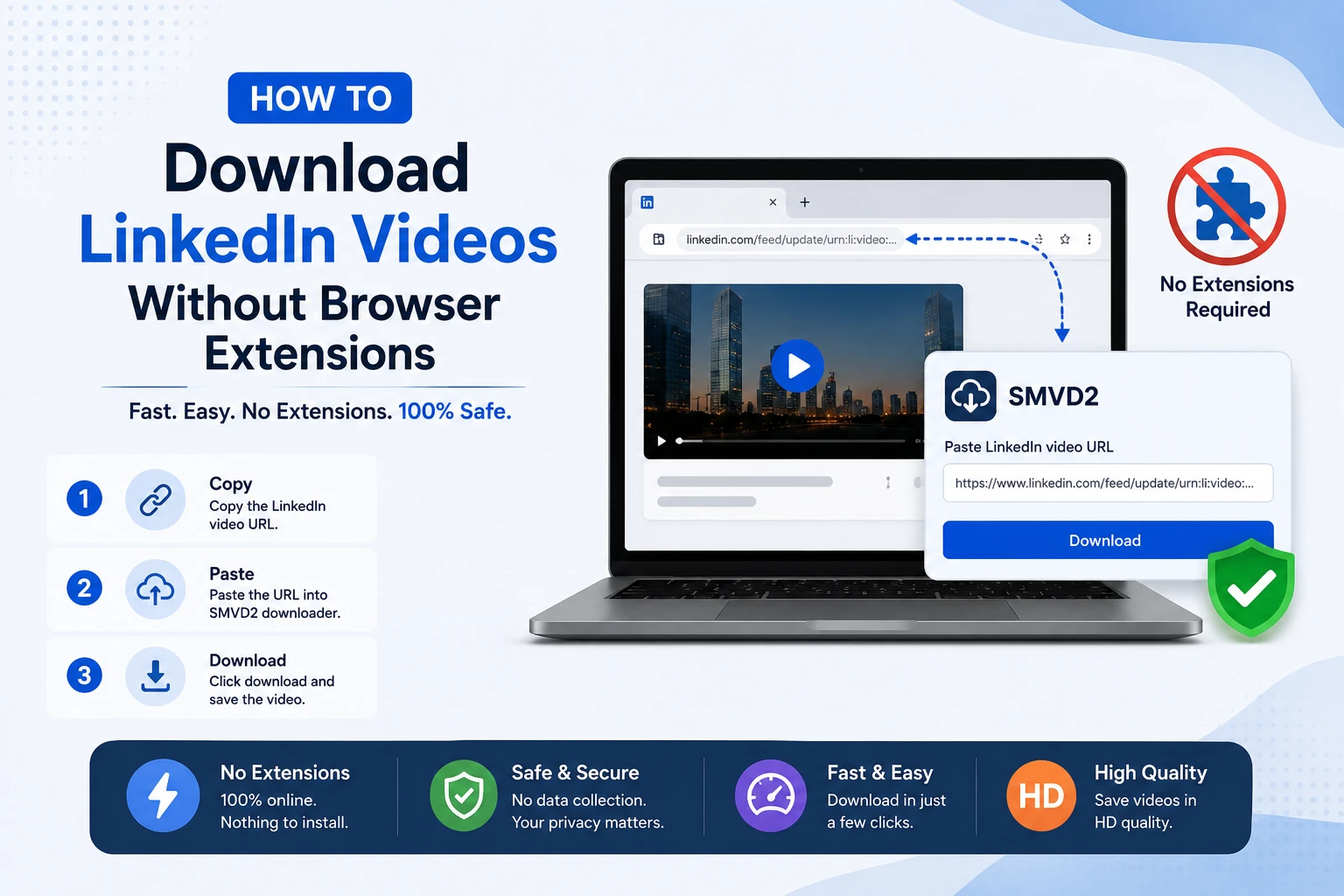
How to Download LinkedIn Videos Without Browser Extensions
LinkedIn has become one of the most valuable platforms for professional learning and networking. Every day, users share insightful videos covering marketing strategies, career advice, business growth, sales techniques, recruitment tips, webinars, and industry trends.
One challenge many users face is that LinkedIn does not provide a built-in download button for most videos shared on the platform. As a result, professionals often look for ways to save videos for offline viewing, future reference, team training, or content research.
Many people initially turn to browser extensions for downloading LinkedIn videos. However, after testing multiple download methods across desktop and mobile devices, we noticed that browser extensions are often the least convenient solution. Extensions frequently require permissions to access browsing activity, can slow down browser performance, and may stop functioning whenever browsers or LinkedIn update their interfaces.
The good news is that downloading LinkedIn videos without browser extensions is much easier than most users think.
Using a browser-based downloader such as SMVD2.com, you can save LinkedIn videos directly from your web browser without installing any software, plugins, or extensions.
In this guide, you’ll learn exactly how to download LinkedIn videos without browser extensions, why many professionals prefer browser-based downloaders, common mistakes users make during the process, and what to consider before saving LinkedIn videos for offline use.
Why Download LinkedIn Videos Without Browser Extensions?
There are several reasons why professionals, marketers, recruiters, and business owners prefer downloading LinkedIn videos without relying on browser extensions.
Better Security
One of the biggest concerns with browser extensions is privacy.
Many extensions request permissions that allow them to view website data, modify browser activity, or access information across multiple websites. While not every extension is harmful, most users never review the permissions they grant during installation.
Using an online downloader eliminates the need to install third-party software inside your browser, reducing potential privacy and security concerns.
Faster Performance
Browser extensions may seem lightweight at first, but multiple extensions running simultaneously can affect browser performance.
During regular usage, we’ve observed that users often accumulate numerous extensions over time, many of which continue running in the background even when they’re not actively being used.
A browser-based downloader like SMVD2 works entirely online, helping users avoid unnecessary browser overhead.
No Installation Required
One of the most practical advantages is simplicity.
There is nothing to install, configure, update, or troubleshoot.
You simply:
- Copy the LinkedIn video URL
- Paste it into SMVD2
- Download the video
The entire process typically takes less than a minute.
Works Across Devices
Unlike many browser extensions that are designed primarily for desktop browsers, browser-based downloaders work across multiple devices.
You can use them on:
- Windows PCs
- MacBooks
- Android smartphones
- iPhones and iPads
- Tablets
This flexibility is particularly useful for professionals who frequently switch between devices.
Always Up-to-Date
One thing many users don’t realize is that browser extensions often break after major browser or platform updates.
When LinkedIn changes certain page elements or browsers update their extension frameworks, some download extensions stop working until developers release updates.
Because SMVD2 operates through a web-based system, users don’t need to worry about manually updating software or extensions.
This creates a more consistent experience over time.
What Most Users Don’t Know
A common misconception is that browser extensions are always faster than online downloaders.
In reality, browser-based downloaders often provide a smoother experience because they don’t depend on browser-specific APIs or extension permissions.
For occasional users who simply want to save a LinkedIn video quickly, installing an extension can actually add unnecessary steps to the process.
In many cases, copying a video link and using a dedicated online downloader is the faster option.
The Best Way to Download LinkedIn Videos Without Browser Extensions
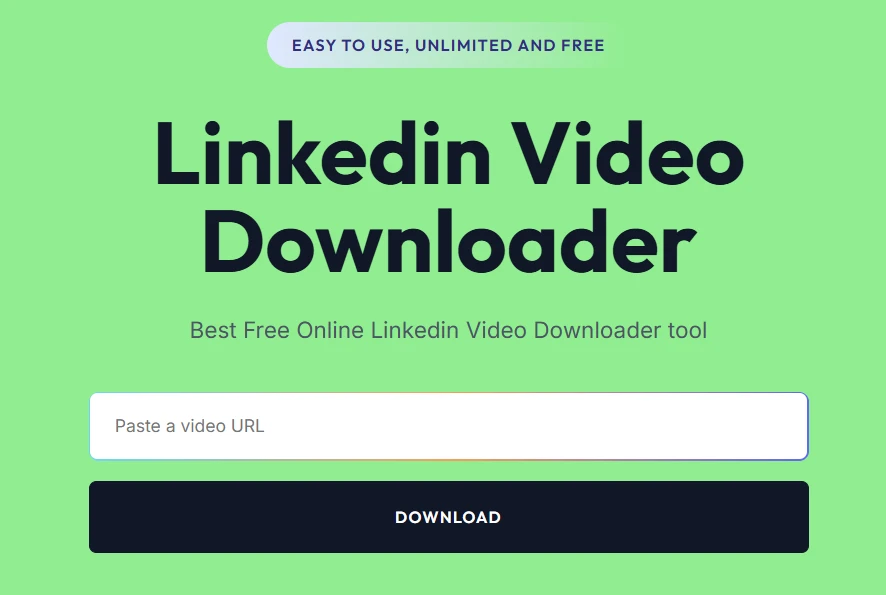
The simplest and most user-friendly method is using SMVD2.com.
SMVD2 is a free online social media video downloader that allows users to save videos from multiple social platforms, including LinkedIn, directly through their browser.
What makes SMVD2 particularly useful is that it removes the need for:
- Browser extensions
- Desktop software
- Mobile apps
- Account registrations
- Technical setup
Whether you’re saving a valuable industry webinar, an educational marketing tutorial, a recruitment training video, or a professional presentation, SMVD2 provides a straightforward workflow that works on both desktop and mobile devices.
Why Choose SMVD2?
After reviewing different approaches for downloading LinkedIn videos, browser-based tools consistently remain the most convenient option for the majority of users.
SMVD2 offers several advantages:
- No browser extension required
- No software installation
- Free to use
- Fast video processing
- High-quality downloads
- Mobile-friendly interface
- Works on all major browsers
- Beginner-friendly workflow
Who Benefits Most From SMVD2?
SMVD2 is particularly useful for:
- Marketers researching successful content
- Recruiters saving training resources
- Students building learning libraries
- Business owners collecting educational material
- Content creators gathering industry inspiration
- Professionals who frequently travel and need offline access
Instead of installing software that may only be used occasionally, users can simply visit the website whenever they need to download a LinkedIn video.
How to Download LinkedIn Videos Without Browser Extensions Using SMVD2
Once you’ve decided to avoid browser extensions, the next step is choosing a method that is simple, secure, and works consistently across devices.
After reviewing different download approaches, we found that browser-based downloaders offer the best balance of convenience and accessibility for most users. Instead of installing software or granting extension permissions, users can download LinkedIn videos directly through a web browser.
One of the easiest solutions is SMVD2.com, a free online tool designed to help users download videos from multiple social media platforms, including LinkedIn.
The process requires only a LinkedIn post URL and takes just a few steps.
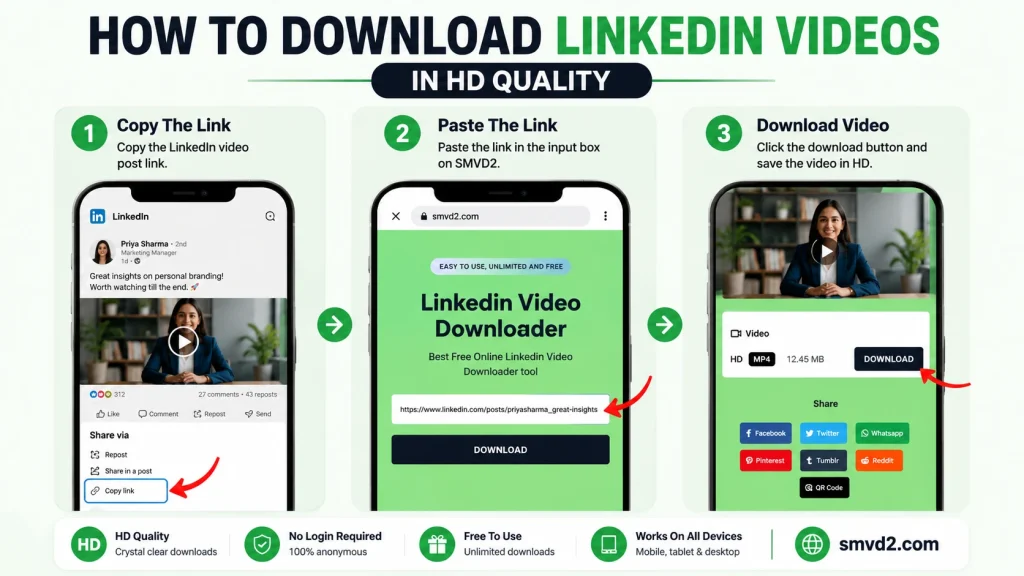
Step 1: Open LinkedIn
Log in to your LinkedIn account and navigate to the video you want to download.
The video can be:
- A marketing tutorial
- A business presentation
- A recruitment training video
- An industry webinar
- A thought leadership post
- Educational content shared by professionals
Before proceeding, make sure the post actually contains a video rather than an image carousel or document attachment.
Pro Tip
Many users accidentally copy links from LinkedIn articles or PDF documents and wonder why the downloader cannot process them.
Always verify that the post contains a playable video.
Step 2: Copy the Post URL
LinkedIn provides a built-in sharing option for posts.
To copy the link:
- Click the three-dot menu (•••) on the LinkedIn post.
- Select Copy link to post.
- The URL will be copied to your clipboard.
Common Mistake
One issue we’ve observed is that users sometimes copy the browser address bar URL while viewing their LinkedIn feed.
This can occasionally result in incomplete or incorrect links.
For the best results, always use LinkedIn’s Copy link to post option directly from the post menu.
Doing so ensures that the full post URL is captured correctly.
Step 3: Visit SMVD2.com
Open a new browser tab and visit:
SMVD2.com
Because SMVD2 operates entirely online, there is no need to:
- Install browser extensions
- Download desktop software
- Create an account
- Sign in to a third-party service
Everything works directly within your browser.
Why This Matters
One thing many users appreciate is the ability to download videos without cluttering their devices with additional applications.
For occasional downloads, a browser-based workflow is often faster than installing and managing extra software.
Step 4: Paste the LinkedIn Video Link
Once you’re on SMVD2:
- Locate the download input field.
- Paste the LinkedIn video URL you copied earlier.
- Double-check the URL that you have copied right one.
A properly copied LinkedIn URL helps ensure smooth processing.
What Happens Behind the Scenes?
Many users assume a downloader stores their videos permanently.
In practice, browser-based downloaders typically process the public video information associated with the shared URL and generate a downloadable version for the user.
This is one reason the process is often much faster than traditional software-based downloading methods.
Step 5: Click Download
After pasting the URL in the input box, click the Download button.
SMVD2 will begin processing the video.
The processing time usually depends on factors such as:
- Video length
- Internet connection speed
- Current server demand
- Video quality
In most cases, processing is completed within a few moments.
What We Noticed During Testing
When comparing browser-based downloaders to extension-based solutions, one recurring advantage was simplicity.
There are no extension conflicts, permission pop-ups, browser compatibility issues, or update-related failures.
Users simply paste the link and download the video.
This streamlined workflow makes browser-based downloading particularly attractive for non-technical users.
Step 6: Save the Video
Once processing is complete, you’ll be presented with the available download option.
Choose the download option and save the video to your preferred location.
Depending on your device, this could be:
On Windows
- Downloads folder
- Desktop
- Custom folder
On Mac
- Downloads folder
- Documents folder
- External storage
On Android
- Internal storage
- Downloads folder
On iPhone or iPad
- Files app
- Device storage
After saving, you can watch the video anytime without requiring an internet connection.
Why This Method Is More Convenient Than Browser Extensions
Many users initially assume extensions are the easiest solution.
However, in practical use, browser-based downloading often provides a smoother experience.
Browser Extensions
Pros:
- One-click access
- Integrated into the browser
Cons:
- Require installation
- Request permissions
- May slow browser performance
- Can stop working after updates
- Often desktop-only
Browser-Based Downloaders Like SMVD2
Pros:
- No installation required
- Works on desktop and mobile
- No extension permissions
- Accessible from any browser
- Easy for occasional users
Cons:
- Requires copying and pasting a URL
For most professionals, marketers, students, and recruiters, the extra few seconds required to paste a URL is a worthwhile trade-off for avoiding installation and maintenance hassles.
What Most Users Don’t Know
Many LinkedIn video download issues are not caused by the downloader itself.
In our observations, failures often occur because:
- The wrong URL was copied
- The post does not contain a video
- The content is restricted or private
- The internet connection was interrupted during processing
Before assuming the tool is malfunctioning, it’s worth checking these factors first.
In many cases, simply copying the correct LinkedIn post URL resolves the issue immediately.
Why Professionals Download LinkedIn Videos
LinkedIn has evolved far beyond a traditional networking platform. Today, it serves as a hub for professional education, industry insights, business strategies, recruitment training, and thought leadership content.
As a result, many users choose to download LinkedIn videos so they can access valuable content whenever they need it.
While casual users may occasionally save a video for later viewing, professionals often have more practical reasons for building a personal library of LinkedIn content.
Offline Learning
One of the most common reasons people download LinkedIn videos is offline learning.
Many professionals consume educational content during:
- Flights
- Train journeys
- Daily commutes
- Business travel
- Areas with unreliable internet access
Having videos saved locally eliminates the need for a constant internet connection.
Why This Matters
A common frustration is discovering an excellent LinkedIn video when you’re busy and then struggling to find it again later.
Downloading important videos allows you to create a personal knowledge library that remains accessible even if the original post becomes difficult to locate.
What We Noticed
Many professionals save videos not because they’re planning to watch them immediately, but because they don’t want to lose access to valuable insights shared by industry experts.
Downloading content creates a convenient “watch later” system without relying entirely on platform algorithms.
Team Training
Businesses increasingly use LinkedIn as a source of professional development content.
Managers often discover videos covering topics such as:
- Sales training
- Leadership development
- Marketing strategies
- Recruitment techniques
- Customer service best practices
- Workplace productivity
Saving these videos makes it easier to share relevant resources internally.
Practical Example
Imagine a marketing manager finds a useful LinkedIn video explaining recent advertising trends.
Rather than searching for the post again during the next team meeting, they can save the video and access it instantly when needed.
Important Consideration
Always ensure that downloaded content is used responsibly and in accordance with applicable copyright laws, company policies, and content creator permissions.
Content Research
Content creators, marketers, and social media managers frequently download LinkedIn videos for research purposes.
Their goal usually isn’t to repost the content.
Instead, they analyze:
- Content structure
- Hook techniques
- Storytelling approaches
- Video length
- Engagement strategies
- Presentation styles
Understanding why certain LinkedIn videos perform well can help marketers improve their own content strategies.
What Most People Miss
Successful LinkedIn videos often rely on simple communication rather than expensive production.
When reviewing high-performing videos, marketers frequently discover that strong storytelling, clear messaging, and audience relevance matter more than sophisticated editing.
Downloading videos allows creators to revisit these examples whenever needed.
Building a Personal Knowledge Library
Many professionals treat LinkedIn as an ongoing education platform.
Over time, they collect videos covering:
- Career growth
- Entrepreneurship
- Leadership
- Sales
- Marketing
- Finance
- Technology
- Artificial intelligence
- Productivity
Rather than repeatedly searching for valuable content, users often create organized folders for future reference.
Recommended Organization Method
For example, users may create folders such as:
- Marketing
- Sales
- Recruiting
- Business Strategy
- AI & Technology
- Career Development
This makes it much easier to revisit information when working on specific projects.
Long-Term Benefit
One thing we’ve observed is that professionals who systematically save educational content often spend less time searching and more time learning.
A well-organized knowledge library becomes increasingly valuable over time.
Travel Convenience
Business travelers often consume content during periods when internet access is limited or expensive.
Examples include:
- Air travel
- International travel
- Remote work locations
- Hotel networks
- Public transportation
Downloading videos beforehand ensures uninterrupted access.
Why Offline Access Matters
Streaming requires:
- Stable connectivity
- Sufficient bandwidth
- Data usage
Downloaded videos eliminate all three concerns.
For frequent travelers, this convenience can significantly improve the learning experience.
Competitive and Industry Monitoring
Many business owners, recruiters, consultants, and marketers monitor industry trends through LinkedIn videos.
Downloading relevant content makes it easier to:
- Track emerging trends
- Review competitor messaging
- Analyze market positioning
- Study communication techniques
- Monitor thought leadership topics
Real-World Use Case
A recruiter may save videos discussing hiring trends.
A marketing agency might archive videos explaining new advertising strategies.
A founder could collect leadership insights from successful entrepreneurs.
Having offline access allows these resources to be revisited whenever strategic decisions need to be made.
Why Browser-Based Downloading Fits Professional Workflows
Professionals typically prioritize efficiency.
They don’t want to:
- Install unnecessary software
- Manage browser extensions
- Troubleshoot compatibility issues
- Spend time updating tools
This is one reason browser-based solutions like SMVD2 continue to gain popularity.
The process remains simple:
- Copy the LinkedIn post URL.
- Paste it into SMVD2.
- Download the video.
- Access it whenever needed.
The workflow works consistently across:
- Windows
- macOS
- Android
- iPhone
- Tablets
without requiring additional installations.
Common Mistakes Professionals Make
Even experienced users occasionally encounter issues when saving LinkedIn videos.
Some of the most common mistakes include:
Downloading Everything
Not every video is worth saving.
Creating a curated collection of genuinely valuable content often leads to a more useful knowledge library.
Poor File Organization
Saving dozens of videos without organizing them can make future retrieval difficult.
Simple folder structures can save significant time later.
Ignoring Storage Space
High-quality videos can consume substantial storage over time.
Regularly reviewing and organizing downloads helps keep storage manageable.
Forgetting Content Context
A useful practice is keeping notes about why a video was saved.
Months later, you’ll remember not only the content itself but also the specific reason it was important.
What Most Users Don’t Know
Many people think downloading LinkedIn videos is only useful for offline viewing.
In reality, the biggest advantage is often accessibility.
Instead of relying on platform searches, feed algorithms, or saved-post sections, users gain direct access to content whenever they need it.
For professionals who regularly learn from LinkedIn, this convenience can become a significant productivity advantage.
Can You Download LinkedIn Videos on Mobile Without Extensions?
Yes.
One of the biggest advantages of using a browser-based downloader is that it works across both desktop and mobile devices without requiring browser extensions, applications, or software installations.
In fact, mobile users often benefit even more from browser-based tools because most browser extensions are designed primarily for desktop environments and may not be available on smartphones or tablets.
With SMVD2.com, downloading LinkedIn videos on mobile is straightforward and requires only a web browser and the LinkedIn post URL.
Whether you’re using Android or iPhone, the process remains nearly identical.
Why Mobile Users Prefer Browser-Based Downloaders
Mobile devices have become the primary way many professionals consume content.
People regularly browse LinkedIn while:
- Traveling
- Commuting
- Attending conferences
- Working remotely
- Taking breaks between meetings
When users discover valuable video content, they often want a way to save it for later viewing.
Installing separate apps or dealing with extension limitations can complicate that process.
Browser-based solutions remove those obstacles.
What We Noticed
During mobile workflow reviews, one recurring pattern became clear:
Most users want the fastest path from discovering a video to saving it.
They don’t want to:
- Install another app
- Create a new account
- Grant additional permissions
- Learn a new interface
They simply want to save the video and continue with their day.
That’s where browser-based downloading becomes particularly convenient.
How to Download LinkedIn Videos on Android Without Extensions
Android users can download LinkedIn videos directly from their mobile browser using SMVD2.
Step 1: Open the LinkedIn App
Launch LinkedIn and locate the video you want to save.
Make sure the post contains a playable video.
Step 2: Copy the Post Link
Tap the three-dot menu (•••) on the post.
Select:
Copy link to post
The URL will be copied to your clipboard.
Step 3: Open Your Browser
Launch your preferred mobile browser.
Examples include:
- Chrome
- Firefox
- Edge
- Opera
- Samsung Internet
Step 4: Visit SMVD2.com
Navigate to:
SMVD2.com
The website is optimized for mobile devices, making the process simple on smaller screens.
Step 5: Paste the URL
Paste the copied LinkedIn post link into the download field.
Double-check that the complete URL has been inserted correctly.
Step 6: Download the Video
Tap the download button and allow the video to process.
Once ready, save the file to your device.
The video can then be accessed offline whenever needed.
Benefits of Using SMVD2 on Android
Android users often appreciate:
- No app installation
- No browser extensions
- No registration requirements
- Fast processing
- Mobile-friendly design
- Easy access from any browser
For occasional downloads, this approach is usually more efficient than installing dedicated applications.
How to Download LinkedIn Videos on iPhone Without Extensions
The process is equally simple for iPhone and iPad users.
Step 1: Open LinkedIn
Launch the LinkedIn app and locate the video post.
Step 2: Copy the Post URL
Tap the three-dot menu and choose:
Copy link to post
Step 3: Open Safari
Launch Safari or your preferred iOS browser.
Step 4: Visit SMVD2.com
Open the website in your browser.
Step 5: Paste the LinkedIn Link
Insert the copied URL into the downloader field.
Step 6: Save the Video
Follow the download process and save the file to your preferred storage location.
Depending on your device settings, videos may be stored in:
- Files App
- Downloads Folder
- Device Storage
Why iPhone Users Often Prefer Browser-Based Downloading
Historically, downloading media on iOS devices has sometimes involved extra steps compared to desktop systems.
Because browser-based tools operate entirely online, users can avoid:
- Installing additional applications
- Managing app permissions
- Switching between multiple services
The entire workflow remains within the browser.
This creates a smoother experience for many users.
Mobile vs Desktop Downloading
Many users wonder whether mobile downloading is different from desktop downloading.
In terms of workflow, they’re remarkably similar.
| Feature | Mobile | Desktop |
|---|---|---|
| Copy LinkedIn URL | Yes | Yes |
| Browser-Based Access | Yes | Yes |
| Extension Required | No | No |
| Software Installation | No | No |
| Download Process | Simple | Simple |
| Offline Viewing | Yes | Yes |
What This Means
Whether you’re using:
- Android
- iPhone
- Windows
- Mac
the core process remains consistent.
This consistency is one reason browser-based tools continue to be popular among professionals who regularly switch between devices.
Common Mobile Download Issues and Solutions
Although the process is usually straightforward, some users occasionally encounter problems.
Problem: Video Isn’t Processing
Possible causes:
- Incorrect URL copied
- Video post isn’t public
- Temporary network interruption
Solution:
Copy the post URL again directly from LinkedIn’s share menu.
Problem: Download Takes Longer Than Expected
Possible causes:
- Slow internet connection
- Large video file
- Network congestion
Solution:
Switch to a stronger internet connection.
Problem: Can’t Find the Downloaded File
Possible causes:
- Saved to a different folder
- Browser download settings
Solution:
Check:
- Downloads folder
- Files app
- Browser download history
Problem: Link Doesn’t Work
Possible causes:
- Incomplete URL
- Restricted content
- Expired session
Solution:
Return to LinkedIn and copy the link again.
What Most Mobile Users Don’t Know
A surprising number of users believe they need a dedicated app to download LinkedIn videos on smartphones.
In reality, modern browser-based tools often provide the same functionality without requiring installations.
For occasional use, browser-based downloading is frequently the more efficient option.
Instead of filling your device with rarely used apps, you can simply visit SMVD2 whenever you need to save a video.
This approach keeps your device cleaner while still providing access to the content you want.
Mobile Downloading Best Practices
To improve your experience:
Use a Stable Connection
Reliable internet access helps prevent interruptions during processing and downloading.
Verify the URL
Most download issues stem from incorrect or incomplete URLs.
Organize Saved Videos
Create folders for:
- Marketing
- Sales
- Recruitment
- Business Strategy
- Training
- Personal Development
Organization becomes increasingly valuable as your video library grows.
Download Only What You Need
Saving every video can quickly consume storage space.
Focus on content that provides long-term value.
Advantages of Using SMVD2 Over Browser Extensions
When users first look for ways to download LinkedIn videos, browser extensions are often one of the first solutions they encounter.
At first glance, extensions may appear convenient because they integrate directly into the browser. However, after comparing browser extensions with browser-based downloaders, it becomes clear that each approach has its own strengths and limitations.
For most professionals, marketers, recruiters, students, and business users, browser-based tools like SMVD2 offer a more flexible and maintenance-free experience.
Let’s take a closer look at how they compare.
| Feature | SMVD2 | Browser Extensions |
|---|---|---|
| Installation Required | No | Yes |
| Browser Slowdown | No | Possible |
| Works on Mobile | Yes | Usually Limited |
| Privacy Friendly | Yes | Depends on Extension |
| Automatic Updates | Yes | Often Requires Updates |
| Cross-Platform Support | Yes | Often Browser Specific |
| Easy to Use | Yes | Moderate |
| No Account Required | Yes | Varies |
| Works Across Browsers | Yes | Often Limited |
| Maintenance Needed | Minimal | Ongoing |
No Installation Required
One of the most obvious advantages of SMVD2 is that there is nothing to install.
With browser extensions, users typically need to:
- Find the extension
- Install it
- Grant permissions
- Configure settings
- Manage future updates
With SMVD2, the process starts immediately.
Simply:
- Copy the LinkedIn video URL
- Visit SMVD2.com
- Paste the link
- Download the video
For occasional users, this can save both time and effort.
Why This Matters
Many people only download LinkedIn videos occasionally.
Installing an extension for a task performed once every few weeks or months often creates unnecessary complexity.
A browser-based solution avoids that issue entirely.
Better Browser Performance
Modern browsers are capable of running dozens of extensions simultaneously.
However, each extension consumes some level of:
- Memory
- Processing power
- System resources
While a single extension may have minimal impact, multiple extensions can gradually affect browser responsiveness.
What We Observed
A common pattern among professionals is extension overload.
Users frequently install:
- SEO tools
- Marketing tools
- Productivity tools
- Screenshot tools
- Password managers
- Download extensions
Over time, this collection can impact browsing performance.
Because SMVD2 operates independently through a website, it doesn’t remain active after you’ve finished downloading.
This helps keep browsers lightweight and responsive.
Works Across Multiple Devices
One of the biggest limitations of many browser extensions is platform dependency.
An extension installed on your desktop browser may not be available on:
- Android devices
- iPhones
- Tablets
- Secondary computers
SMVD2 works wherever a modern browser is available.
Real-World Benefit
Imagine finding a valuable LinkedIn video while commuting.
With a browser-based downloader, you can save the video immediately from your phone without needing access to your desktop setup.
This flexibility makes SMVD2 especially useful for professionals who work across multiple devices.
Reduced Permission Concerns
Many browser extensions require extensive permissions.
Depending on the extension, users may be asked to allow access to:
- Website content
- Browsing activity
- Browser tabs
- Clipboard information
While many extensions use permissions responsibly, users often approve requests without reviewing them carefully.
Why Some Users Prefer Browser-Based Tools
Browser-based downloaders generally eliminate the need to install software directly into the browser environment.
As a result, users can avoid granting long-term permissions to third-party extensions.
For privacy-conscious users, this can be an important consideration.
No Compatibility Problems
One challenge with extensions is maintaining compatibility.
Extensions may stop functioning when:
- Browsers update
- LinkedIn changes its interface
- Security policies change
- Extension developers discontinue support
What Most Users Don’t Know
Many extension failures occur not because the browser is broken, but because the extension was built around specific website elements that later changed.
When LinkedIn updates its platform, some download extensions require modifications before they work again.
Because SMVD2 is maintained as a browser-based service, users don’t need to manually update anything.
The experience remains much more seamless.
Easier for Non-Technical Users
Not everyone is comfortable installing browser add-ons.
Some users:
- Work on company-managed devices
- Have restricted permissions
- Prefer simpler workflows
- Avoid installing unnecessary software
For these users, browser-based downloading is often the more practical solution.
Simple Workflow
The entire process can be summarized in four steps:
- Copy the LinkedIn post URL.
- Open SMVD2.
- Paste the link.
- Download the video.
There are no technical configurations involved.
Browser Extensions vs Browser-Based Downloaders: The Trade-Offs
No solution is perfect.
Understanding the trade-offs helps users choose the method that fits their needs.
Browser Extensions
Advantages:
- Integrated into browser interface
- Quick access from toolbar
- Convenient for frequent downloads
Disadvantages:
- Requires installation
- Requires permissions
- Potential browser slowdown
- Limited mobile compatibility
- Can break after updates
Browser-Based Downloaders Like SMVD2
Advantages:
- No installation
- Mobile-friendly
- Cross-platform support
- No browser modifications
- Works from virtually any device
- Simple workflow
Disadvantages:
- Requires copying and pasting URLs
- Internet connection required
Our Recommendation
For users who download LinkedIn videos occasionally or moderately, browser-based tools generally provide the best balance between convenience, privacy, and flexibility.
Frequent power users may appreciate extension-based workflows, but for the vast majority of professionals, browser-based downloading is often the simpler choice.
What Most Competitor Articles Don’t Mention
Most comparison articles focus only on features.
However, real-world usability matters just as much.
During practical usage, users typically care about:
- How quickly they can save a video
- Whether the process works consistently
- Whether they need to install anything
- Whether it works on mobile
- Whether it introduces additional maintenance
These factors often have a greater impact on user satisfaction than technical feature lists.
That’s one reason browser-based tools continue to remain popular despite the availability of browser extensions.
Tips for Downloading LinkedIn Videos More Efficiently
Whether you’re downloading videos for learning, research, or offline viewing, a few simple practices can improve your experience.
Use Public Video Posts Whenever Possible
Public LinkedIn videos are generally easier to access and process than content with access restrictions.
If a video is private or restricted to specific audiences, downloading options may be limited.
Best Practice
Always verify that the video is accessible through the shared post URL before attempting to download it.
Keep Your Internet Connection Stable
A strong internet connection helps ensure:
- Faster processing
- Smoother downloads
- Fewer interruptions
This is particularly important when saving longer videos.
Organize Your Downloads
Many users save videos without creating a filing system.
After a few months, locating a specific video can become difficult.
Consider creating folders such as:
- Marketing
- Sales
- Recruiting
- Leadership
- AI
- Productivity
- Business Growth
This simple habit can save significant time later.
Verify Available Storage Space
Educational webinars and long-form presentations can consume substantial storage.
Before downloading large numbers of videos, review available storage on:
- Phone
- Tablet
- Laptop
- External drives
Keeping your library organized prevents unnecessary clutter.
Download Videos You Truly Need
One surprising observation is that many users save far more videos than they ever watch.
Instead of downloading everything, focus on:
- Actionable content
- Educational resources
- Important industry insights
- Training material
- Reference content
A smaller, curated library is often more useful than hundreds of forgotten downloads.
Is It Safe to Use SMVD2?
Safety is one of the first concerns users have when looking for ways to download LinkedIn videos.
Many people hesitate because they aren’t sure whether they should install a browser extension, download software, or use an online tool.
The good news is that browser-based downloaders eliminate many of the risks commonly associated with software installations and browser add-ons.
Because SMVD2 operates directly through a web browser, users can download LinkedIn videos without installing additional software on their devices.
Why Safety Matters
Whenever users download third-party software or browser extensions, they typically grant access to parts of their system or browser environment.
Depending on the tool, this may include:
- Browser permissions
- Access to webpage content
- Background processes
- Software installation privileges
Many users don’t realize how many permissions they approve during installation.
For this reason, professionals often prefer browser-based solutions whenever possible.
What We Observed
One recurring trend is that users are becoming increasingly cautious about installing software they may only use occasionally.
If the goal is simply to save a LinkedIn video, many users prefer a solution that doesn’t require permanent installation or ongoing maintenance.
This is one reason browser-based tools continue to gain popularity.
Benefits of Browser-Based Downloading
Using a browser-based solution offers several practical advantages.
No Software Installation
You don’t need to:
- Install programs
- Configure settings
- Manage updates
- Remove software later
Everything happens within the browser.
Reduced Browser Modification
Unlike browser extensions, browser-based downloaders don’t require modifications to your browser environment.
This helps maintain a cleaner browsing experience.
Works Across Devices
The same workflow can be used on:
- Windows
- Mac
- Android
- iPhone
- Tablets
without installing separate software on each device.
Less Maintenance
Many users appreciate tools that simply work when needed.
There are no extension updates to monitor and no software compatibility issues to troubleshoot.
Understanding Privacy Considerations
Whenever you use any online service, it’s important to exercise good judgment.
Best Practices
Before using any online downloader:
- Review the website’s policies
- Use trusted services
- Verify URLs carefully
- Avoid suspicious download requests
- Keep your browser updated
These habits help improve online safety regardless of the tool being used.
What Most Users Don’t Know
Many online security issues stem from users downloading unknown software rather than using browser-based services.
While no online activity is entirely risk-free, avoiding unnecessary installations can reduce certain types of exposure.
This is one reason many professionals favor browser-based workflows.
Frequently Asked Questions
Can I Download LinkedIn Videos Without Installing Anything?
Yes.
One of the biggest advantages of SMVD2 is that it works directly through your browser.
You don’t need:
- Browser extensions
- Desktop software
- Mobile apps
- Additional plugins
Simply copy the LinkedIn video URL, paste it into SMVD2, and download the video.
Does SMVD2 Work on Mobile Devices?
Yes.
SMVD2 is compatible with:
- Android smartphones
- iPhones
- Tablets
- Desktop computers
As long as your device has a modern web browser, the download process remains essentially the same.
This flexibility makes it useful for professionals who frequently switch between devices.
Is SMVD2 Free to Use?
Yes.
Users can download LinkedIn videos without purchasing software or installing premium applications.
This makes it an accessible option for:
- Students
- Marketers
- Recruiters
- Business owners
- Content creators
- Professionals
who occasionally need offline access to LinkedIn content.
Do I Need a LinkedIn Premium Account?
No.
In most cases, you only need access to the LinkedIn post containing the video.
The process does not require a LinkedIn Premium subscription.
Important Note
Access restrictions placed by LinkedIn or the content owner may still apply in certain situations.
Which Browsers Are Supported?
SMVD2 works with most major browsers, including:
- Google Chrome
- Mozilla Firefox
- Microsoft Edge
- Safari
- Opera
Because the platform is browser-based, users are not limited to a specific browser ecosystem.
Why Isn’t My LinkedIn Video Downloading?
There are several possible reasons:
Incorrect URL
The most common issue is copying the wrong link.
Always use LinkedIn’s Copy link to post option.
Restricted Content
Some content may have visibility restrictions that affect accessibility.
Network Problems
Slow or unstable internet connections can interrupt processing.
Temporary Platform Changes
Occasionally, updates on LinkedIn’s side may affect how video content is processed.
In many cases, simply re-copying the URL resolves the problem.
Is Downloading LinkedIn Videos Legal?
Legality depends on several factors, including:
- Applicable laws
- Copyright regulations
- Content ownership
- Intended usage
Downloading content for personal offline viewing may be treated differently from redistributing or republishing content.
Best Practice
Always respect:
- Copyright laws
- Platform policies
- Creator rights
- Applicable regulations
when saving and using downloaded content.
Can I Download Private LinkedIn Videos?
In many cases, private or restricted content may not be accessible through standard download methods.
If a video is limited to a specific audience or protected by platform restrictions, downloading options may be limited.
This is one reason public video posts are generally easier to process.
What Video Quality Can I Expect?
Video quality can vary depending on the source content available through the LinkedIn post.
In general, maintaining the highest available quality helps preserve:
- Clarity
- Readability
- Viewing experience
particularly for presentations, tutorials, and educational content.
Final Thoughts
Downloading LinkedIn videos without browser extensions is easier than ever.
Instead of installing browser add-ons, software packages, or mobile applications, users can simply use a browser-based solution such as SMVD2.com.
Throughout this guide, we’ve explored:
- Why users avoid browser extensions
- How browser-based downloading works
- Step-by-step download instructions
- Mobile downloading methods
- Benefits of using SMVD2
- Safety considerations
- Common mistakes and troubleshooting tips
One key takeaway stands out:
For most users, simplicity wins.
The ability to copy a LinkedIn video URL, paste it into a browser-based downloader, and save the video within minutes is often more convenient than managing extensions or software installations.
Why SMVD2 Stands Out
SMVD2 offers a straightforward experience that aligns with what most professionals actually need:
- No browser extensions
- No software installation
- No complicated setup
- Works on desktop and mobile
- Cross-browser compatibility
- Quick and easy workflow
Whether you’re a marketer researching content strategies, a recruiter building training resources, a student collecting educational material, or a professional creating a personal knowledge library, SMVD2 provides a convenient way to save LinkedIn videos for offline access.
The Bottom Line
If you’re looking for a simple way to download LinkedIn videos without browser extensions, SMVD2.com remains one of the most practical solutions available.
Just:
- Copy the LinkedIn post URL.
- Visit SMVD2.com.
- Paste the link.
- Download the video.
That’s all it takes to save valuable LinkedIn content and access it whenever you need it.
Related Articles:
- How to Download LinkedIn Videos Without Installing Software
- How to Download LinkedIn Videos Without Third-Party Apps
- Browser Based vs App Based LinkedIn Downloaders