How To Download LinkedIn Videos on iPad
LinkedIn has now transformed from just a networking platform for professionals to a content platform. Today, it’s a hub for industry insights, expert interviews, educational tutorials, webinar recordings, marketing strategies, recruitment advice, and business growth content. If you’re using an iPad for work, study, or professional development, you’ve probably come across a LinkedIn video that you wanted to save and watch later.
The challenge is that LinkedIn doesn’t offer a universal download button for most videos shared on the platform. While streaming works well when you’re connected to the internet, it becomes inconvenient when you’re traveling, attending events, commuting, or working in areas with poor connectivity.
That’s where a dedicated LinkedIn video downloader becomes useful.
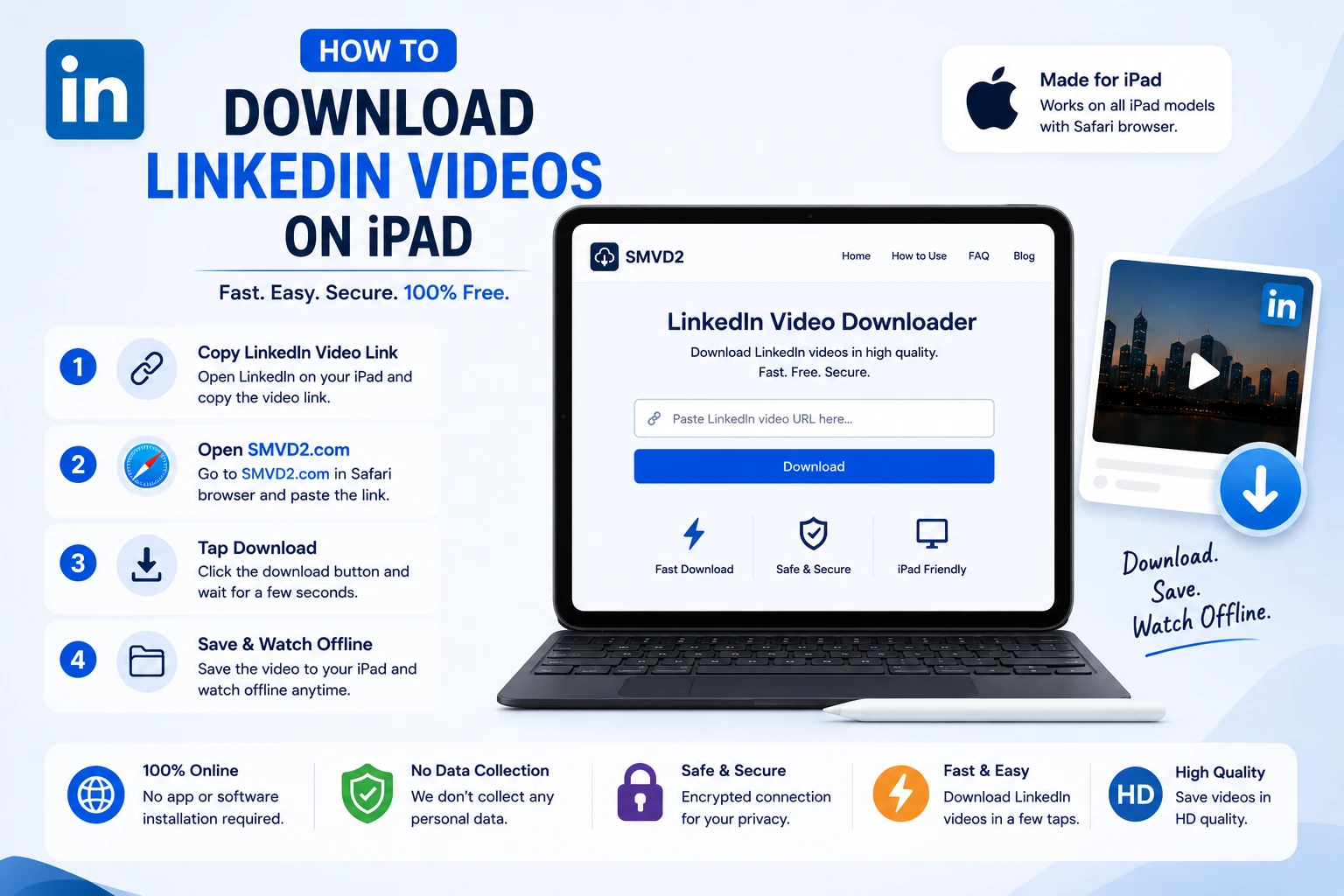
Using SMVD2.com, you can download LinkedIn videos directly to your iPad through Safari without installing additional applications, browser extensions, or complicated software. Simply copy the LinkedIn post URL, paste it into SMVD2, and save the video for offline viewing.
In this guide, you’ll learn how to download LinkedIn videos on an iPad, the common challenges users face, and why SMVD2 is one of the simplest solutions available for mobile and tablet users.
Can You Download LinkedIn Videos Directly on iPad?
The short answer is not usually.
LinkedIn allows users to watch videos within the platform, but it generally does not provide a direct download option for videos uploaded by other users. While you can save posts inside LinkedIn for later viewing, those saved posts still require internet access and remain dependent on the original content being available.
For example:
- A creator may delete the post later.
- The video may become difficult to find again.
- You may need offline access during travel.
- Internet connectivity may not always be available.
This is why many professionals use LinkedIn video downloaders to keep important content accessible whenever they need it.
On an iPad, the process is surprisingly straightforward. Modern browser-based tools such as SMVD2.com work directly within Safari, allowing you to download publicly accessible LinkedIn videos without installing anything.
One thing we’ve noticed is that many iPad users assume downloading LinkedIn videos requires a desktop computer. In reality, modern iPadOS versions provide file management capabilities that are very similar to a laptop, making it easy to save, organize, and access downloaded videos directly from the Files app or Photos app.
Why Download LinkedIn Videos on iPad?
People download LinkedIn videos for many different reasons, and most of them revolve around convenience and productivity.
Whether you’re a business owner, marketer, student, recruiter, or job seeker, offline access can save time and help you revisit valuable content whenever necessary.
Common reasons include:
Watching Videos During Travel
Professionals often download videos before:
- Flights
- Train journeys
- Business trips
- Conferences
- Client meetings
Having offline access ensures uninterrupted viewing even when internet connectivity is limited.
Building a Personal Learning Library
LinkedIn is filled with educational content covering:
- SEO
- Digital marketing
- Sales
- Leadership
- Recruitment
- Entrepreneurship
- Career development
Downloading videos allows you to organize valuable resources and revisit them whenever needed.
Saving Important Business Insights
Industry experts frequently share:
- Market trends
- Business strategies
- Case studies
- Growth frameworks
Rather than searching for the same post later, many users prefer keeping a copy for future reference.
Reviewing Training Content
If you’re managing a team or learning a new skill, downloaded videos can serve as training resources that remain accessible regardless of internet availability.
Avoiding Content Loss
One practical reason many users overlook is that LinkedIn content isn’t always permanent.
Posts can be:
- Deleted
- Edited
- Hidden
- Removed by creators
Downloading a video ensures you retain access to information that may not always be available online.
Faster Access to Frequently Viewed Content
Instead of reopening LinkedIn and searching for a specific post, you can simply open the downloaded file on your iPad and start watching immediately.
For users who consume educational content regularly, this small convenience can save a surprising amount of time over the long run.
Challenges iPad Users Face When Downloading LinkedIn Videos
Although downloading LinkedIn videos on an iPad is relatively simple, users may still encounter a few challenges.
Once you understand these limitations it can help avoid frustration.
No Native Download Feature
The biggest challenge is that LinkedIn doesn’t provide a universal download button for public videos.
Unlike some platforms that allow direct file downloads, LinkedIn focuses primarily on streaming content within its ecosystem.
As a result, users typically rely on third-party download tools when they need offline access.
Browser Restrictions
Safari has become significantly more capable over the years, but some download websites still struggle with mobile compatibility.
Common issues include:
- Poor mobile layouts
- Unresponsive buttons
- Pop-up-heavy interfaces
- Download errors
This is one reason many users prefer browser-based tools specifically optimized for mobile devices and tablets.
Storage Limitations
High-quality videos can consume significant storage space.
This becomes especially important if you regularly download:
- Webinar recordings
- Training sessions
- Long-form presentations
- Educational video collections
To avoid storage issues, it’s often helpful to save larger files directly to:
- iCloud Drive
- External storage
- Organized folders within the Files app
Private and Restricted Content
Not every LinkedIn video can be downloaded.
Most downloader tools can only process videos that are publicly accessible through the URL you provide.
Content that is:
- Private
- Restricted to connections
- Protected by privacy settings
may not be available for downloading.
This isn’t a limitation of the downloader itself—it’s simply a result of how LinkedIn controls access to certain content.
Incorrect URL Copying
One of the most common mistakes iPad users make is copying the wrong link.
Many people accidentally copy:
- A profile URL
- A company page URL
- A feed URL
instead of the actual LinkedIn post URL containing the video.
When this happens, download tools cannot identify the video correctly.
We’ll cover the correct way to copy LinkedIn video URLs in the next section.
Safari Download Confusion
Users new to iPadOS sometimes don’t know where downloaded files are stored.
After downloading a video, the file may appear in:
- Downloads folder
- Files app
- iCloud Drive
- Safari download manager
Understanding where iPad stores downloaded files can make the process much smoother and prevent users from thinking the download failed when it actually completed successfully.
Best Way to Download LinkedIn Videos on iPad
When it comes to downloading LinkedIn videos on an iPad, simplicity matters. Many users don’t want to install extra applications, configure browser extensions, or deal with complicated workflows just to save a single video.
In practical usage, browser-based downloaders tend to be the most convenient option because they work directly within Safari and don’t require any technical setup.
That’s where SMVD2.com stands out.
Instead of forcing users through multiple steps, SMVD2 follows a straightforward process:
- Copy the LinkedIn video URL.
- Paste it into SMVD2.
- Download the video.
- Save it to your iPad.
The entire process typically takes less than a minute for most public LinkedIn videos.
One advantage we’ve noticed with browser-based solutions is that they fit naturally into how iPad users already browse the web. You don’t have to switch between apps or learn a new interface. Everything happens directly inside Safari.
For professionals who regularly save educational content, webinars, business presentations, or industry insights, this workflow is often much faster than alternatives such as screen recording.
Step 1: Open LinkedIn on Your iPad
Start by opening either:
- The LinkedIn App
- LinkedIn in Safari
- LinkedIn in Chrome for iPad
Search for the video you want to download.
This could be:
- An educational tutorial
- A webinar recording
- A business presentation
- A thought leadership video
- A marketing case study
- A recruitment video
- Career advice content
Before proceeding, make sure the video is publicly accessible and loads correctly within LinkedIn.
If the video doesn’t play properly inside LinkedIn, a downloader may also struggle to process it.
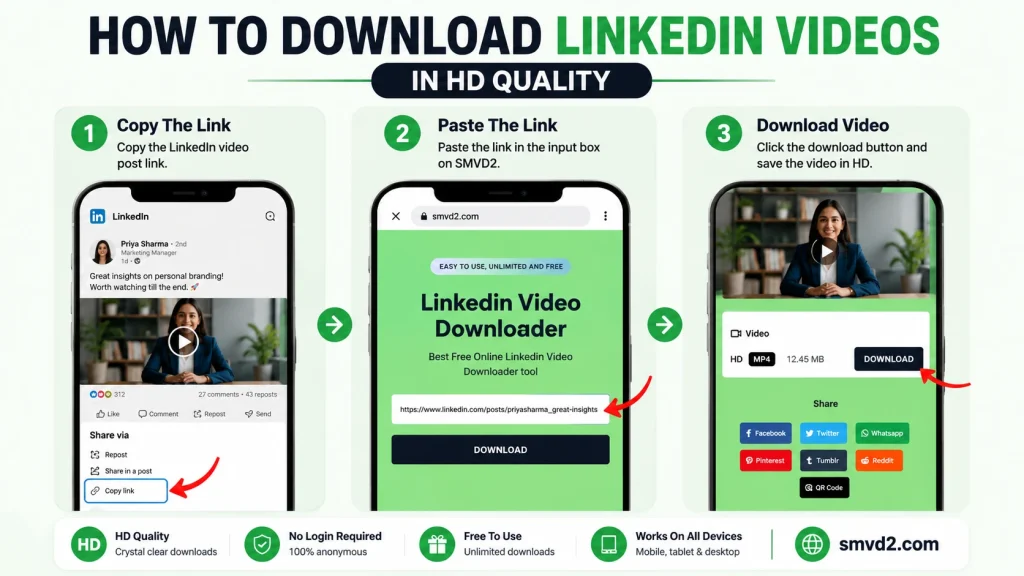
Step 2: Copy the LinkedIn Video Post URL
This is one of the most important steps.
Many download failures happen because users copy the wrong link.
To copy the correct URL:
Inside the LinkedIn App
- Locate the post containing the video.
- Tap the three-dot menu (•••).
- Select Copy Link to Post.
Inside Safari
- Open the LinkedIn post.
- Tap the Share option.
- Copy the post URL.
The copied link should point directly to the post that contains the video.
Avoid copying:
- Profile URLs
- Company page URLs
- Search result URLs
- Homepage feed URLs
These links do not contain the actual video information required for downloading.
Quick Tip
If you’re unsure whether you’ve copied the correct URL, open it in a new Safari tab.
If it takes you directly to the post containing the video, you’ve copied the correct link.
This simple verification step can prevent most download errors.
Step 3: Visit SMVD2.com
Once you’ve copied the LinkedIn post URL, open Safari and navigate to:
SMVD2.com
The platform is designed to work across:
- iPad
- iPhone
- Android
- Windows
- Mac
- Chromebook
Unlike some downloaders that display cluttered interfaces filled with pop-ups, a cleaner workflow helps users complete the process faster and with less confusion.
For tablet users specifically, having a touch-friendly interface can significantly improve usability because all actions can be performed comfortably without zooming or resizing the page.
Step 4: Paste the LinkedIn Video URL
On the SMVD2 homepage, you’ll see a download field.
Paste the LinkedIn URL you copied earlier.
You can do this by:
- Tapping and holding inside the field
- Selecting Paste
After pasting the URL, quickly review it to ensure the entire link has been copied correctly.
A common mistake is accidentally copying only part of the URL, especially when switching between multiple apps.
Taking two seconds to verify the link can save several minutes of troubleshooting later.
Step 5: Process the Video
After pasting the URL:
Tap the Download button.
SMVD2 will analyze the LinkedIn post and retrieve the available video file.
Behind the scenes, the system identifies:
- Video source
- File availability
- Downloadable formats
- Processing requirements
From a user perspective, however, the process remains simple.
Most users only need to wait a few seconds before download options appear.
Processing times can vary depending on:
- Video length
- Internet speed
- LinkedIn server response time
- Device performance
For typical LinkedIn videos, the wait is usually minimal.
Step 6: Download the Video to Your iPad
Once processing is complete, SMVD2 will generate a downloadable version of the video.
Tap the download option.
Depending on your Safari settings, the file may:
- Download automatically
- Prompt for a save location
- Open in the Files app
Modern iPadOS versions make file handling much easier than older iOS versions.
After downloading, you can choose to save the video in:
Photos App
Best for:
- Quick playback
- Easy sharing
- Frequent viewing
Files App
Best for:
- Professional organization
- Training resources
- Educational libraries
iCloud Drive
Best for:
- Cross-device synchronization
- Backup protection
- Access across Apple devices
External Storage
Best for:
- Large video collections
- Long webinar recordings
- Archive management
Why Many Professionals Prefer Downloading Instead of Screen Recording
Some users initially consider screen recording as an alternative.
While it can work, there are several trade-offs.
| Method | Download via SMVD2 | Screen Recording |
|---|---|---|
| Video Quality | Original Quality | May Reduce Quality |
| File Size | Efficient | Often Larger |
| Processing Time | Fast | Real-Time Recording Required |
| Battery Usage | Lower | Higher |
| Ease of Use | Simple | Requires Monitoring |
| Professional Workflow | Better | Less Efficient |
One thing many users discover after trying screen recording is that it requires watching the entire video while recording.
A 20-minute webinar requires 20 minutes of recording time.
A downloader eliminates this limitation and saves the file directly.
Common Mistakes Users Make During the Download Process
Understanding these mistakes can help avoid unnecessary frustration.
Copying the Wrong Link
The most common issue.
Always copy the post URL rather than profile or page URLs.
Using Outdated Browser Versions
Keeping Safari updated improves compatibility and download reliability.
Assuming Private Videos Can Be Downloaded
Most downloaders can only access publicly available content.
Closing Safari Too Early
Allow the download process to finish completely before closing the browser tab.
Not Checking Available Storage
Large HD videos can fail to save if your iPad doesn’t have enough storage space.
What We Noticed During Typical iPad Workflows
One practical observation is that many users download LinkedIn videos not because they lack internet access, but because they want quicker access later.
Instead of:
- Opening LinkedIn
- Searching for the post
- Finding the creator
- Scrolling through content
they can simply open the downloaded file instantly.
For professionals who revisit training materials, marketing examples, or educational content regularly, this convenience often becomes the primary reason for downloading videos in the first place.
Why SMVD2 Is the Ultimate LinkedIn Video Downloader for iPad
With dozens of video downloaders available online, choosing the right one can be difficult. Many tools promise fast downloads but create a frustrating experience through excessive advertisements, unnecessary redirects, confusing interfaces, or limited mobile compatibility.
For iPad users, the ideal downloader should do one thing well: help you save LinkedIn videos quickly without adding unnecessary complexity.
This is where SMVD2.com stands out.
Rather than requiring software installations or browser extensions, SMVD2 works directly within Safari and is designed around a simple workflow that most users can complete in less than a minute.
For professionals who frequently save educational content, business presentations, industry insights, and webinar recordings, this simplicity can make a significant difference.
No App Installation Required
One of the biggest advantages of SMVD2 is that everything happens directly in your browser.
There is no need to:
- Download additional applications
- Install browser extensions
- Create an account
- Configure settings
- Grant unnecessary permissions
For many iPad users, this is preferable because it keeps the device uncluttered while still providing access to downloaded content.
A browser-based approach also means you can start using the tool immediately without spending time learning new software.
Designed for Mobile and Tablet Users
Many download tools are built primarily for desktop computers and simply shrink their interface for mobile devices.
The result is often:
- Tiny buttons
- Poor touch controls
- Broken layouts
- Difficult navigation
A good mobile experience matters because iPad users interact with websites differently than desktop users.
Tasks such as:
- Copying URLs
- Pasting links
- Managing downloads
- Saving files
should feel natural on a touchscreen device.
This becomes especially important when you’re multitasking between LinkedIn, Safari, and the Files app.
Fast and Simple Workflow
The fastest tools are often the ones that require the fewest decisions.
With SMVD2, the process remains straightforward:
- Copy the LinkedIn post URL.
- Paste it into SMVD2.
- Download the video.
- Save it to your preferred location.
There are no complicated menus or technical settings to navigate.
For users who only need occasional downloads, this simplicity eliminates unnecessary friction.
High-Quality Video Downloads
When downloading educational or professional content, video quality matters.
LinkedIn videos frequently contain:
- Presentation slides
- Data charts
- Marketing examples
- Product demonstrations
- Text overlays
Poor-quality downloads can make this information difficult to read.
One practical advantage of downloading the original file instead of screen recording is that quality is often preserved more effectively.
This is particularly useful for:
- Training materials
- Marketing tutorials
- Business workshops
- Technical demonstrations
where visual clarity directly affects learning.
Works Across Multiple Devices
Although this guide focuses on iPad users, many professionals work across several devices throughout the day.
SMVD2 supports workflows involving:
- iPad
- iPhone
- Android devices
- Windows laptops
- MacBooks
- Chromebooks
This flexibility allows users to maintain a consistent downloading experience regardless of which device they’re currently using.
For example, you might discover a video on your iPhone during a commute and later organize it on your iPad or MacBook.
Suitable for Different Types of LinkedIn Users
Not everyone downloads LinkedIn videos for the same reason.
Business Owners
Business owners often save:
- Marketing strategies
- Growth case studies
- Leadership content
- Industry trends
for future reference and team training.
Marketers
Marketing professionals frequently collect:
- Ad examples
- Campaign breakdowns
- SEO tutorials
- Content marketing insights
to build swipe files and inspiration libraries.
Recruiters
Recruiters may save:
- Hiring strategies
- Employer branding examples
- Candidate engagement content
for future review.
Students and Job Seekers
Students and professionals often download:
- Career advice
- Interview preparation videos
- Skill-development tutorials
to learn at their own pace.
This wide range of use cases makes a reliable downloader valuable across multiple industries.
How to Save Downloaded LinkedIn Videos on iPad
After downloading a LinkedIn video, the next step is deciding where to store it.
Fortunately, modern versions of iPadOS offer several convenient storage options.
Choosing the right location depends on how you plan to use the video.
Save Videos to the Photos App
For users who frequently watch downloaded videos, the Photos app is often the simplest option.
Benefits include:
- Quick playback
- Easy sharing
- Familiar interface
- Fast access
This option works especially well for shorter videos that you expect to revisit regularly.
Save Videos to the Files App
The Files app is generally better for organizing professional content.
Many users create folders such as:
- Marketing Resources
- SEO Tutorials
- Business Training
- Sales Education
- Leadership Content
This approach makes it easier to find specific videos later.
One thing we’ve noticed is that users who download content regularly tend to prefer the Files app because it provides greater control over organization.
Save Videos to iCloud Drive
If you work across multiple Apple devices, iCloud Drive can be extremely useful.
Benefits include:
- Automatic synchronization
- Cloud backup
- Access from MacBook
- Access from iPhone
- Reduced risk of file loss
For professionals managing large learning libraries, cloud storage often provides the most flexibility.
Save Videos to External Storage
Users who frequently download webinars, presentations, and long-form training sessions may eventually run into storage limitations.
External storage can help solve this problem.
Examples include:
- USB-C SSDs
- Portable hard drives
- Flash drives compatible with iPad
This approach is particularly useful for users building extensive offline learning collections.
Tips for Organizing LinkedIn Videos on iPad
Downloading videos is only part of the process.
Organization becomes increasingly important as your library grows.
A well-organized collection can save significant time later.
Create Category-Based Folders
Instead of storing everything in a single location, create folders based on topics.
Examples:
Marketing
- SEO
- PPC
- Social Media
- Content Marketing
Business
- Leadership
- Operations
- Entrepreneurship
Sales
- Prospecting
- Negotiation
- Client Acquisition
Career Development
- Interviews
- Resume Building
- Networking
This structure makes videos easier to locate months later.
Rename Files Immediately
One of the most common mistakes users make is keeping generic file names.
A better approach is renaming videos as soon as they’re downloaded.
For example:
Instead of:
video_001.mp4
Use:
LinkedIn_SEO_Case_Study_2026.mp4
Clear file names dramatically improve searchability.
Review and Remove Outdated Content
Not every downloaded video remains useful forever.
Marketing strategies, platform updates, and industry trends can change quickly.
Consider reviewing your library every few months and removing:
- Outdated tutorials
- Duplicate downloads
- Irrelevant content
This helps keep storage usage under control.
Keep Frequently Used Videos Easily Accessible
If there are videos you revisit often, consider creating a dedicated folder called:
- Favorites
- Daily Learning
- Current Projects
This prevents constant searching and improves productivity.
Productivity Benefits of Downloading LinkedIn Videos
Many people initially download videos because they want offline access.
However, after using the workflow for a while, they often discover additional benefits.
Faster Learning
Videos become instantly accessible without searching through LinkedIn.
Reduced Distractions
Watching downloaded videos eliminates notifications and feed distractions.
Better Content Organization
Important resources remain organized in one place.
Improved Accessibility
Content remains available during:
- Flights
- Commutes
- Conferences
- Remote work sessions
Long-Term Knowledge Library
Over time, downloaded videos can become a valuable professional learning archive.
For users serious about continuous learning, this is often the most compelling reason to download LinkedIn content in the first place.
Can You Download LinkedIn Videos Using Safari?
Yes, you can download LinkedIn videos using Safari on your iPad.
In fact, Safari is often the preferred browser for many iPad users because it integrates seamlessly with iPadOS, the Files app, and iCloud Drive.
Years ago, downloading files on Apple devices could feel restrictive. Modern versions of iPadOS have changed that significantly. Today, Safari includes a built-in download manager that allows users to save files directly to their device, organize them in folders, and access them through the Files app.
This makes downloading LinkedIn videos much easier than many users expect.
With SMVD2.com, the process works entirely through Safari:
- Copy the LinkedIn video URL.
- Open SMVD2 in Safari.
- Paste the URL.
- Download the video.
- Save it to your preferred location.
No additional software is required.
Why Safari Works Well for LinkedIn Video Downloads
Safari offers several advantages for iPad users.
Native File Management
Downloaded videos can be stored directly in:
- Files App
- iCloud Drive
- Downloads Folder
- External Storage
This integration helps users organize content efficiently.
Better Battery Efficiency
Compared to running multiple apps simultaneously, browser-based downloads often consume fewer device resources.
This can be particularly useful when traveling or working remotely.
Seamless Apple Ecosystem Integration
Videos saved through Safari can easily be accessed across:
- iPad
- iPhone
- MacBook
through iCloud synchronization.
For professionals who regularly move between devices, this convenience can save a significant amount of time.
Safari Download Locations Explained
One question many first-time users ask is:
“Where did my downloaded video go?”
The answer depends on your Safari settings.
Common locations include:
Downloads Folder
The default location for many iPad users.
Files App
Accessible through the Files application.
iCloud Drive
Available if cloud syncing is enabled.
External Storage
If you’re using a connected SSD or flash drive.
A common misconception is that downloads disappear after completion. In most cases, the file is simply stored in a location the user hasn’t checked yet.
Safari vs Other Browsers on iPad
Although Safari works exceptionally well, some users prefer alternative browsers.
| Feature | Safari | Chrome | Edge |
|---|---|---|---|
| Native iPad Integration | Excellent | Good | Good |
| Files App Integration | Excellent | Good | Good |
| iCloud Compatibility | Excellent | Limited | Limited |
| Download Management | Excellent | Good | Good |
| Ease of Use on iPad | Excellent | Good | Good |
For most iPad users, Safari remains the simplest option because it is already optimized for Apple’s ecosystem.
Are Downloaded LinkedIn Videos Available Offline?
Yes.
Once a LinkedIn video has been successfully downloaded to your iPad, it becomes available for offline viewing.
This means:
- No internet connection required
- No need to reopen LinkedIn
- No need to search for the original post
- No dependency on the creator keeping the content online
Offline access is one of the biggest reasons professionals choose to download videos in the first place.
Situations Where Offline Access Is Useful
Many users initially download videos as a backup.
Over time, they often discover that offline viewing is actually more convenient than streaming.
During Flights
Internet access may be unavailable or expensive.
Downloaded videos remain accessible throughout the journey.
During Commutes
Subway systems, trains, and rural travel routes often experience inconsistent connectivity.
Offline videos eliminate buffering issues.
Conferences and Events
Business events can have overloaded Wi-Fi networks.
Having videos saved locally prevents interruptions.
Remote Work Environments
Professionals working from locations with limited connectivity often rely on offline resources.
Why Some Users Prefer Offline Libraries
One interesting pattern we’ve observed is that many professionals create personal knowledge libraries.
Instead of relying on LinkedIn’s search functionality every time they need information, they organize downloaded videos into folders and access them instantly.
Examples include:
Marketing Library
- SEO tutorials
- Paid advertising strategies
- Content marketing examples
Business Library
- Leadership training
- Growth frameworks
- Operations insights
Career Development Library
- Interview preparation
- Networking strategies
- Resume optimization
This approach turns downloaded LinkedIn content into a searchable learning resource.
What Types of LinkedIn Videos Can Be Downloaded?
The type of content available for download largely depends on whether the video is publicly accessible.
Most users download LinkedIn videos from public posts that are intended for broad audience engagement.
Educational Videos
These are among the most commonly downloaded LinkedIn videos.
Examples include:
- Marketing tutorials
- SEO training
- Sales coaching
- Business strategy sessions
- Career advice
Many professionals save these videos for future learning.
Webinar Recordings
LinkedIn is frequently used to share webinars and virtual event recordings.
Downloading these sessions can be useful when:
- The webinar is lengthy
- You want to revisit specific sections
- Internet access may not always be available
Industry Insights
Thought leaders regularly publish content covering:
- Market trends
- Economic changes
- Technology updates
- Industry forecasts
Professionals often save these videos for reference during planning and decision-making.
Product Demonstrations
Companies frequently use LinkedIn to showcase:
- Software products
- Business tools
- Service walkthroughs
- Feature updates
These videos can be useful for training teams or evaluating solutions later.
Recruitment and Career Content
Career-focused videos remain some of LinkedIn’s most popular content.
Examples include:
- Interview advice
- Resume tips
- Job search strategies
- Personal branding guidance
Many job seekers download these videos to revisit key recommendations.
Thought Leadership Content
Business leaders often share:
- Personal experiences
- Leadership lessons
- Growth strategies
- Professional insights
Because this content is often highly practical, users frequently save it for future reference.
Videos That May Not Be Downloadable
It’s equally important to understand what typically cannot be downloaded.
Private LinkedIn Videos
If a video is restricted by privacy settings, downloader tools may not be able to access it.
This limitation originates from LinkedIn’s privacy controls rather than the downloader itself.
Connection-Restricted Content
Some posts are only visible to:
- First-degree connections
- Specific groups
- Limited audiences
These restrictions can prevent successful downloads.
Deleted or Removed Content
If a creator removes a post, the associated video may no longer be accessible.
This is one reason many users choose to download valuable content while it is still available.
iPad-Specific Tips for Better Results
To improve your experience when downloading LinkedIn videos on an iPad, consider the following recommendations.
Keep iPadOS Updated
Software updates often improve:
- Safari performance
- Download stability
- File management
Using the latest version helps reduce compatibility issues.
Use Wi-Fi for Large Downloads
Long webinar recordings and HD videos can consume substantial bandwidth.
A stable Wi-Fi connection generally provides faster and more reliable downloads.
Organize Videos Immediately
As your collection grows, organization becomes increasingly important.
Create folders as soon as you begin downloading content.
Future-you will appreciate the effort.
Download Valuable Content Early
One thing many users learn the hard way is that not all LinkedIn posts remain available forever.
Creators may:
- Delete posts
- Update content
- Restrict visibility
If a video contains information you expect to reference later, downloading it while it’s available can save frustration in the future.
Mobile vs Desktop: Which Is Better for Downloading LinkedIn Videos?
A common question is whether downloading on an iPad is as effective as downloading on a computer.
For most users, the answer is yes.
| Task | iPad | Desktop |
|---|---|---|
| Downloading Videos | Excellent | Excellent |
| Organizing Files | Very Good | Excellent |
| Watching Offline | Excellent | Very Good |
| Portability | Excellent | Limited |
| Convenience | Excellent | Good |
Unless you’re managing extremely large video libraries, an iPad provides more than enough functionality for downloading and viewing LinkedIn videos efficiently.
Is It Legal to Download LinkedIn Videos?
One of the most common questions users ask before downloading LinkedIn videos is whether the process is legal.
The answer depends largely on how the downloaded content is used rather than the act of downloading itself.
In general, downloading a LinkedIn video for personal viewing, education, research, or offline access is very different from redistributing someone else’s content without permission.
Understanding this distinction is important.
Downloading for Personal Use
Many professionals download LinkedIn videos for legitimate reasons, such as:
- Watching content offline
- Reviewing training materials
- Saving educational resources
- Building a personal knowledge library
- Referencing business insights later
These use cases are generally focused on personal consumption rather than public distribution.
For example, a marketer might save a LinkedIn video explaining a new advertising strategy and watch it during a flight.
Similarly, a student may download career advice videos to study later without relying on an internet connection.
Copyright Still Applies
Downloading a video from a video downloader doesn’t mean that you own it.
The original creator still retains rights to their work.
This means you should avoid:
- Re-uploading someone else’s video as your own
- Selling downloaded content
- Republishing videos without permission
- Using copyrighted material commercially without authorization
Think of downloading as creating a personal copy for reference rather than acquiring ownership of the content itself.
Respect Creator Rights
LinkedIn creators invest time and effort into producing valuable content.
Whenever possible:
- Credit original creators
- Request permission before redistribution
- Follow applicable copyright laws
- Respect platform policies
This approach benefits both users and content creators.
Follow LinkedIn’s Terms of Service
Like most online platforms, LinkedIn maintains terms and policies regarding content usage.
Users should review those policies periodically because platform rules can change over time.
A simple guideline is:
Download for personal access, not for unauthorized redistribution.
This keeps your usage aligned with ethical and professional best practices.
When Downloading Makes Practical Sense
Many users download videos because they want:
- Offline access
- Faster retrieval
- Educational reference material
- Long-term learning resources
These practical use cases are often more about convenience than content ownership.
For professionals who regularly consume business and educational content, downloading can simply make learning more efficient.
Troubleshooting Download Issues on iPad
Most LinkedIn video downloads work smoothly, but occasional issues can occur.
The good news is that many problems have simple solutions.
Understanding the most common causes can save significant time and frustration.
Verify That You Copied the Correct URL
This remains the most common issue users encounter.
Many download failures occur because users accidentally copy:
- A profile URL
- A company page URL
- A search results page
- A feed URL
instead of the actual LinkedIn post containing the video.
Quick Fix
Open the copied link in a new browser tab.
If it loads the exact post with the video, the URL is likely correct.
If it loads something else, copy the post link again.
Check Your Internet Connection
Although the final video may be viewed offline, processing the download still requires internet access.
Weak or unstable connectivity can cause:
- Processing delays
- Failed downloads
- Incomplete loading
Quick Fix
Try:
- Switching to Wi-Fi
- Moving closer to your router
- Refreshing Safari
- Testing another website
If other websites are also loading slowly, the issue may be network-related rather than tool-related.
Refresh Safari and Try Again
Temporary browser issues occasionally interfere with downloads.
These problems are usually resolved quickly.
Quick Fix
- Close the current tab.
- Reopen Safari.
- Visit SMVD2 again.
- Retry the process.
Many minor issues disappear after a simple refresh.
Ensure the Video Is Publicly Accessible
Not every LinkedIn video can be downloaded.
Content may be restricted due to:
- Privacy settings
- Group limitations
- Connection requirements
- Content restrictions
If the video isn’t publicly accessible, downloader tools may not be able to retrieve it.
Quick Fix
Confirm that the post is visible when opened directly through its URL.
Check Available Storage Space
Large webinar recordings and HD videos require sufficient storage.
A download may fail if the device is nearly full.
Quick Fix
Review available storage under:
Settings → General → iPad Storage
If necessary:
- Delete unused apps
- Remove old downloads
- Transfer files to iCloud
- Move content to external storage
Update Your iPad
Running outdated software can occasionally cause compatibility issues.
Updates often improve:
- Safari stability
- File handling
- Download management
Quick Fix
Install the latest available iPadOS version whenever practical.
Common Errors and How to Fix Them
Below are some of the most frequently reported issues.
Error: Download Button Doesn’t Respond
Possible Causes:
- Browser cache issue
- Temporary loading problem
- Weak connection
Fix:
- Refresh Safari
- Reopen the page
- Try again after a few moments
Error: Video Cannot Be Found
Possible Causes:
- Incorrect URL
- Deleted post
- Private content
Fix:
- Verify the URL
- Check whether the post still exists
- Ensure the content is publicly accessible
Error: Download Starts but Doesn’t Finish
Possible Causes:
- Connection interruption
- Insufficient storage
- Temporary processing issue
Fix:
- Check available storage
- Reconnect to Wi-Fi
- Retry the download
Error: Can’t Locate Downloaded File
This issue is surprisingly common among first-time iPad users.
Often, the file downloaded successfully but was saved somewhere unexpected.
Check:
- Downloads Folder
- Files App
- iCloud Drive
- Recent Files Section
Most “missing downloads” are simply misplaced rather than lost.
Common Mistakes Users Make
Learning from these mistakes can help avoid unnecessary troubleshooting.
Waiting Too Long to Download Important Content
LinkedIn posts can change over time.
Creators may:
- Delete posts
- Restrict access
- Update content
If a video contains valuable information, downloading it sooner rather than later can prevent future disappointment.
Assuming Every Video Is Downloadable
Privacy settings matter.
Some content is intentionally restricted.
Understanding this limitation helps set realistic expectations.
Ignoring File Organization
Downloading videos is easy.
Finding them six months later can be much harder.
Creating folders from the beginning saves significant time later.
Forgetting to Back Up Valuable Content
Educational resources often become more valuable over time.
Using:
- iCloud Drive
- External storage
- Backup systems
helps protect your learning library.
What Most Users Don’t Realize
An interesting observation is that downloading LinkedIn videos isn’t just about offline viewing.
For many professionals, the real benefit is accessibility.
Instead of spending several minutes searching for an old post, they can instantly access:
- Marketing examples
- Training materials
- Webinar recordings
- Business insights
from a structured folder system on their iPad.
Over time, this convenience often becomes more valuable than the original download itself.
Frequently Asked Questions
Can I Download LinkedIn Videos on iPad Without Installing an App?
Yes.
One of the biggest advantages of using SMVD2.com is that it works directly through your browser. You don’t need to install applications, browser extensions, or additional software.
The entire process can be completed using Safari on your iPad:
- Copy the LinkedIn video URL.
- Open SMVD2.
- Paste the link.
- Download the video.
This makes the workflow simple and convenient for users who prefer not to install extra tools on their devices.
Does SMVD2 Work on All iPad Models?
SMVD2 is designed to work across most modern iPad devices.
Examples include:
- iPad
- iPad Air
- iPad Mini
- iPad Pro
As long as your device supports a modern browser such as Safari and has internet access, the downloading process should be straightforward.
Keeping your iPadOS version updated can also help ensure the best experience.
Can I Save Downloaded Videos to the Photos App?
Yes.
After downloading a LinkedIn video, you can save it to:
- Photos App
- Files App
- iCloud Drive
- External Storage
The best option depends on how you plan to use the video.
For quick playback, many users prefer the Photos app.
For professional organization and long-term storage, the Files app is often the better choice.
Can I Watch Downloaded LinkedIn Videos Offline?
Absolutely.
Once a video has been downloaded to your iPad, you can watch it without an internet connection.
This is particularly useful when:
- Traveling
- Flying
- Commuting
- Working remotely
- Attending conferences
Offline viewing ensures that valuable content remains accessible regardless of connectivity.
Is There a Limit to How Many Videos I Can Download?
The practical limit is usually determined by:
- Available storage
- Internet speed
- File size
Users who frequently download educational content often organize videos into folders and use cloud storage to manage larger collections efficiently.
Why Does My Download Fail Sometimes?
Several factors can cause download issues.
Common reasons include:
- Incorrect LinkedIn URL
- Weak internet connection
- Private or restricted content
- Insufficient storage space
- Temporary browser issues
Most problems can be resolved by:
- Recopying the URL
- Refreshing Safari
- Checking storage availability
- Verifying that the content is publicly accessible
Can I Download Private LinkedIn Videos?
In most cases, no.
Private and restricted LinkedIn content is typically protected by access controls.
Downloader tools generally work best with publicly accessible LinkedIn posts.
If a video is visible only to specific users, connections, or groups, it may not be available for download.
Is Downloading Better Than Screen Recording?
For many users, yes.
Screen recording can work, but it comes with several limitations.
| Feature | SMVD2 Download | Screen Recording |
|---|---|---|
| Speed | Faster | Slower |
| Video Quality | Usually Better | May Decrease |
| Battery Usage | Lower | Higher |
| Storage Efficiency | Better | Often Larger Files |
| User Effort | Minimal | Requires Monitoring |
One practical advantage is that downloading does not require you to watch the entire video while saving it.
A 30-minute webinar can be downloaded in minutes rather than recorded for 30 minutes.
Can I Use Downloaded Videos for Commercial Purposes?
Downloading a video does not transfer ownership of the content.
Before using someone else’s LinkedIn video commercially, you should:
- Obtain permission
- Respect copyright laws
- Follow platform policies
Downloaded videos are generally best used for personal learning, research, reference, and offline access.
What Is the Best Way to Organize Downloaded LinkedIn Videos?
Professionals who download content regularly often organize videos by category.
Examples include:
Marketing
- SEO
- PPC
- Content Marketing
- Social Media
Business
- Leadership
- Operations
- Entrepreneurship
Career Development
- Interview Preparation
- Networking
- Personal Branding
This approach makes it significantly easier to locate specific resources later.
What If the Original LinkedIn Post Gets Deleted?
This is one of the most overlooked reasons people download LinkedIn videos.
Creators can:
- Delete posts
- Restrict visibility
- Remove content
- Update information
Once a video has been downloaded and saved properly, you retain access to your copy regardless of what happens to the original post.
For many users, this alone makes downloading worthwhile.
Final Thoughts
Downloading LinkedIn videos on an iPad has become much easier thanks to modern browsers, improved file management capabilities, and browser-based download tools.
Whether you’re saving:
- Educational tutorials
- Industry insights
- Webinar recordings
- Marketing strategies
- Career advice
- Leadership content
having offline access can make learning more convenient and productive.
While there are several methods available, browser-based solutions generally provide the simplest experience for iPad users because they eliminate the need for software installations and complex setup processes.
SMVD2.com offers a straightforward way to download LinkedIn videos directly through Safari, allowing users to save valuable content in just a few steps.
Simply:
- Copy the LinkedIn post URL.
- Paste it into SMVD2.
- Download the video.
- Save it to your iPad.
The result is a personal library of professional content that remains accessible whenever you need it.
For marketers, business owners, recruiters, students, job seekers, and lifelong learners, that convenience can transform LinkedIn from a platform you browse occasionally into a resource you can access anytime—even without an internet connection.
Key Takeaways
- Download LinkedIn videos directly on your iPad using Safari.
- No app installation is required when using SMVD2.
- Save videos to Photos, Files, iCloud Drive, or external storage.
- Watch content offline anytime.
- Build a personal learning library for professional growth.
- Organize videos by topic for faster access.
- Avoid losing access to valuable content if the original post is removed.
- Use downloaded videos responsibly and respect creator rights.
With the right workflow and organization system, your iPad can become a powerful offline learning hub—and SMVD2.com can help make that process quick, simple, and efficient.
Related Articles:
- How to Download LinkedIn Videos on iPhone
- How to Save LinkedIn Videos on Mobile and Desktop Devices
- How to Download LinkedIn Videos on Android