
How to Save LinkedIn Videos on Mobile and Desktop Devices
Yes, you can save public LinkedIn videos on both mobile and desktop devices without installing apps, browser extensions, or additional software. One of the easiest methods is to copy the LinkedIn post URL and use a secure browser-based tool like SMVD2, which allows you to process the video link online and save the file directly to your device.
Because the process works entirely inside a browser, it supports smartphones, tablets, laptops, and desktop computers without requiring different workflows for different devices.
For many professionals, this creates a simple way to:
- revisit useful business insights
- access educational content offline
- organize important learning material
- build a personal archive of valuable LinkedIn videos
Why Professionals Save LinkedIn Videos
LinkedIn has evolved into one of the internet’s largest professional learning and business communication platforms.
Today, business leaders, marketers, recruiters, founders, educators, consultants, and creators regularly publish:
- webinars
- tutorials
- interviews
- case studies
- product demonstrations
- industry discussions
- professional insights
through video content.
As video becomes a more important format for professional education and knowledge sharing, many users naturally want a reliable way to save important videos for future reference.
Core Insight
LinkedIn is designed primarily for: content discovery and engagement —not long-term content retention.
That means valuable posts can quickly disappear from the feed, become difficult to locate later, or get buried beneath newer content.
Because of this, many professionals now save useful LinkedIn videos to:
- revisit important ideas
- study frameworks more carefully
- organize learning resources
- reduce dependency on feed algorithms
Why Browser-Based Downloading Became Popular
LinkedIn does not usually provide a built-in download option for standard public video posts.
As a result, browser-based tools became popular because they allow users to:
- process public video links online
- avoid app installation
- avoid extensions
- simplify cross-device usage
For many professionals, browser-based workflows are more practical because they work consistently across:
- phones
- tablets
- laptops
- desktop systems
without changing the overall process.
What You Will Learn in This Guide
This guide explains:
- how to save LinkedIn videos on mobile devices
- how to save LinkedIn videos on desktop computers
- why professionals archive LinkedIn content
- how browser-based downloading works
- common issues and practical fixes
- safety considerations
- best practices for reliable downloads
Why Professionals Save LinkedIn Videos
Most people do not save LinkedIn videos for entertainment.
In professional environments, videos are often treated as: reusable knowledge assets.
Offline Learning
Many professionals download videos so they can watch them later without depending on an internet connection.
This becomes especially useful during:
- travel
- commuting
- flights
- unstable network conditions
- remote work situations
Offline access also helps reduce distractions while reviewing educational material.
Saving Webinars and Training Sessions
LinkedIn is increasingly used for:
- webinars
- workshops
- expert discussions
- educational sessions
- professional training content
Saving these videos allows users to revisit:
- frameworks
- explanations
- demonstrations
- strategic insights
at a more convenient time.
Reviewing Business Insights
Professionals often save videos containing:
- leadership advice
- marketing strategies
- hiring insights
- product walkthroughs
- sales frameworks
- business case studies
so they can analyze them more carefully later.
Many users now treat LinkedIn videos as: “quick-access professional learning sessions.”
Research and Educational Reference
Students, consultants, marketers, analysts, educators, and researchers frequently use LinkedIn videos as:
- reference material
- research inputs
- workshop resources
- training examples
- presentation support
Educational video content often becomes more valuable when it can be revisited multiple times.
Building a Personal Knowledge Library
Many professionals create organized collections of useful videos categorized by:
- marketing
- leadership
- recruiting
- sales
- entrepreneurship
- productivity
- communication
This makes professional learning more structured and easier to revisit over time.
Best Method to Download LinkedIn Videos
One of the simplest and most practical ways to save LinkedIn videos is by using a browser-based LinkedIn video downloader.
These tools work directly inside a web browser and do not require:
- software installation
- browser extensions
- account creation
- complicated setup
SMVD2 is a browser-based solution designed to process LinkedIn video links quickly and efficiently.
Because the workflow is web-based, it remains consistent across:
- Android devices
- iPhones
- Windows systems
- macOS devices
- tablets
This flexibility makes browser-based workflows especially convenient for professionals who frequently switch devices during the day.
Why Browser-Based Workflows Feel Simpler
Compared with app-based methods, browser workflows remove:
- installation friction
- software compatibility issues
- extension permissions
- update management
That simplicity is one reason many professionals prefer browser-based tools for lightweight media-saving tasks.
Key Features of SMVD2
SMVD2 provides several practical advantages for users who want a straightforward method to save LinkedIn videos.
No Installation Required
The tool works fully online.
Users do not need:
- desktop software
- browser plugins
- mobile apps
- extensions
This creates a cleaner and more lightweight workflow.
Compatible With Multiple Devices
The downloader works across major platforms, including:
- Android
- iPhone
- Windows
- macOS
- tablets
This allows users to maintain a consistent process regardless of device type.
No Login Required
The workflow does not require LinkedIn credentials or account access.
This is important because safer workflows generally avoid requesting unnecessary login permissions.
High-Quality Video Downloads
Videos are typically saved in MP4 format, which remains one of the most compatible formats across:
- smartphones
- media players
- editing software
- browsers
- desktop systems
Quick Processing
Because the tool is optimized for browser-based use, processing is generally:
- fast
- repeatable
- simple
Many professionals use this workflow to save:
- webinars
- explainers
- interviews
- educational clips
- industry discussions
for future review.
How to Save LinkedIn Videos on Mobile and Desktop Devices
Saving a LinkedIn video becomes much easier when you use:
- the correct post URL
- a stable browser
- a reliable browser-based downloader
Although mobile and desktop interfaces differ slightly, the overall workflow remains very similar.
How to Save LinkedIn Videos on Mobile
Downloading LinkedIn videos on a smartphone only requires a few simple steps.
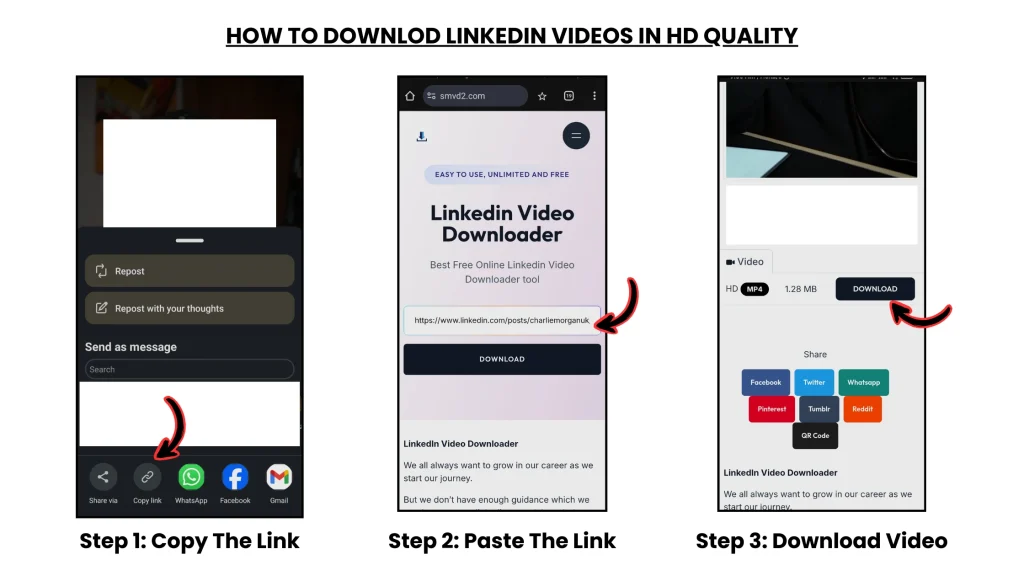
Step 1: Copy the LinkedIn Video Link
Open the LinkedIn app or website on your mobile device.
Locate the video post you want to save.
Tap:
- Share
- Copy Link
to copy the complete post URL.
Step 2: Open SMVD2
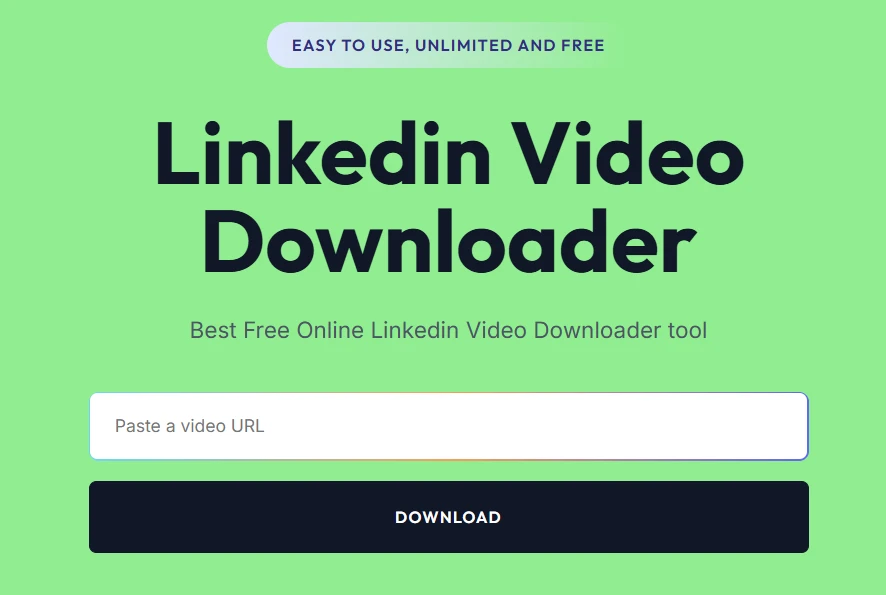
Open your browser, such as:
- Chrome
- Safari
Visit: SMVD2
Step 3: Paste the Video Link
Paste the copied LinkedIn URL into the downloader input field.
Tap: Download
The tool will process the video link.
Step 4: Save the Video
Choose your preferred quality option, then save the file directly to your device.
How to Download LinkedIn Videos on Desktop
The desktop workflow is nearly identical.
Step 1: Copy the Video Page URL
Open LinkedIn in your browser.
Find the video post you want to save.
Copy the complete URL from the address bar.
Step 2: Visit SMVD2
Open a new browser tab and go to: SMVD2
Step 3: Paste the Video Link
Paste the copied LinkedIn URL into the input field.
Click: Download
Step 4: Save the Video File
Choose the MP4 option and save the file to your preferred folder.
Tips for a Smooth Download Experience
Small details often improve success rates significantly.
Use the Complete Post URL
Always copy the full LinkedIn post link rather than:
- shortened shares
- previews
- partial redirects
Public Videos Work More Reliably
Public posts generally process more smoothly than restricted or login-protected content.
Use a Stable Internet Connection
A stable connection helps:
- faster processing
- smoother loading
- fewer interruptions
Refresh if Necessary
If processing fails temporarily:
- refresh the page
- copy the link again
- retry with the original post URL
Avoid Broken or Preview Links
Incomplete URLs are one of the most common reasons downloads fail.
Mobile App Tip
If copying from the LinkedIn app behaves inconsistently, open the post in a browser and copy the full URL directly from there.
Is It Safe to Download LinkedIn Videos Using SMVD2?
In many cases, browser-based tools are safer than downloadable software because they avoid:
- installation risks
- unnecessary permissions
- extension-related access
The workflow does not require:
- LinkedIn passwords
- personal information
- desktop software
- browser extensions
That makes browser-only workflows more privacy-friendly than tools requiring deeper system access.
Important Safety Advice
As a general rule:
avoid downloaders that:
- request LinkedIn passwords
- force software installation
- ask for unnecessary permissions
- redirect excessively
Simple browser-based tasks usually should not require deep device access.
Why Some LinkedIn Videos May Not Download Properly
Not every LinkedIn video behaves the same way.
In some cases, failures occur because of:
- privacy settings
- incomplete links
- restricted access
- temporary browser issues
rather than the downloader itself.
Common Reasons Downloads Fail
- private or restricted posts
- incomplete URLs
- connection interruptions
- browser caching issues
- copied preview links instead of original posts
Using the original post URL usually improves success rates considerably.
Frequently Asked Questions
Can I Download LinkedIn Videos Without Installing Apps?
Yes.
Browser-based workflows allow users to save videos without:
- apps
- extensions
- desktop software
Does the Downloader Work on Mobile and Desktop?
Yes.
The workflow supports:
- smartphones
- tablets
- laptops
- desktop computers
across major operating systems.
Which Video Format Is Used?
Videos are typically downloaded in: MP4 format
which is widely compatible across:
- devices
- browsers
- media players
- editing software
Why Doesn’t LinkedIn Provide Direct Downloads?
LinkedIn primarily focuses on:
- platform engagement
- creator control
- content distribution
rather than open downloadable media access.
Will Downloaded Videos Lose Quality?
If:
- the original upload quality is good
- the full URL is used correctly
the saved version generally maintains similar quality.
Is This Better Than Screen Recording?
In most situations: yes.
Direct browser-based downloads usually provide:
- better clarity
- cleaner audio
- proper aspect ratio
- fewer interruptions
compared with screen recordings.
Final Thoughts
LinkedIn has become a major source of professional education through:
- webinars
- tutorials
- interviews
- product explainers
- industry discussions
- expert insights
As professional learning increasingly shifts toward video-based content, many users want a practical way to:
- revisit useful material
- organize educational resources
- reduce dependence on feed discovery
- access insights offline
Using a browser-based tool like SMVD2 provides a simple method to save LinkedIn videos across both mobile and desktop devices without requiring software installation or extensions.
Whether you are:
- building a personal learning library
- saving training sessions
- studying business strategies
- archiving educational content
having reliable offline access can make professional learning more flexible and consistent over time.
Because valuable insights are often more useful when they remain accessible beyond a single scroll.
Related Articles:
- How to Save LinkedIn Videos Without Login
- How to Download LinkedIn Videos by URL or Link
- How to Download LinkedIn Videos in Low Internet Speed
- How to Download LinkedIn Videos Without Watermark
- Android
- iPhone
- Windows
- Mac