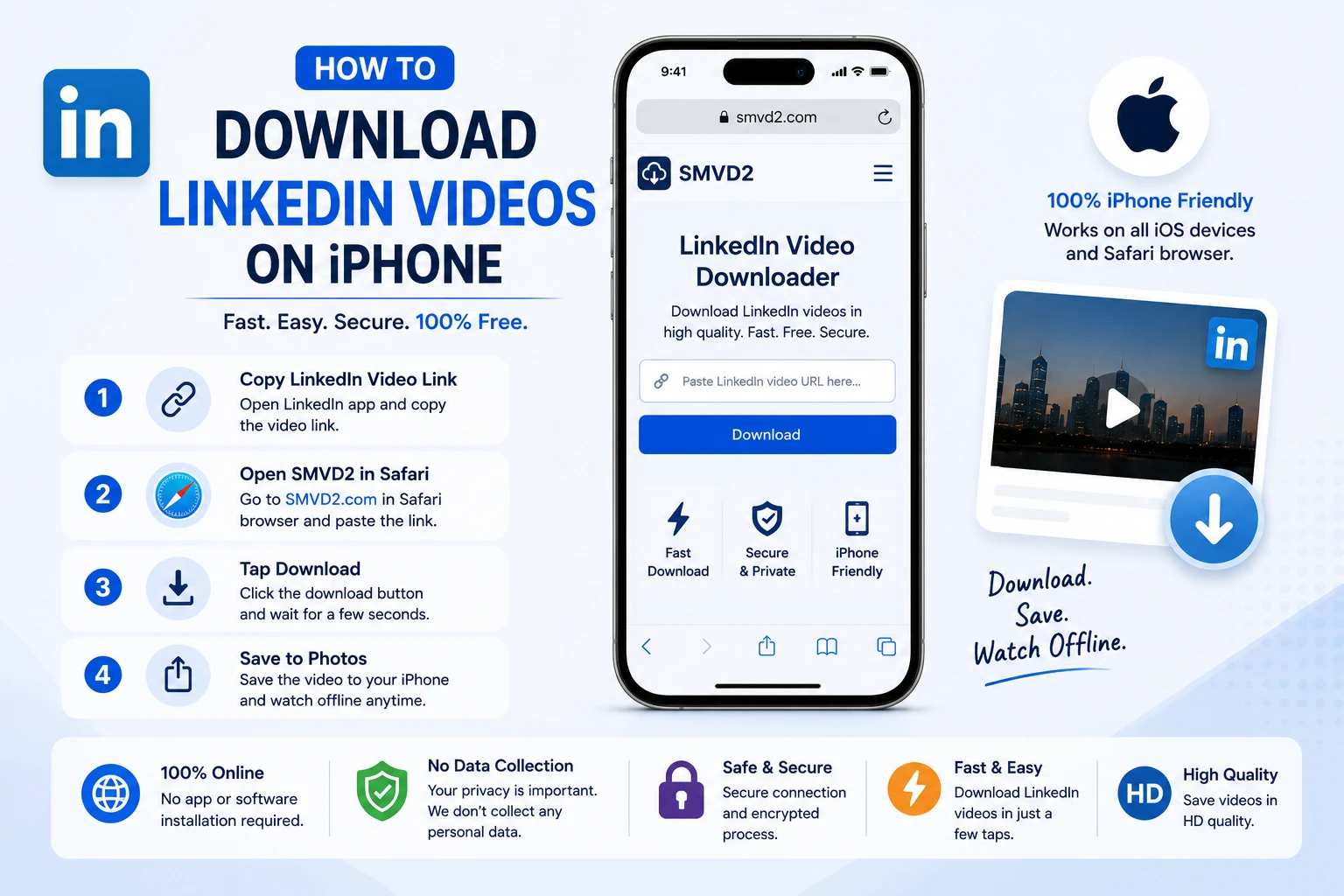
How to Download LinkedIn Videos on iPhone
LinkedIn has become one of the most valuable platforms for professional networking, industry learning, business growth, and personal branding. Every day, professionals share insightful videos covering topics such as career development, marketing strategies, leadership advice, product demonstrations, webinars, industry trends, and educational tutorials.
Whether you’re a marketer saving campaign ideas, a recruiter archiving hiring advice, a business owner collecting industry insights, or a professional building a personal learning library, there are many situations where having offline access to LinkedIn videos can be useful.
If you’ve ever watched a valuable LinkedIn video and wished you could save it directly on your iPhone for later viewing, you’re certainly not alone. Many users want to revisit important content while traveling, during meetings, or in situations where internet access may be limited.
Unfortunately, LinkedIn does not currently provide a built-in download option for most video posts. While users can save posts within the platform, that content remains dependent on an internet connection and continued availability on LinkedIn.
Fortunately, there are simple ways to save public LinkedIn videos directly to your iPhone.
One solution that stands out is SMVD2.com, a browser-based LinkedIn video downloader that works directly through Safari without requiring app installations, browser extensions, or technical setup. During testing on mobile browsers, we found that browser-based solutions are often the most convenient option for iPhone users because they eliminate the need to install additional software simply to download a video.
In this guide, you’ll learn exactly how to download LinkedIn videos on iPhone using SMVD2.com, along with practical tips, common mistakes to avoid, and important considerations for saving videos safely and efficiently.
Why Download LinkedIn Videos on iPhone?
There are several practical reasons why professionals choose to download LinkedIn videos instead of relying solely on online access.
Watch Videos Offline
One of the biggest advantages is offline viewing. Whether you’re on a flight, commuting, or working in an area with limited connectivity, downloaded videos remain accessible without requiring an internet connection.
Save Educational Content
LinkedIn has become a major source of educational content. Professionals frequently share tutorials, industry updates, sales strategies, marketing insights, and career advice that may be worth revisiting later.
Build a Personal Learning Library
Many users save valuable videos to create their own collection of professional resources. Having videos stored on your iPhone makes it easier to organize and review important content whenever needed.
Archive Important Webinars and Training Sessions
Businesses often share webinars, training materials, and professional development sessions on LinkedIn. Downloading these videos allows you to keep them available for future reference.
Share Insights Within Teams
Managers, marketers, recruiters, and sales professionals often save useful videos that can later be shared internally with team members as learning resources or discussion points.
Study Competitor and Industry Content
Marketing teams and business owners frequently analyze successful LinkedIn video content to understand messaging strategies, audience engagement techniques, and content formats that perform well within their industry.
Preserve Valuable Content
Although LinkedIn posts may remain available for long periods, content can occasionally be deleted, edited, or become difficult to locate over time. Downloading a video ensures you maintain access to information you find valuable.
For many iPhone users, downloading LinkedIn videos is less about collecting content and more about creating convenient access to professional knowledge whenever and wherever it’s needed.
Can You Download LinkedIn Videos Directly from the LinkedIn App?
In most cases, no.
LinkedIn allows users to watch, share, and save posts within the platform, but it does not provide a native download button for standard public video posts.
This means that if you want a video stored directly on your iPhone for offline viewing, you’ll typically need to use a LinkedIn video downloader that can process the video’s public post URL.
The good news is that the process is straightforward and usually takes less than a minute when using the right tool.
That’s where SMVD2.com comes in.
Unlike solutions that require software installations or complicated setup procedures, SMVD2.com works directly through your browser, making it particularly convenient for iPhone users who prefer a quick and simple download process.
How to Download LinkedIn Videos on iPhone
Use SMVD2.com
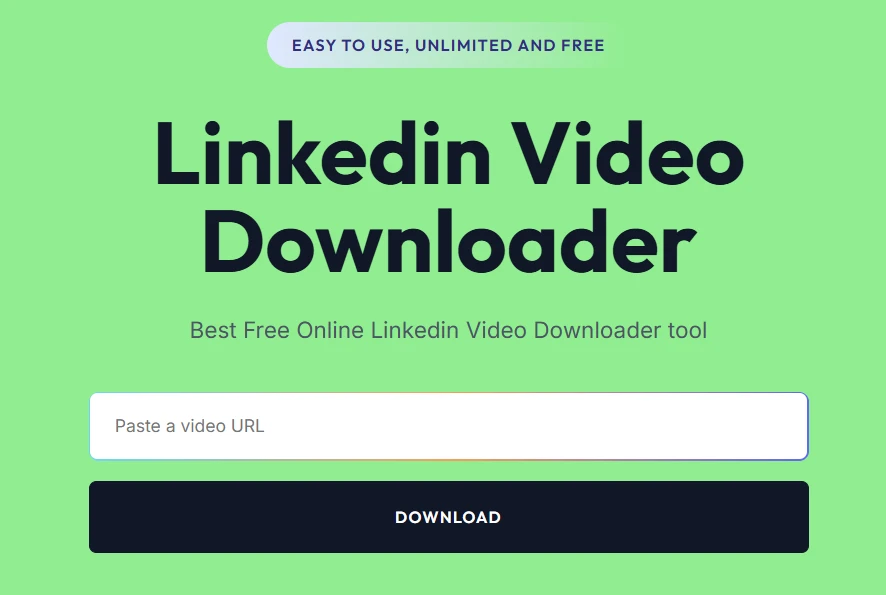
SMVD2.com is a free online LinkedIn video downloader designed to help users save public LinkedIn videos directly to their devices.
What makes it especially useful for iPhone users is that everything happens inside Safari. There’s no need to install additional apps, create accounts, or grant permissions to third-party software.
During practical testing, browser-based downloaders consistently offered the smoothest experience on iPhone because they reduce the number of steps required between finding a video and saving it.
Benefits of Using SMVD2.com
- Completely free to use
- No app installation required
- Works directly in Safari
- Fast video processing
- High-quality video downloads
- No watermark added
- Compatible with modern iPhones
- Supports public LinkedIn videos
- Simple and beginner-friendly workflow
Whether you’re using an iPhone 13, iPhone 14, iPhone 15, or a newer model, SMVD2.com provides a convenient way to save LinkedIn videos for offline viewing without adding unnecessary complexity to the process.
How to Download LinkedIn Videos on iPhone Using SMVD2.com
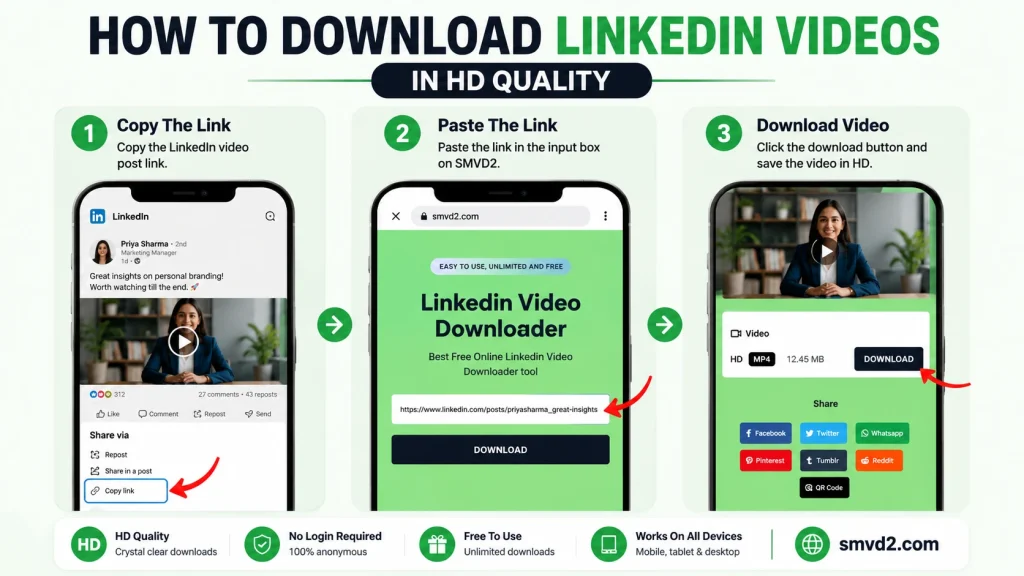
Now that you understand why downloading LinkedIn videos can be useful, let’s walk through the complete process of saving videos directly to your iPhone.
One thing we noticed during testing is that many users assume they need a dedicated app to download LinkedIn videos. In reality, a browser-based solution is often faster because it eliminates installation steps and works directly through Safari.
The entire process typically takes less than a minute when using a public LinkedIn video URL.
Step 1: Open LinkedIn
Launch the LinkedIn app on your iPhone.
Browse your feed, visit a creator’s profile, or navigate to a specific post containing the video you want to download.
Before proceeding, make sure:
- The video loads correctly.
- The post is publicly accessible.
- You can view the video without restrictions.
If the post belongs to a private group or contains privacy limitations, most downloaders may not be able to retrieve the video.
Step 2: Copy the LinkedIn Post Link
Once you’ve found the video:
- Tap the three-dot menu (•••) in the upper-right corner of the LinkedIn post.
- Select Copy Link to Post.
This will copy the LinkedIn post URL to your clipboard.
Common Mistake to Avoid
One of the most common issues we see is users accidentally copying:
- Profile URLs
- Company page URLs
- Event URLs
instead of the actual video post URL.
SMVD2.com requires the specific LinkedIn post link containing the video. If the wrong URL is pasted, the downloader may not be able to locate the video.
A quick way to verify the correct URL is to open it in Safari and confirm that it leads directly to the post containing the video.
Step 3: Open Safari on Your iPhone
After copying the LinkedIn post URL:
- Open Safari.
- Navigate to SMVD2.com.
Because SMVD2.com is browser-based, there is no need to download additional software or grant special permissions.
This approach is particularly useful for iPhone users because iOS places restrictions on certain third-party downloading methods. Browser-based tools avoid many of those limitations.
Step 4: Paste the LinkedIn Video URL
On the SMVD2.com homepage, you’ll see a download field.
Paste the copied LinkedIn post URL into the input box.
Before clicking Download:
- Check that the full URL has been pasted.
- Make sure there are no extra spaces.
- Verify that the link points directly to the LinkedIn post.
Taking a few seconds to verify the URL can prevent most download issues.
Step 5: Click Download
Tap the Download button.
SMVD2.com will process the URL and retrieve the available video file.
During testing, most public LinkedIn videos were processed within a few seconds, although larger videos may occasionally take slightly longer depending on network speed and server load.
At this stage, the downloader saves the video information and prepares it for saving on your device.
What Happens Behind the Scenes?
Many users wonder what actually happens when they paste a LinkedIn URL.
The downloader:
- Reads the public LinkedIn post.
- Locates the video file associated with the post.
- Generates a downloadable version.
- Allows the user to save it directly to their device.
This entire process happens automatically, making it accessible even for users with no technical experience.
Step 6: Save the Video to Your iPhone
Once the video becomes available:
- Tap the download option.
- Choose where you’d like to save the file.
- Wait for the download to complete.
Depending on your Safari settings, the file may be stored in:
- Downloads folder
- Files app
- iCloud Drive
- Photos app
Many users prefer saving educational LinkedIn videos to dedicated folders so they can quickly find them later.
For example:
- Marketing Tutorials
- Sales Training
- Career Development
- Leadership Content
- Industry Insights
Organizing videos immediately after downloading can save significant time as your collection grows.
How to Find Downloaded LinkedIn Videos on iPhone
After downloading a video, you may wonder where it was saved.
The location depends on your iPhone settings and the option selected during download.
Files App
In most cases, downloaded videos are stored inside the Files app.
To locate them:
- Open the Files app.
- Tap Browse.
- Select Downloads.
You’ll typically find your LinkedIn video there.
If you’ve configured Safari to save files to iCloud Drive, the video may appear there instead.
Photos App
Some users prefer storing videos in the Photos app.
If you save the video to Photos:
- Open the Photos app.
- Navigate to Recents.
- Locate the downloaded LinkedIn video.
Saving videos to Photos can make playback more convenient, especially if you regularly watch content on your iPhone.
Using Search to Find Downloads Faster
If you’ve downloaded multiple files and can’t locate a specific video:
- Open the Files app.
- Use the search bar.
- Search using part of the file name.
This is often faster than manually browsing folders.
Tips for Better Download Success on iPhone
Although the process is generally straightforward, a few best practices can improve your experience.
Use Safari Whenever Possible
Safari is optimized for iOS and typically delivers the smoothest download experience.
While other browsers may work, Safari usually handles file downloads more consistently on iPhone devices.
Maintain a Stable Internet Connection
Interrupted connections can occasionally affect video processing or downloads.
For the best results:
- Use a strong Wi-Fi connection.
- Avoid switching networks during downloads.
- Ensure your connection remains stable throughout the process.
Verify Video Accessibility
If a LinkedIn video is private or restricted, download tools may not be able to access it.
Before troubleshooting, confirm that:
- The video is publicly viewable.
- The post opens correctly.
- The content isn’t restricted by privacy settings.
Check Available Storage Space
Large video files require sufficient storage.
Before downloading:
- Review available iPhone storage.
- Delete unnecessary files if needed.
- Ensure enough free space exists for multiple downloads.
A lack of storage is a surprisingly common reason for failed downloads.
Keep iOS Updated
Running the latest version of iOS helps ensure:
- Better browser performance
- Improved security
- Fewer download-related issues
Keeping Safari and iOS updated can prevent many unexpected problems.
Why Many iPhone Users Prefer Browser-Based Downloaders
From a usability perspective, browser-based tools offer several advantages over app-based alternatives.
Many dedicated downloader apps:
- Require installation
- Display excessive advertisements
- Request unnecessary permissions
- Occupy device storage
In contrast, SMVD2.com works directly through Safari, reducing friction and making the process accessible to casual users who simply want to save a video quickly.
For most professionals, convenience is often more important than advanced features, which is why browser-based downloading remains a popular choice for LinkedIn videos on iPhone.
Why SMVD2.com Is the Best LinkedIn Video Downloader for iPhone
With numerous video downloaders available online, choosing the right one can be challenging. Some tools require app installations, others overwhelm users with advertisements, and some simply don’t work reliably on mobile devices.
For iPhone users, convenience is often the deciding factor.
Most professionals aren’t looking for complicated features. They simply want a fast, reliable way to save a LinkedIn video and watch it later.
That’s where SMVD2.com stands out.
During our review of browser-based downloading workflows, we found that simplicity plays a major role in the overall user experience. Tools that require fewer steps generally create less friction, especially on mobile devices where screen space is limited.
Let’s look at the key advantages.
No App Installation Required
One of the biggest benefits of SMVD2.com is that it works entirely within your browser.
Unlike many alternatives, you don’t need to:
- Install third-party applications
- Create user accounts
- Grant device permissions
- Download browser extensions
This is particularly important for iPhone users because iOS has stricter controls compared to desktop operating systems.
For professionals who occasionally download educational content, installing dedicated software often feels unnecessary. A browser-based solution allows you to save a video and move on without adding extra apps to your device.
Fast and Simple Workflow
Many downloading tools create unnecessary complexity.
A typical experience on some competing platforms looks like this:
- Open downloader website
- Watch advertisements
- Complete verification steps
- Navigate multiple redirects
- Finally access download options
SMVD2.com simplifies the process.
The workflow generally consists of:
- Copy the LinkedIn post URL
- Paste it into SMVD2.com
- Download the video
That’s it.
One thing we particularly noticed is that reducing unnecessary steps significantly improves the experience on mobile devices where users expect quick interactions.
Works Directly in Safari
Safari remains the default browser for millions of iPhone users.
Because SMVD2.com works directly inside Safari:
- No browser switching is required
- No additional software is needed
- Downloads remain simple and familiar
This creates a smoother experience compared to tools that require desktop browsers or special browser extensions.
For users who primarily consume LinkedIn content on mobile devices, this compatibility is a major advantage.
High-Quality Video Downloads
Video quality matters.
This is especially true when downloading:
- Marketing presentations
- Product demonstrations
- Training sessions
- Educational webinars
- Industry conference recordings
Poor-quality downloads can make text difficult to read and reduce the value of educational content.
SMVD2.com aims to preserve the available video quality whenever possible, allowing users to watch content comfortably on both iPhone screens and larger displays.
No Watermark Added
Some downloaders add branding or watermarks to downloaded content.
This can be distracting when revisiting professional material.
SMVD2.com focuses on providing clean downloads without adding unnecessary overlays that interfere with the viewing experience.
For professionals building a personal learning archive, clean video files are generally preferable.
Beginner-Friendly Experience
Not everyone downloading a LinkedIn video is technically experienced.
Many users simply want a solution that works without requiring technical knowledge.
SMVD2.com is designed around a straightforward workflow that can be completed in minutes, even by first-time users.
The learning curve is virtually nonexistent.
This makes it accessible to:
- Students
- Recruiters
- Marketers
- Sales professionals
- Business owners
- Job seekers
Free to Use
Cost is another important consideration.
Many users only need to save a few videos occasionally and may not want to pay for software subscriptions.
SMVD2.com provides a free way to download LinkedIn videos, making it accessible to users regardless of budget.
For casual users, browser-based free tools often provide everything needed without requiring premium plans or recurring fees.
Professional Use Cases for Downloading LinkedIn Videos
Downloading LinkedIn videos isn’t just about convenience.
Different professionals use downloaded content in different ways.
Understanding these use cases can help you determine whether downloading videos aligns with your workflow.
For Marketers
Marketing professionals regularly study successful content strategies.
Downloaded LinkedIn videos can be used to:
- Analyze content structure
- Study engagement techniques
- Review storytelling approaches
- Observe presentation styles
- Save campaign inspiration
Instead of searching for the same post repeatedly, marketers can build a reference library of high-performing content.
For Recruiters
Recruiters often encounter valuable content covering:
- Candidate engagement
- Employer branding
- Interview techniques
- Hiring trends
- Talent acquisition strategies
Saving these videos allows recruiters to revisit insights when planning future hiring campaigns.
For Sales Professionals
LinkedIn has become a major platform for sales education.
Many sales leaders publish videos covering:
- Prospecting
- Outreach strategies
- Lead generation
- Objection handling
- Relationship building
Downloading useful videos allows sales teams to review techniques during training sessions or team meetings.
For Business Owners
Business owners frequently use LinkedIn as a source of industry knowledge.
Videos covering:
- Leadership
- Business growth
- Operations
- Marketing
- Team management
can provide valuable insights that are worth revisiting multiple times.
Offline access ensures these resources remain available whenever needed.
For Job Seekers
Job seekers often save content related to:
- Resume optimization
- Interview preparation
- Career development
- Personal branding
- Networking strategies
Building a collection of educational videos can support long-term career growth and professional development.
What Most Articles Don’t Tell You About Downloading LinkedIn Videos
Many guides focus solely on the downloading process.
However, practical usage often matters more than the technical steps.
Here are a few insights that are frequently overlooked.
Organization Matters More Than Downloading
Many users successfully download videos but struggle to find them later.
A simple folder structure can dramatically improve usability.
For example:
- Career Advice
- Marketing Tips
- Sales Training
- Leadership Content
- Industry Research
Organizing content immediately after downloading saves time in the future.
Not Every Video Needs to Be Downloaded
One common mistake is downloading every interesting video encountered.
In practice, it’s often better to save only:
- Evergreen educational content
- Training materials
- Reference resources
- Important webinars
This keeps your learning library focused and easier to manage.
Offline Access Improves Learning Consistency
Many professionals save content with the intention of watching it later but never revisit it.
Downloaded videos remove barriers such as poor connectivity, loading delays, and platform distractions.
Having direct access often increases the likelihood that valuable content will actually be consumed.
Mobile Convenience Often Beats Advanced Features
Many competing tools advertise dozens of features.
However, most users simply want a reliable way to save a video quickly.
From a usability perspective, fewer steps often provide a better experience than additional functionality that rarely gets used.
This is one reason browser-based solutions continue to remain popular among iPhone users.
Common Mistakes Users Make When Downloading LinkedIn Videos
Even though the process is straightforward, certain mistakes occur frequently.
Understanding these issues can save time and frustration.
Copying the Wrong URL
The downloader requires the LinkedIn post URL, not a profile page or company page URL.
Always verify that the copied link points directly to the video post.
Trying to Download Private Content
Most downloaders work best with publicly accessible LinkedIn posts.
Private content aren’t available for download.
Ignoring Storage Limitations
Large video libraries can consume significant storage over time.
Regularly reviewing downloaded content helps maintain available space.
Closing Safari Too Early
Some users close the browser before the download completes.
Waiting until the file has fully downloaded prevents incomplete downloads.
Is It Legal to Download LinkedIn Videos?
One of the most common questions users ask before downloading LinkedIn videos is whether the practice is legal.
The answer depends largely on:
- How the video is being used
- Who owns the content
- Whether permission has been granted
- Applicable copyright laws in your region
In general, downloading a LinkedIn video for personal offline viewing is viewed differently from redistributing or republishing someone else’s content.
For example:
Generally Lower-Risk Uses
- Watching educational content offline
- Saving your own LinkedIn videos
- Archiving company videos you own
- Storing training materials you’ve been authorized to access
- Keeping personal reference copies
Higher-Risk Uses
- Republishing someone else’s content
- Uploading downloaded videos to another platform
- Using videos in advertisements without permission
- Selling or distributing copyrighted content
- Removing attribution from original creators
A good rule of thumb is simple:
If you don’t own the content, avoid redistributing it without the creator’s permission.
Respect Creator Rights
LinkedIn creators invest significant time and effort into producing valuable content.
Whether it’s:
- Career coaching
- Industry analysis
- Marketing education
- Business strategy
- Thought leadership
their content remains their intellectual property.
Downloading for personal reference is very different from presenting someone else’s work as your own.
If you intend to use a video beyond personal viewing, it’s always best to obtain permission from the creator.
What About Company Videos?
Many businesses publish videos on LinkedIn for:
- Employee training
- Product education
- Customer onboarding
- Industry awareness
If you are part of the organization that created the content, downloading those videos for internal purposes is often more straightforward.
However, companies should still follow internal content policies and usage guidelines where applicable.
Privacy Considerations When Downloading LinkedIn Videos
Privacy is another important consideration.
Before downloading a video, ask yourself:
- Is the content publicly accessible?
- Was the content intended for public viewing?
- Does the video contain sensitive information?
Responsible downloading means respecting both copyright and privacy expectations.
Publicly available educational videos are generally very different from content shared within private communities, restricted groups, or confidential business environments.
When You Should NOT Download a LinkedIn Video
While downloading videos can be useful, there are situations where it’s better to avoid doing so.
Private or Restricted Content
If a video is only visible to a limited audience, downloading it may violate platform policies or the creator’s expectations.
Confidential Business Information
Avoid downloading videos that contain:
- Proprietary company information
- Internal business strategies
- Sensitive client information
- Non-public financial details
Content You Don’t Intend to Use
One thing we’ve observed is that many users download dozens of videos that they never watch again.
If a video doesn’t provide long-term value, bookmarking it may be a better option than downloading it.
Troubleshooting LinkedIn Video Downloads on iPhone
Even though downloading LinkedIn videos is usually straightforward, occasional issues can occur.
But it can be quickly resolved with a few simple checks.
Video Not Downloading
If the download doesn’t start, the issue is often related to the URL rather than the downloader itself.
In our experience, incorrect links account for a large percentage of failed download attempts.
What to Check
- Confirm you’ve copied the LinkedIn post URL.
- Verify that the link opens correctly.
- Ensure the video is publicly accessible.
- Refresh Safari and try again.
A fresh copy of the URL often resolves the problem immediately.
Download Button Doesn’t Appear
Sometimes users paste a URL but don’t see a download option.
Possible causes include:
- Temporary network issues
- Incorrect URL formatting
- Browser loading problems
- Restricted LinkedIn content
Quick Fixes
- Reload the page.
- Check your internet connection.
- Paste the URL again.
- Restart Safari if necessary.
These simple steps solve most temporary issues.
Video Won’t Save to Photos
Many users assume downloaded videos automatically appear in the Photos app.
However, iPhone downloads are often stored in the Files app first.
Solution
- Open the Files app.
- Locate the downloaded video.
- Tap Share.
- Select Save Video.
The file should then appear inside your Photos library.
Download Stops Midway
Interrupted downloads are typically caused by connectivity issues.
Common Causes
- Weak Wi-Fi signal
- Network switching
- Temporary internet outages
- Limited device storage
If a download fails partway through:
- Reconnect to a stable network.
- Verify available storage.
- Start the download again.
Safari Is Not Responding
Occasionally Safari may become slow during downloads.
Try These Steps
- Close unnecessary browser tabs.
- Clear Safari cache.
- Restart Safari.
- Update iOS if needed.
Keeping your device updated helps prevent many browser-related problems.
Common Download Issues and Their Solutions
| Problem | Likely Cause | Solution |
|---|---|---|
| Video not downloading | Incorrect URL | Copy post URL again |
| Download button missing | Processing issue | Refresh and retry |
| Video won’t save | Storage location confusion | Check Files app |
| Incomplete download | Weak internet | Use stable connection |
| Video unavailable | Private content | Use public post only |
This simple troubleshooting checklist can save time when diagnosing download problems.
Real-World Limitations Users Should Know
Many articles only discuss the benefits of downloading LinkedIn videos.
However, understanding the limitations is equally important.
Not Every LinkedIn Video Can Be Downloaded
Some content may be:
- Private
- Restricted
- Region-specific
- Access-controlled
In such situations, download tools may not be able to retrieve the video.
This is normal and does not necessarily indicate a problem with the downloader.
Video Availability Can Change
A video that works today may become unavailable later if:
- The creator deletes the post
- Privacy settings change
- The content is removed
This is one reason many users choose to save important educational content when they first discover it.
Downloading Doesn’t Replace Learning
An interesting pattern we often see is users collecting large numbers of videos without actually reviewing them.
Downloading should support learning, not replace it.
A smaller collection of highly relevant content is usually more valuable than hundreds of saved videos that never get watched.
Storage Can Become a Challenge
As your collection grows, storage management becomes increasingly important.
Consider periodically reviewing:
- Outdated content
- Duplicate videos
- Videos you’ve already consumed
Maintaining an organized library improves both device performance and productivity.
Best Practices for Managing Downloaded LinkedIn Videos
To get the most value from downloaded content:
Create Organized Folders
Examples:
- Marketing
- Sales
- Recruiting
- Leadership
- Career Development
Review Content Regularly
Schedule time to revisit saved videos rather than allowing them to accumulate unused.
Prioritize Evergreen Content
Focus on content that remains useful over time rather than temporary trends or short-lived updates.
Keep Storage Under Control
Delete videos that no longer provide value to maintain available device space.
By following these simple practices, downloaded LinkedIn videos become a useful professional resource rather than a cluttered collection of forgotten files.
Frequently Asked Questions
Can I Download LinkedIn Videos on iPhone Without Installing an App?
Yes.
One of the main advantages of using SMVD2.com is that it works directly through Safari. You don’t need to install additional applications, browser extensions, or software packages.
This is particularly useful for iPhone users who prefer a simple, browser-based solution that doesn’t consume extra storage space or require unnecessary permissions.
For most users, the entire process can be completed directly from the LinkedIn app and Safari within a few minutes.
Does SMVD2.com Work on All iPhones?
Yes.
SMVD2.com is designed to work on modern iPhones that support current web browsers.
Whether you’re using:
- iPhone 13
- iPhone 14
- iPhone 15
- iPhone 16
- Future iPhone models running updated iOS versions
the download process remains largely the same.
As long as your device supports Safari and has an internet connection, you should be able to use the tool effectively.
Can I Download LinkedIn Videos for Free?
Yes.
SMVD2.com allows users to download public LinkedIn videos without requiring subscription fees or premium memberships.
This makes it a practical option for:
- Students
- Job seekers
- Recruiters
- Marketers
- Small business owners
- Content creators
who occasionally need offline access to educational or professional content.
Can I Download Private LinkedIn Videos?
In most cases, no.
Downloaders generally work with publicly accessible LinkedIn posts.
If a video is:
- Private
- Restricted
- Limited to certain members
- Shared inside private groups
the downloader may not be able to retrieve the content.
This limitation exists to respect privacy settings and access controls established by LinkedIn and content creators.
Will Downloaded Videos Lose Quality?
Typically, no.
SMVD2.com attempts to preserve the available video quality whenever possible.
However, final quality can depend on:
- The original video quality
- LinkedIn’s video processing
- Source file limitations
If the original upload was high quality, the downloaded version will generally provide a similar viewing experience.
Where Are Downloaded Videos Stored on iPhone?
Downloaded videos are usually saved to:
Files App
Most commonly:
Files → Downloads
iCloud Drive
If Safari is configured to save files to iCloud.
Photos App
If you choose to save the downloaded file into your Photos library.
If you’re unsure where a file was saved, the Files app is usually the best place to start.
Is Downloading LinkedIn Videos Safe?
When using reputable browser-based tools and downloading public content responsibly, the process is generally straightforward.
For additional safety:
- Use trusted downloader tools.
- Avoid suspicious downloads.
- Keep iOS updated.
- Verify URLs before downloading.
As with any online activity, it’s important to use common sense and follow good security practices.
Why Isn’t My LinkedIn Video Downloading?
The most common causes include:
- Incorrect post URL
- Private video restrictions
- Temporary internet issues
- Browser-related problems
In practical usage, the wrong URL is often the biggest culprit.
Before troubleshooting further:
- Copy the post URL again.
- Verify it opens correctly.
- Retry the download.
This simple step resolves many download failures.
Can I Download My Own LinkedIn Videos?
Yes.
Many creators use download tools to archive their own content.
This can be useful for:
- Backup purposes
- Repurposing content
- Internal training
- Cross-platform sharing
- Content management
Downloading your own videos provides an additional layer of content security in case posts are removed or modified in the future.
Do I Need a LinkedIn Premium Account?
No.
Downloading a public LinkedIn video through SMVD2.com does not require a LinkedIn Premium subscription.
If the post is publicly accessible and the URL is available, the process remains the same regardless of your LinkedIn subscription level.
Advanced Tips for Better LinkedIn Video Downloads
While the basic download process is simple, a few professional habits can help you get more value from downloaded content.
Create a Professional Knowledge Library
Instead of saving videos randomly, organize them by topic.
Example folder structure:
Marketing
- Content strategy
- Lead generation
- Paid advertising
- SEO
Sales
- Prospecting
- Outreach
- Closing techniques
Leadership
- Team management
- Communication
- Business growth
Career Development
- Resume advice
- Interview preparation
- Networking
This approach makes your downloaded content much more useful over time.
Prioritize Evergreen Content
Not every LinkedIn video deserves long-term storage.
The most valuable downloads are usually:
- Tutorials
- Frameworks
- Training sessions
- Educational presentations
- Industry insights
These videos often remain useful long after they’re published.
Review Saved Videos Regularly
Many professionals collect content but never revisit it.
A better strategy is to schedule time each week or month to review saved videos and save actionable insights.
The value comes from applying knowledge, not simply storing it.
Keep Important Videos Backed Up
If a particular video is critical for your work or learning:
- Save a copy locally.
- Store it in iCloud.
- Organize it within a dedicated folder.
This reduces the risk of losing access if the original post is removed later.
Recommendations by Audience
Different users have different reasons for downloading LinkedIn videos.
Here are some practical recommendations based on your goals.
For Marketers
Focus on downloading:
- Campaign breakdowns
- Content marketing tutorials
- LinkedIn growth strategies
- Thought leadership content
Building a swipe file of successful marketing videos can provide inspiration for future campaigns.
For Recruiters
Prioritize:
- Hiring webinars
- Employer branding content
- Candidate engagement strategies
- Talent acquisition insights
These resources can be revisited when planning future recruitment initiatives.
For Sales Professionals
Consider saving:
- Prospecting techniques
- Sales frameworks
- Outreach examples
- Negotiation strategies
Offline access allows sales teams to review training materials whenever needed.
For Business Owners
Useful categories include:
- Leadership advice
- Growth strategies
- Team building
- Operational efficiency
- Marketing education
Many business owners use LinkedIn as an ongoing source of professional development.
For Job Seekers
Valuable content often includes:
- Interview preparation
- Personal branding
- Networking advice
- Career growth strategies
- Resume optimization
Creating a focused learning library can support long-term career advancement.
What Makes SMVD2.com Different?
Many LinkedIn video downloaders focus solely on saving videos.
SMVD2.com focuses on simplicity.
From a practical user perspective, the biggest advantages are:
- No app installation
- No browser extensions
- Mobile-friendly workflow
- Safari compatibility
- Quick processing
- Beginner-friendly experience
One thing we’ve consistently noticed is that users rarely care about complex feature lists. Most simply want a reliable way to save a LinkedIn video without jumping through unnecessary hoops.
That simplicity is often what makes the difference between a tool that gets used once and a tool that becomes part of a regular workflow.
Final Thoughts
Downloading LinkedIn videos on iPhone doesn’t need to be complicated.
While LinkedIn makes it easy to discover valuable professional content, it doesn’t provide a built-in option for downloading most videos directly to your device. As a result, many users look for a simple way to save educational content, industry insights, training sessions, and professional resources for offline viewing.
That’s where SMVD2.com provides a practical solution.
By allowing users to download public LinkedIn videos directly through Safari, it eliminates many of the obstacles commonly associated with mobile video downloading. There’s no need to install apps, configure browser extensions, create accounts, or learn complicated workflows.
Simply:
- Find the LinkedIn video.
- Copy the post URL.
- Visit SMVD2.com.
- Paste the link.
- Download the video.
The entire process can usually be completed in just a few moments.
Key Takeaways
If you’re looking for a quick summary, here’s what matters most:
LinkedIn Doesn’t Offer Direct Video Downloads
Most LinkedIn videos cannot be downloaded directly through the LinkedIn app, which is why many users rely on browser-based download tools.
Browser-Based Solutions Are Often the Most Convenient
For iPhone users, browser-based downloaders generally provide a smoother experience than app-based alternatives because they require fewer steps and don’t consume additional device storage.
SMVD2.com Simplifies the Process
With no installations, no extensions, and no complicated setup, SMVD2.com offers one of the easiest workflows for downloading public LinkedIn videos on iPhone.
Public Videos Work Best
Most downloaders perform best with publicly accessible LinkedIn posts. Private or restricted content may not be available for download.
Organization Matters
Saving videos is only the first step. Organizing downloaded content into categories such as marketing, sales, leadership, recruiting, or career development can significantly improve long-term usefulness.
What We Learned During Testing
While reviewing common LinkedIn video downloading workflows, a few interesting patterns became clear.
Simplicity Beats Features
Many competing tools advertise numerous features, but most users simply want a reliable way to save a video quickly.
The most successful solutions are usually the ones that remove unnecessary steps rather than adding more functionality.
Mobile Experience Matters More Than Ever
Since a large percentage of LinkedIn content is consumed on smartphones, mobile usability plays a major role in overall user satisfaction.
A downloader that works smoothly in Safari often provides a better experience than one requiring multiple downloads, redirects, or installations.
Most Download Problems Are User Errors
Surprisingly, the majority of failed downloads are caused by:
- Incorrect URLs
- Private content restrictions
- Connectivity issues
rather than problems with the downloader itself.
Simply verifying the LinkedIn post URL before downloading can prevent many common issues.
Quality Content Is Worth Preserving
LinkedIn has evolved far beyond a networking platform.
Today, it’s a major source of:
- Professional education
- Industry expertise
- Business insights
- Career development advice
- Marketing strategies
- Leadership training
For many professionals, downloading valuable content creates a personal knowledge library that remains accessible long after the original post disappears from the feed.
Who Should Use a LinkedIn Video Downloader?
A LinkedIn video downloader can be useful for a wide variety of professionals.
Marketers
Save campaign breakdowns, content strategies, and thought leadership videos for future reference.
Recruiters
Archive hiring webinars, employer branding content, and talent acquisition insights.
Sales Professionals
Build an offline library of prospecting, outreach, and sales training materials.
Business Owners
Store leadership advice, growth strategies, operational guidance, and industry insights.
Students and Job Seekers
Save educational content, interview preparation tips, networking advice, and career development resources.
Content Creators
Archive your own LinkedIn videos for backup, repurposing, and content management purposes.
When SMVD2.com Makes the Most Sense
SMVD2.com is particularly useful when you want:
- A quick download process
- No app installations
- No browser extensions
- Mobile-friendly usability
- Safari compatibility
- Free access
- Offline viewing capability
For users who occasionally download LinkedIn videos, a browser-based workflow is often more practical than installing dedicated software.
Common Mistakes to Avoid
Before downloading LinkedIn videos, remember these simple tips:
Copy the Correct URL
Always copy the post URL, not the profile or company page URL.
Verify Accessibility
Ensure the video is publicly accessible before attempting a download.
Check Storage Space
Large video libraries can consume significant storage over time.
Organize Downloads Immediately
Creating folders when downloading videos saves considerable time later.
Respect Copyright and Privacy
Download responsibly and avoid redistributing content without proper authorization.
Why Professionals Continue Using Offline Video Libraries
One insight that many articles overlook is that convenience often drives learning consistency.
When educational content is available instantly:
- Fewer distractions occur.
- Learning becomes more accessible.
- Content is easier to revisit.
- Important insights are less likely to be forgotten.
Instead of searching LinkedIn repeatedly for the same post, professionals can access their saved resources whenever needed.
For many users, this convenience becomes the primary reason they continue downloading valuable content.
Conclusion
If you’re wondering how to download LinkedIn videos on iPhone, the process is much easier than many people expect.
A browser-based solution like SMVD2.com allows you to save public LinkedIn videos directly from Safari without installing apps, managing extensions, or navigating complicated workflows.
Whether you’re a marketer collecting campaign inspiration, a recruiter saving hiring strategies, a sales professional building a training library, or a job seeker gathering career advice, offline access to valuable LinkedIn content can be incredibly useful.
From our evaluation of common download methods, the most effective solutions are usually the simplest ones. Users rarely need advanced features—they need a tool that works quickly, reliably, and without unnecessary friction.
That’s exactly why many iPhone users prefer SMVD2.com.
Simply copy the LinkedIn post URL, paste it into SMVD2.com, and download the video in a few simple steps.
With a straightforward workflow, mobile-friendly design, and no installation requirements, it remains one of the easiest ways to download LinkedIn videos on iPhone and build your own professional learning library for offline access anytime, anywhere.
Quick Answer
How do you download LinkedIn videos on iPhone?
Copy the LinkedIn video post URL, open SMVD2.com in Safari, paste the link into the downloader, click Download, and save the video to your iPhone for offline viewing. This method requires no app installation and works directly through your browser.
Related Articles:
- How To Download LinkedIn Videos on iPad
- How to Download LinkedIn Videos on Android
- How to Save LinkedIn Videos on Mobile and Desktop Devices