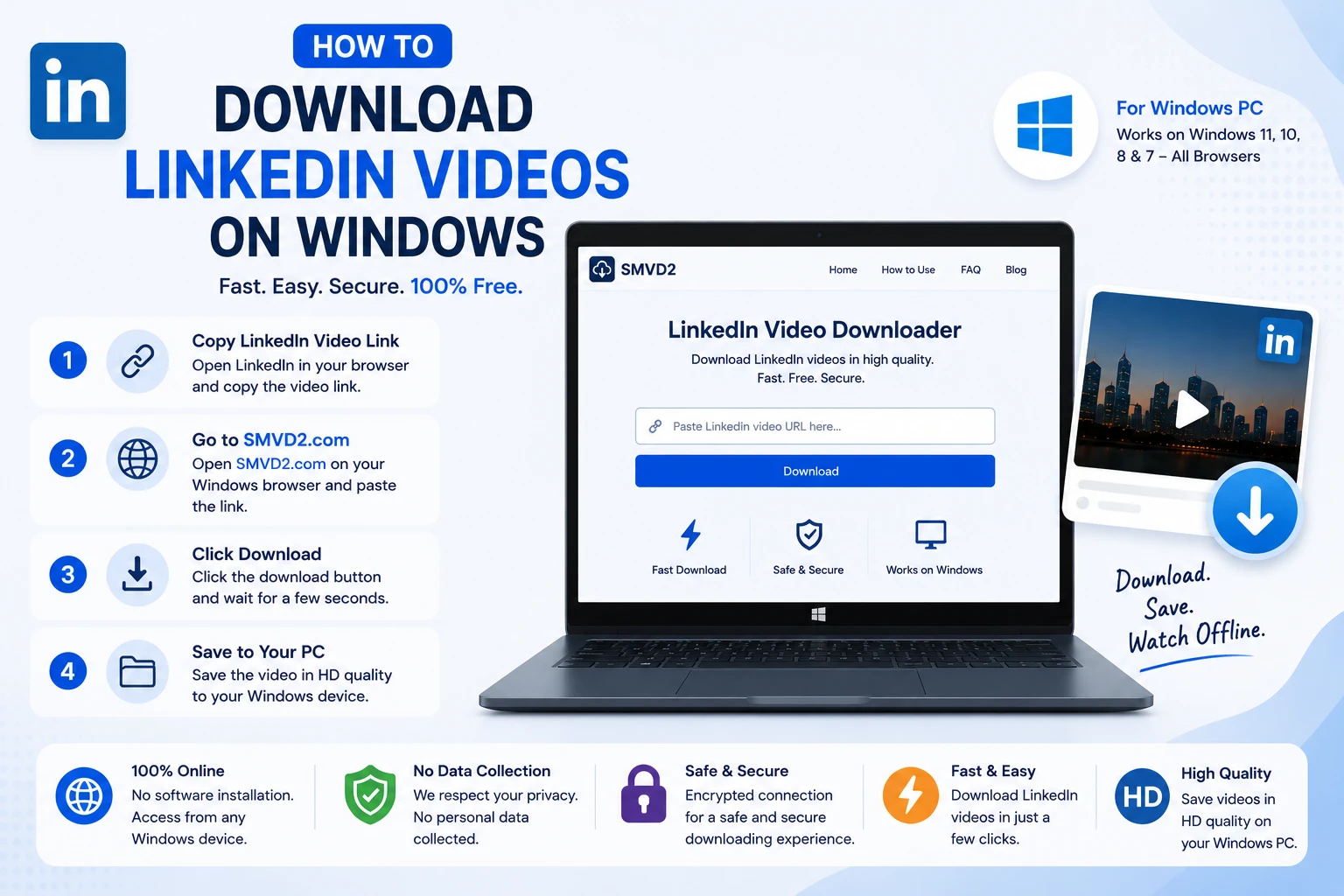
How to Download LinkedIn Videos on Windows
LinkedIn has evolved from a networking for professional to a content based platform. Today, it has become a major hub for professional video content, including industry insights, marketing tutorials, business case studies, product demonstrations, webinars, leadership advice, and career development resources.
Whether you’re a marketer saving competitor research, a recruiter collecting training materials, a student building a learning library, or a business owner archiving valuable insights, downloading LinkedIn videos can make content more accessible and easier to organize.
The challenge is that LinkedIn doesn’t provide a download button for most public videos. As a result, many Windows users search for a simple and reliable way to save LinkedIn videos for offline viewing.
In this guide, you’ll learn exactly how to download LinkedIn videos on Windows, what methods work best, common mistakes to avoid, and why SMVD2.com is one of the most convenient solutions available today.
Why Download LinkedIn Videos on Windows?
Downloading LinkedIn videos offers several advantages beyond simply watching content offline. In practical usage, many professionals save LinkedIn videos because they want quick access to valuable content without searching through their feed repeatedly.
Some of the most common reasons include:
- Watching videos without an internet connection
- Saving educational content for future reference
- Building a personal learning library
- Archiving webinars and professional presentations
- Studying competitors’ marketing strategies
- Reusing your own content across marketing channels
- Sharing training resources with internal teams
- Preserving valuable content that may later be deleted
One thing many users don’t realize is that LinkedIn’s feed moves quickly. A useful video that appears today can be difficult to find a few weeks later. Downloading important content helps ensure that valuable information remains accessible when you need it.
Why Windows Is Ideal for Downloading LinkedIn Videos
While LinkedIn videos can be viewed on smartphones and tablets, Windows computers offer several practical advantages.
Better File Management
Windows makes it easy to organize downloaded videos into dedicated folders such as:
- Marketing Resources
- Sales Training
- Recruitment Materials
- Industry Research
- Professional Development
This creates a structured knowledge base that is much harder to maintain on mobile devices.
Easier Editing and Repurposing
Many professionals download LinkedIn videos for educational or content analysis purposes.
After downloading, Windows users can work with popular editing tools such as:
- Adobe Premiere Pro
- DaVinci Resolve
- Camtasia
- Filmora
This makes it easier to create presentations, internal training resources, or reference materials.
Larger Storage Capacity
Compared to most mobile devices, Windows PCs generally offer significantly more storage space.
This is especially useful for users who regularly save:
- Webinar recordings
- Long-form educational videos
- Conference presentations
- Product demonstrations
Better Viewing Experience
Watching professional content on a larger screen often provides a better learning experience.
Charts, presentations, statistics, and demonstrations are easier to understand when viewed on a Windows desktop or laptop rather than a small mobile screen.
Who Benefits Most from Downloading LinkedIn Videos?
Different professionals use LinkedIn video downloads for different reasons.
Marketers
Marketing professionals frequently save videos to:
- Analyze competitor campaigns
- Study advertising strategies
- Research industry trends
- Build swipe files for inspiration
Recruiters and HR Teams
Recruiters often download:
- Hiring advice
- Talent acquisition webinars
- Employer branding examples
- Employee training materials
Business Owners
Business leaders commonly save:
- Leadership presentations
- Industry forecasts
- Growth strategy discussions
- Product and service insights
Students and Learners
Students use downloaded LinkedIn videos to:
- Learn new skills
- Review educational content
- Study professional best practices
- Access training materials offline
A Common Mistake Many Users Make
One of the most common mistakes is relying solely on browser bookmarks.
Bookmarks save the link, not the content.
If the original video is removed, made private, or becomes difficult to locate, the bookmark may no longer provide access to the information you wanted to save.
Downloading important educational or professional videos gives you greater control over your learning resources.
What We Noticed During Testing
When reviewing different methods for downloading LinkedIn videos on Windows, one interesting observation stood out.
Many browser extensions initially work well but occasionally stop functioning after browser or platform updates. In contrast, browser-based download tools generally require less maintenance because users do not need to install additional software or manage extension permissions.
For casual users who only download videos occasionally, a browser-based solution is often the simplest option because it eliminates installation steps and reduces compatibility issues.
Quick Answer
If you’re looking for the easiest way to download LinkedIn videos on Windows, a browser-based downloader such as SMVD2.com allows you to save videos directly from a LinkedIn post URL without installing software, browser extensions, or additional applications.
Can You Download LinkedIn Videos Directly?
This is one of the most asked questions users ask after finding a valuable video on LinkedIn.
The short answer is not usually.
While LinkedIn allows users to upload, view, and share videos, it generally does not provide a built-in download option for most public video posts. In most cases, users can watch videos directly on the platform but cannot save them locally to their Windows computer with a single click.
This limitation is one of the primary reasons why LinkedIn video downloader tools have become popular among professionals, marketers, recruiters, educators, and business owners.
Why Doesn’t LinkedIn Offer a Download Button?
LinkedIn is designed primarily as a content-sharing and networking platform rather than a file-storage platform.
By keeping videos on the platform, LinkedIn can:
- Maintain content ownership controls
- Protect creator rights
- Encourage on-platform engagement
- Track video performance metrics
- Manage content visibility settings
For users, however, this can create challenges when they want to:
- Study content offline
- Save educational resources
- Archive webinars
- Build training libraries
- Reference videos later without searching again
How LinkedIn Video Downloaders Work
Most LinkedIn video downloaders follow a simple process.
Instead of downloading directly from LinkedIn itself, these tools saves publicly accessible video data from the post URL and generate a downloadable MP4 file.
The workflow usually looks like this:
LinkedIn Video Post → Copy URL → Paste into Downloader → Download MP4 File
From a user perspective, the process typically takes less than a minute.
What Types of LinkedIn Videos Can Usually Be Downloaded?
Most browser-based downloaders can work with publicly accessible video posts, including:
Educational Videos
- SEO tutorials
- Marketing lessons
- Business strategies
- Career advice
Professional Presentations
- Conference highlights
- Industry discussions
- Leadership talks
Product Demonstrations
- Software walkthroughs
- Product showcases
- Feature demonstrations
Webinar Clips
- Training sessions
- Expert interviews
- Business webinars
What Types of Videos Usually Cannot Be Downloaded?
This is something many competing articles fail to mention.
Not every LinkedIn video is accessible through download tools.
Common limitations include:
Private Content
If a video is restricted to specific users or groups, downloader tools may not be able to access it.
Deleted Videos
Once a video has been removed from LinkedIn, the original source is no longer available.
Restricted Company Content
Some organizations limit access to certain content.
Permission-Protected Videos
Videos behind login restrictions or additional security layers may not be downloadable.
Understanding these limitations helps set realistic expectations and prevents frustration when a particular video cannot be processed.
Common Download Methods for LinkedIn Videos
There are several approaches users typically consider.
Method 1: Browser-Based Downloaders
Examples include online tools such as SMVD2.com.
Advantages
- No installation required
- Fast processing
- Works on most browsers
- Beginner friendly
- Accessible from any Windows PC
Potential Drawbacks
- Requires internet access
- Dependent on public video accessibility
Method 2: Browser Extensions
Some users install Chrome or Edge extensions designed to detect downloadable media.
Advantages
- Can be convenient for frequent users
- Integrated into browser workflow
Potential Drawbacks
- May stop working after browser updates
- Additional permissions required
- Potential compatibility issues
Method 3: Screen Recording
Users can also record videos while they play.
Advantages
- Works in situations where download tools fail
Potential Drawbacks
- Lower efficiency
- Potential quality loss
- Larger file sizes
- More time-consuming
What We Noticed During Testing
When comparing different methods, one pattern appeared consistently.
For occasional users, browser-based downloaders were generally the fastest option because they eliminated software installation, extension management, and configuration steps.
Extensions can be useful for heavy users, but they occasionally become unreliable after browser or platform updates.
Screen recording works as a backup method, but it is usually less efficient and often produces larger files than direct downloads.
For most professionals who simply want to save a LinkedIn video quickly, browser-based solutions provide the most straightforward experience.
Best Way to Download LinkedIn Videos on Windows
If your goal is speed, simplicity, and convenience, a browser-based downloader is usually the most practical option.
Among the available solutions, SMVD2.com stands out because it removes many of the common frustrations associated with downloading videos online.
Instead of requiring software installation, account creation, or browser extensions, everything happens directly within your browser.
This makes the process particularly appealing for:
- Business professionals
- Marketers
- Recruiters
- Students
- Content creators
- Remote teams
SMVD2.com – The Ultimate Solution
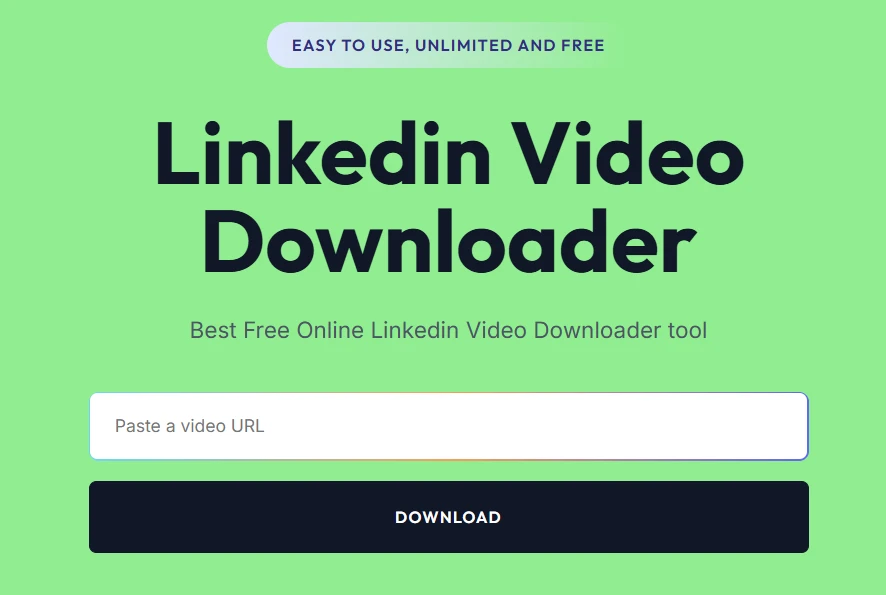
SMVD2.com is a browser-based social media video downloader that allows users to save videos from multiple platforms quickly and efficiently.
For Windows users, the platform provides a simple workflow:
- Copy the LinkedIn video URL.
- Paste it into SMVD2.com.
- Download the video.
That’s it.
No installations.
No browser extensions.
No complicated setup process.
Why SMVD2.com Stands Out
Many LinkedIn download tools offer similar functionality, but practical usability often makes the biggest difference.
During evaluation, several factors stood out.
No Software Installation Required
One of the biggest advantages is convenience.
You don’t need to:
- Install Windows software
- Download browser extensions
- Configure permissions
- Create accounts
Everything works directly from your browser.
For users who only occasionally download videos, this removes significant friction.
Fast Processing
Nobody wants to wait several minutes to save a simple video.
SMVD2.com is designed for quick processing, helping users move from URL to downloadable file in a matter of moments.
High-Quality Downloads
Video quality matters, especially when saving:
- Presentations
- Product demonstrations
- Educational content
- Marketing examples
SMVD2.com helps preserve the best available quality from the source video whenever possible.
Works Across Popular Browsers
Windows users commonly access LinkedIn through:
- Google Chrome
- Microsoft Edge
- Mozilla Firefox
A browser-based approach allows users to work within their preferred environment.
Compatible With Windows Versions
Whether you’re using:
- Windows 11
- Windows 10
- Windows 8
- Windows 7
SMVD2.com can be accessed directly through supported browsers.
Supports Multiple Platforms
Another practical benefit is flexibility.
Instead of using separate downloaders for different platforms, users can often manage multiple social media download needs through a single interface.
Free to Use
Many users prefer tools that do not require subscriptions for basic functionality.
SMVD2.com offers a straightforward experience without forcing users into complex signup processes before they can begin downloading videos.
Who Should Use SMVD2.com?
Based on common usage scenarios, SMVD2.com is particularly useful for:
Marketers
Saving campaign examples, competitor research, and educational content.
Recruiters
Building collections of hiring and talent acquisition resources.
Students
Creating offline learning libraries.
Business Owners
Archiving webinars, industry discussions, and professional insights.
Content Creators
Collecting inspiration and reference material for future projects.
Expert Recommendation
For most Windows users, browser-based downloading offers the best balance of speed, simplicity, and convenience.
While browser extensions and screen recorders have their place, they typically introduce additional steps or maintenance requirements.
If your goal is simply to download a LinkedIn video quickly and efficiently, SMVD2.com provides one of the easiest workflows available.
How to Download LinkedIn Videos on Windows Using SMVD2.com
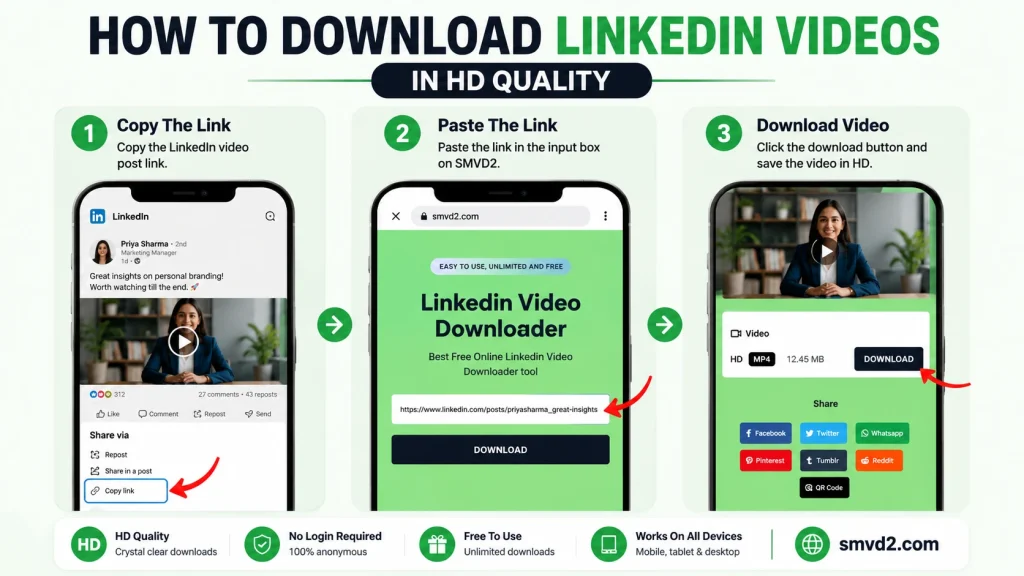
One of the biggest reasons professionals prefer browser-based downloaders is simplicity.
You don’t need technical knowledge, software installations, browser extensions, or complicated settings. If you can copy and paste a URL, you can download a LinkedIn video using SMVD2.com.
In practical usage, the entire process usually takes less than a minute.
Follow the steps below.
Step 1: Open LinkedIn
Start by logging into your LinkedIn account and locating the video you want to save.
You can find videos in various places, including:
- Your LinkedIn feed
- Company pages
- Creator profiles
- Industry communities
- Educational posts
- Webinar announcements
- Product demonstration posts
Before proceeding, make sure the video is publicly accessible and playing correctly.
If the video cannot be viewed normally, a downloader may not be able to process it either.
Step 2: Copy the LinkedIn Video URL
Once you’ve found the video:
- Click the three-dot menu located on the LinkedIn post.
- Select Copy Link to Post.
This link contains the information needed to identify the LinkedIn video post.
Common Mistake to Avoid
Many users accidentally copy:
- The creator’s profile URL
- The company page URL
- The LinkedIn homepage URL
Instead, make sure you’re copying the specific post URL that contains the video.
A valid LinkedIn video post URL typically includes the post identifier within the link.
Step 3: Visit SMVD2.com
Open a new browser tab and navigate to:
SMVD2.com
You don’t need to:
- Install software
- Create an account
- Register an email address
- Download browser extensions
Everything works directly from your browser.
What We Noticed
One advantage of browser-based tools is that they work consistently across different devices and Windows versions.
Whether we tested through:
- Google Chrome
- Microsoft Edge
- Mozilla Firefox
the workflow remained virtually identical.
This reduces the learning curve for users who switch between browsers.
Step 4: Paste the LinkedIn Video URL
Locate the URL input field on SMVD2.com.
Paste the copied LinkedIn post URL into the download box.
Before proceeding, quickly verify:
- The entire URL is pasted
- No extra spaces exist
- The link points to the correct video post
A small validation check at this stage can prevent most download errors.
Step 5: Click the Download Button
After pasting the URL:
Click Download.
SMVD2.com will begin processing the video.
During this stage, the system identifies the video source and prepares the downloadable file.
For most public LinkedIn videos, this process only takes a few seconds.
Why Processing Times Can Vary
Several factors can affect processing speed:
- Video length
- Original video quality
- Internet connection speed
- Current server load
In most situations, however, users experience a fast and straightforward workflow.
Step 6: Choose Your Preferred Download Option
Once processing is complete, download options become available.
Depending on the source video, you may see different quality levels.
For educational content, webinars, presentations, and professional training videos, choosing the highest available quality generally provides the best viewing experience.
This is particularly useful when videos contain:
- Charts
- Graphs
- Slides
- Product demonstrations
- Detailed visual explanations
Higher-quality versions help preserve readability.
Step 7: Save the Video to Your Windows Computer
Click the final download option and choose where you’d like to save the file.
A good practice is to organize downloaded content into dedicated folders.
For example:
LinkedIn Videos
- Marketing Training
- Business Growth
- Sales Resources
- Leadership Content
- Recruitment Materials
Proper organization becomes increasingly valuable as your video library grows.
Best Browsers for Downloading LinkedIn Videos on Windows
Many users ask whether browser choice matters.
Based on general usability observations, the answer is yes—although the differences are usually minor.
Google Chrome
Best for:
- Most users
- General compatibility
- Fast browsing performance
Advantages:
- Broad compatibility
- Frequent updates
- Excellent extension ecosystem
Potential drawback:
- Higher memory usage on some systems
Microsoft Edge
Best for:
- Windows users
- Battery efficiency
- Built-in Windows integration
Advantages:
- Optimized for Windows
- Good performance
- Lower resource consumption on many devices
Potential drawback:
- Some users simply prefer Chrome’s ecosystem
Mozilla Firefox
Best for:
- Privacy-focused users
- Open-source enthusiasts
Advantages:
- Strong privacy controls
- Customizable experience
Potential drawback:
- Some websites occasionally prioritize Chromium-based browsers first
Our Recommendation
For most Windows users:
- Google Chrome
- Microsoft Edge
- Firefox
All three work well with browser-based downloaders such as SMVD2.com.
The most important factor is usually browser stability rather than browser brand.
Common Problems While Downloading Linkedin Videos
Even with a straightforward process, users occasionally encounter issues.
Here are the most common ones.
Problem: Download Button Doesn’t Generate a File
Possible causes:
- Incorrect URL
- Private LinkedIn post
- Deleted content
- Temporary network issue
Solution:
Double-check the LinkedIn post URL and try again.
Problem: Video Cannot Be Processed
Possible causes:
- Restricted content
- Company-only access
- Login-protected video
Solution:
Ensure the video is publicly accessible.
Problem: Download Takes Longer Than Expected
Possible causes:
- Large video file
- Slow internet connection
- Temporary traffic spikes
Solution:
Wait a few moments and retry if necessary.
Problem: Downloaded Video Looks Lower Quality
Possible causes:
- Original upload quality
- Source compression
- Limited resolution availability
Important note:
No downloader can create quality that doesn’t exist in the original video.
The final quality is largely dependent on the source upload.
What Most Users Don’t Realize
Many people assume downloading videos is only useful for offline viewing.
In reality, professionals often use downloaded LinkedIn videos for:
- Training libraries
- Competitor analysis
- Sales coaching
- Team onboarding
- Content inspiration
- Industry research
A well-organized video archive can become a valuable business resource over time.
For marketers, recruiters, consultants, and business owners, saving educational content often provides long-term value far beyond a single viewing session.
Benefits of Using Windows for LinkedIn Video Downloads
While LinkedIn videos can be viewed on smartphones, tablets, and other devices, Windows remains one of the most practical platforms for downloading, organizing, and managing professional video content.
In real-world usage, professionals who regularly save educational resources, webinars, and industry insights often prefer Windows because it offers greater flexibility and control over downloaded files.
Let’s look at the key advantages.
Larger Storage Capacity
One of the biggest benefits of downloading LinkedIn videos on Windows is storage.
Most Windows laptops and desktop computers offer significantly more storage space than mobile devices.
This becomes important when you’re saving:
- Long webinar recordings
- Training courses
- Industry conference sessions
- Product demonstrations
- Educational video libraries
A single high-quality webinar can easily exceed several hundred megabytes.
Over time, those files add up.
With a Windows PC, managing large collections becomes much easier.
Better Organization and File Management
Windows provides advanced file management capabilities that help users build structured video libraries.
Instead of searching through bookmarks or LinkedIn feeds, you can create dedicated folders such as:
Marketing Resources
Store:
- SEO tutorials
- Paid advertising strategies
- Social media training
- Content marketing examples
Sales Training
Save:
- Sales presentations
- Objection handling techniques
- Prospecting strategies
- B2B sales frameworks
Leadership & Management
Archive:
- Leadership webinars
- Team management advice
- Executive interviews
- Business growth discussions
Industry Research
Organize:
- Market trends
- Competitor content
- Industry reports
- Emerging technologies
What We Noticed
Many users start by downloading only a few videos.
However, after several months, they often accumulate dozens or even hundreds of resources.
Without proper folder organization, finding specific videos becomes difficult.
Creating a structured library from the beginning saves significant time later.
Easier Editing and Content Analysis
Windows offers access to professional editing and productivity tools that make downloaded videos more useful.
Popular software includes:
- Adobe Premiere Pro
- DaVinci Resolve
- Camtasia
- Filmora
- Microsoft Clipchamp
This allows users to:
- Take screenshots
- Create training materials
- Save learning notes
- Analyze competitor content
- Build internal presentations
For marketers and content creators, downloaded videos often become research assets rather than simple offline content.
Better Viewing Experience
LinkedIn videos frequently contain:
- Presentation slides
- Data visualizations
- Charts
- Product demonstrations
- Technical explanations
These elements are often easier to view on a larger screen.
Compared to smartphones, Windows desktops and laptops provide:
- Better visibility
- Easier multitasking
- Higher productivity
- More comfortable viewing sessions
This is particularly useful when watching longer educational content.
Faster Multitasking
Many professionals don’t simply watch videos.
They:
- Take notes
- Research concepts
- Open supporting resources
- Compare multiple videos
Windows allows users to work across multiple applications simultaneously.
For example:
- LinkedIn video on one screen
- Google Docs on another
- Excel spreadsheet in the background
This workflow is much more efficient than switching between mobile applications.
Better Backup Options
Downloaded LinkedIn videos often contain valuable information that users want to preserve long term.
Windows makes backup management straightforward through:
- External hard drives
- SSD storage
- Network storage
- Cloud platforms
Examples include:
- Google Drive
- Microsoft OneDrive
- Dropbox
This reduces the risk of losing important educational resources.
Windows 10 vs Windows 11: Does It Matter?
Many users ask whether Windows 11 provides a better downloading experience.
In practical terms, both Windows 10 and Windows 11 work exceptionally well with browser-based downloaders like SMVD2.com.
Windows 10
Benefits:
- Stable ecosystem
- Wide browser support
- Familiar interface
Windows 11
Benefits:
- Modern interface
- Improved multitasking features
- Better window management
- Optimized browser performance
Our Observation
For LinkedIn video downloads specifically, browser choice generally has a greater impact than operating system version.
If you’re using a modern browser such as Chrome, Edge, or Firefox, both Windows 10 and Windows 11 deliver a similar experience.
Common LinkedIn Videos People Download
LinkedIn hosts an enormous variety of professional video content.
While every user has different goals, certain categories consistently attract the highest download interest.
Educational Tutorials
Educational videos are among the most commonly downloaded content types.
Professionals often save tutorials covering:
- Search Engine Optimization (SEO)
- Content Marketing
- Paid Advertising
- Email Marketing
- Social Media Strategy
- AI Tools
- Business Growth
Why People Download Them
Educational videos often provide long-term value.
Instead of searching for the same content repeatedly, users can build their own learning library for future reference.
Webinar Recordings
Webinars frequently contain in-depth insights that aren’t available in shorter content formats.
Common webinar topics include:
- Business development
- Sales enablement
- Marketing automation
- Leadership training
- Recruiting strategies
What Most Users Don’t Realize
Many webinars eventually become difficult to locate after they disappear from regular feed visibility.
Downloading them allows users to preserve valuable knowledge for future use.
Industry Insights and Trend Analysis
Industry experts regularly publish videos discussing:
- Market trends
- Emerging technologies
- AI developments
- Economic forecasts
- Consumer behavior shifts
These videos are particularly valuable for:
- Consultants
- Agency owners
- Executives
- Entrepreneurs
Practical Use Case
A digital marketing agency might save multiple industry forecast videos and review them quarterly to identify changing trends and opportunities.
Recruitment and Career Development Content
Recruiters, HR professionals, and job seekers frequently save videos related to:
- Interview preparation
- Hiring best practices
- Employer branding
- Candidate engagement
- Career growth
These resources often serve as reference material during hiring and training processes.
Product Demonstrations
Software companies and service providers regularly publish product-focused videos.
These may include:
- Feature walkthroughs
- Product launches
- Software tutorials
- Platform demonstrations
Why Professionals Save Them
Product videos are useful for:
- Evaluating tools
- Comparing solutions
- Training employees
- Understanding competitors
For B2B buyers, downloading these videos can simplify vendor evaluation and purchasing decisions.
Thought Leadership Content
Some of LinkedIn’s most valuable videos come from industry leaders sharing personal experiences and professional insights.
Topics often include:
- Leadership
- Entrepreneurship
- Business strategy
- Team building
- Innovation
These videos are commonly saved by:
- Founders
- Managers
- Consultants
- Executives
because they provide perspectives that go beyond standard tutorials.
Sales and Marketing Training Videos
This category continues to grow rapidly.
Professionals frequently download videos about:
- Lead generation
- Sales funnels
- Conversion optimization
- Customer acquisition
- Brand positioning
- Performance marketing
Expert Observation
For many businesses, downloaded sales and marketing videos become part of an internal training system.
Instead of repeatedly searching for resources, teams can build curated libraries of proven educational content.
Which LinkedIn Videos Are Worth Downloading?
Not every video deserves permanent storage.
A simple rule is:
Download videos that are:
- Educational
- Actionable
- Difficult to replace
- Relevant to your goals
- Useful for future reference
Skip videos that are:
- Time-sensitive news
- Easily searchable content
- Short-term updates
- Low-value promotional material
Building a high-quality video library is usually more valuable than downloading everything you see.
Tips for Managing Downloaded LinkedIn Videos
Downloading a LinkedIn video is only the first step. If you regularly save educational content, webinars, marketing resources, or industry insights, proper organization becomes just as important as the download itself.
A well-managed video library can save hours of searching later and help you get more value from the content you collect.
Create Organized Folders
One of the simplest ways to manage downloaded videos is by creating a structured folder system.
Instead of saving everything into your Downloads folder, organize content based on topics or business functions.
For example:
Marketing
- SEO Tutorials
- Google Ads Training
- Social Media Strategies
- Content Marketing
Sales
- Lead Generation
- Sales Training
- Prospecting Techniques
- Conversion Optimization
Business Growth
- Leadership Videos
- Startup Advice
- Business Strategy
- Operations Management
Recruitment
- Hiring Guides
- Employer Branding
- Interview Training
- Talent Acquisition
Why This Matters
As your collection grows, finding a specific video becomes much easier.
A library of 100 organized videos is far more useful than 100 random files in a single folder.
Rename Files Properly
Many downloaded videos come with generic file names.
Examples:
- video.mp4
- download123.mp4
- linkedinvideo.mp4
Instead, use descriptive names.
Examples:
- LinkedIn-SEO-Strategy-2026.mp4
- B2B-Lead-Generation-Webinar.mp4
- LinkedIn-Ads-Tutorial-Windows.mp4
Expert Tip
Include:
- Topic
- Speaker
- Year
- Category
This makes future searching significantly easier.
Create a Personal Learning Library
Many professionals use downloaded LinkedIn videos as part of an ongoing learning system.
For example:
Digital Marketers
Save content about:
- SEO
- Paid Ads
- Analytics
- Conversion Rate Optimization
Agency Owners
Collect videos covering:
- Client Acquisition
- Team Building
- Operations
- Scaling Strategies
Recruiters
Store:
- Hiring Frameworks
- Recruitment Trends
- Candidate Experience Tips
Over time, this becomes a searchable knowledge base tailored to your goals.
Take Notes While Watching
A common mistake is downloading videos and never revisiting them.
Instead, create a simple process:
- Watch the video.
- Take notes.
- Save key takeaways.
- Organize related resources together.
This dramatically increases the value you gain from each piece of content.
What We Noticed
People often remember less than they expect from long educational videos.
Taking even a few notes can improve retention and make future reviews much more productive.
Back Up Important Content
If you’ve spent months building a valuable video library, losing it can be frustrating.
Consider maintaining backups using:
- External hard drives
- SSD storage
- Google Drive
- Microsoft OneDrive
- Dropbox
For professionals who rely on training resources, backups provide peace of mind.
Review and Update Your Library Regularly
Not every downloaded video remains useful forever.
Industries evolve.
Strategies change.
Platforms update.
A good habit is reviewing your collection every few months.
Remove:
- Outdated tactics
- Irrelevant content
- Duplicate resources
Keep:
- Evergreen training
- Valuable case studies
- Foundational educational material
This helps maintain a high-quality library instead of a cluttered archive.
Common Mistakes When Managing Downloaded Videos
Avoid these common issues:
Downloading Everything
Not every video deserves permanent storage.
Be selective.
Focus on content that provides long-term value.
Ignoring Organization
Without folders and naming conventions, finding content later becomes difficult.
Forgetting Context
Months later, you may forget why a video was valuable.
Consider saving:
- Notes
- Related links
- Key takeaways
alongside the video.
No Backup Strategy
Valuable educational resources should never exist in only one location.
Is It Legal to Download LinkedIn Videos?
This is one of the most frequently asked questions about LinkedIn video downloads.
The answer depends largely on how the downloaded content is used.
Downloading for Personal Use
In many situations, users download videos for:
- Offline viewing
- Research
- Education
- Training
- Personal reference
These use cases are generally different from redistributing someone else’s content.
Examples include:
- Saving a webinar to watch later
- Building a personal learning library
- Studying industry trends
- Reviewing professional presentations
Respect Creator Rights
Even when a video is publicly visible, ownership remains with the original creator.
Downloading a video does not automatically grant permission to:
- Republish it
- Reupload it
- Sell it
- Modify it for commercial use
Creators invest significant effort into producing content, and their rights should be respected.
When Permission Is Important
If you plan to:
- Reuse content publicly
- Publish clips on another platform
- Include videos in commercial projects
- Distribute videos outside personal use
it’s always wise to obtain permission from the original creator.
Copyright Considerations
Copyright laws vary by country.
For this reason, users should always ensure they comply with:
- Local laws
- Copyright regulations
- Platform policies
Simple Rule
A good rule of thumb is:
Use downloaded videos for learning and reference unless you have explicit permission for broader use.
Privacy Matters Too
Not every LinkedIn video is intended for unrestricted distribution.
Some videos may contain:
- Company information
- Internal presentations
- Sensitive business discussions
Even if content is accessible, users should think carefully before sharing it elsewhere.
What Most People Get Wrong
Many users assume:
“Public means free to use.”
That’s not necessarily true.
Public visibility and content ownership are different concepts.
A creator can make a video publicly accessible while still retaining all rights over how it is distributed and reused.
Best Practice for Professionals
If you’re using LinkedIn videos for:
- Learning
- Research
- Team training
- Industry analysis
keep the content within those intended purposes.
This approach respects creators while still allowing you to benefit from valuable educational resources.
Troubleshooting LinkedIn Video Downloads
Even with a simple downloader, occasional issues can occur.
Fortunately, most problems are easy to solve.
Video Not Downloading
Possible Causes
- Incorrect URL
- Private LinkedIn post
- Deleted content
- Temporary network issues
Solution
Verify that:
- The URL is correct
- The video still exists
- The post is publicly accessible
- Your internet connection is stable
One small URL error is often enough to cause download failures.
Invalid Link Error
Why It Happens
Many people accidentally copy:
- A profile URL
- A company page URL
- A feed URL
instead of the actual video post URL.
Fix
Return to LinkedIn and copy the specific post link containing the video.
Download Processing Takes Too Long
Possible Causes
- Large video files
- Slow internet speed
- Temporary server traffic
Fix
Wait a few moments and try again.
Most public videos process quickly once connectivity issues are resolved.
Poor Video Quality
Users occasionally expect downloaded videos to look better than the original source.
Unfortunately, no downloader can improve quality beyond what was originally uploaded.
What Determines Quality?
Factors include:
- Original upload resolution
- Source compression
- Available video formats
Recommendation
Whenever available, choose the highest-quality version offered.
Video Downloads but Won’t Play
Possible Causes
- Incomplete download
- Corrupted file
- Unsupported media player
Solution
Try opening the file using:
- VLC Media Player
- Windows Media Player
- Media Player Classic
VLC is particularly effective at handling a wide variety of video formats.
Browser-Related Problems
Occasionally, browser settings can interfere with downloads.
Potential Causes
- Outdated browser
- Security settings
- Extension conflicts
Solution
Update your browser and temporarily disable extensions that may interfere with downloads.
What We Noticed
Many users assume download failures are caused by the downloader itself.
In practice, browser extensions and browser-specific settings are often responsible for unexpected issues.
Private Videos Cannot Be Downloaded
This limitation surprises many users.
If a LinkedIn video is:
- Private
- Restricted
- Login-protected
a downloader may not be able to access it.
This is normal behavior and not necessarily a tool malfunction.
When All Else Fails
If you’re experiencing persistent issues:
- Refresh the page.
- Recopy the LinkedIn URL.
- Try another browser.
- Confirm the video is public.
- Retry the download.
Most problems can be resolved using one of these simple steps.
Why SMVD2.com Stands Out
There are dozens of LinkedIn video downloaders available online, but not all of them deliver the same user experience.
Some tools are overloaded with ads.
Others require browser extensions.
Some limit download speeds or redirect users through multiple pages before generating a file.
For professionals who simply want to save a LinkedIn video quickly and safely, convenience matters just as much as functionality.
This is where SMVD2.com distinguishes itself.
Simple and Beginner-Friendly Workflow
One of the first things users notice is the simplicity of the process.
The workflow remains straightforward:
- Copy the LinkedIn video URL.
- Paste it into SMVD2.com.
- Download the video.
No technical expertise is required.
Even first-time users can save linkedin videos within minutes.
Why This Matters
Many users only download LinkedIn videos occasionally.
They don’t want to:
- Install software
- Learn new tools
- Configure browser settings
- Manage extension permissions
A browser-based solution eliminates unnecessary complexity.
No Software Installation
One of the biggest frustrations with traditional download methods is installation.
Many competing solutions require:
- Desktop software
- Browser extensions
- Additional permissions
- User registrations
With SMVD2.com, everything works directly inside your browser.
Practical Advantage
This approach offers several benefits:
- Faster setup
- Less maintenance
- Better accessibility
- Reduced compatibility issues
For casual users, this is often the most convenient option.
Fast Processing Experience
Speed plays a major role in usability.
Nobody wants to wait several minutes to download a simple LinkedIn video.
During practical evaluation, browser-based downloaders generally provide a faster workflow than installing software or setting up screen-recording tools.
For users who regularly save educational content, those time savings add up over time.
Compatible With Popular Browsers
SMVD2.com works with major browsers commonly used on Windows.
These include:
- Google Chrome
- Microsoft Edge
- Mozilla Firefox
Because the tool operates through the browser, users can continue working within their preferred environment.
Works Across Multiple Windows Versions
Another advantage is flexibility.
Whether you’re using:
- Windows 11
- Windows 10
- Windows 8
- Windows 7
the browser-based workflow remains largely the same.
This consistency makes the tool accessible to a wide range of users.
Useful for Different Types of Professionals
SMVD2.com isn’t limited to a single audience.
Marketers
Use it to:
- Save competitor research
- Archive marketing examples
- Build educational libraries
Recruiters
Use it to:
- Save hiring resources
- Collect training materials
- Archive employer branding content
Business Owners
Use it to:
- Preserve industry insights
- Store leadership discussions
- Build internal knowledge resources
Students
Use it to:
- Save educational content
- Learn offline
- Build personal study libraries
What We Liked Most
After reviewing common download workflows, one benefit stands out above everything else:
Convenience.
Users can move from discovering a useful LinkedIn video to saving it locally within minutes without dealing with installations, updates, or technical setup.
For many professionals, that’s exactly what they need.
Browser Downloader vs Other Download Methods
The table below highlights the practical differences between common approaches.
| Method | Ease of Use | Setup Required | Speed | Best For |
|---|---|---|---|---|
| SMVD2.com | Very High | None | Fast | Most users |
| Browser Extension | Medium | Yes | Medium | Frequent downloaders |
| Screen Recording | Low | Yes | Slow | Backup situations |
| Desktop Software | Medium | Yes | Medium | Advanced users |
Expert Takeaway
For most Windows users, browser-based downloading offers the best balance of:
- Simplicity
- Speed
- Accessibility
- Convenience
This is why tools such as SMVD2.com continue to be a popular choice.
Frequently Asked Questions
Can I Download LinkedIn Videos on Windows 11?
Yes.
SMVD2.com works through modern web browsers, making it compatible with Windows 11 as well as earlier Windows versions.
Do I Need a LinkedIn Premium Account?
No.
Downloading publicly accessible LinkedIn videos does not typically require a LinkedIn Premium subscription.
The important requirement is access to the public video post URL.
Can I Download Private LinkedIn Videos?
Generally, no.
If a video is restricted, private, or protected by permissions, browser-based downloaders may not be able to access it.
This limitation exists to respect content visibility settings.
What Format Are LinkedIn Videos Downloaded In?
Most LinkedIn videos are downloaded as MP4 files.
MP4 is widely supported across:
- Windows computers
- Smartphones
- Tablets
- Media players
- Editing software
This makes it one of the most convenient formats for long-term storage and playback.
Do I Need to Install Software?
No.
One of the primary benefits of SMVD2.com is that it operates entirely through your browser.
There is no need to install:
- Desktop applications
- Browser extensions
- Additional plugins
Which Browser Works Best?
Google Chrome, Microsoft Edge, and Mozilla Firefox all work well.
Our observation is that browser stability matters more than browser brand.
Using an updated browser generally provides the best experience.
Why Does My Download Fail?
Common causes include:
- Incorrect URL
- Private content
- Deleted videos
- Temporary network issues
Most failures can be resolved by verifying the LinkedIn post URL and ensuring the content remains publicly accessible.
Is Downloading LinkedIn Videos Safe?
Using reputable browser-based tools is generally safer than installing unknown software from unverified sources.
However, users should always:
- Download responsibly
- Respect copyright laws
- Protect their personal information
- Use trusted platforms
Can I Download Videos for Team Training?
You can save videos for reference and learning purposes, but always respect creator rights and applicable copyright rules before distributing content to others.
What Is the Easiest Way to Download LinkedIn Videos on Windows?
For most users, the easiest method is:
- Copy the LinkedIn post URL.
- Paste it into SMVD2.com.
- Download the video.
No installation or technical setup is required.
Final Thoughts
LinkedIn has become one of the internet’s most valuable sources of professional knowledge. From marketing tutorials and leadership discussions to industry forecasts and webinar recordings, the platform offers an enormous amount of educational content.
The challenge is that important videos can quickly disappear from your feed, become difficult to locate, or simply get buried under newer content.
Downloading valuable videos allows you to build a personal library of resources that can be accessed whenever needed.
For Windows users, the process is particularly convenient because the platform provides:
- Better file management
- Larger storage capacity
- Easier organization
- Improved multitasking
- Enhanced viewing experiences
Among the available methods, browser-based downloading remains the most practical option for most professionals.
It eliminates software installations, reduces maintenance requirements, and keeps the workflow simple.
Our Recommendation
If you’re looking for a fast, straightforward, and beginner-friendly way to download LinkedIn videos on Windows, SMVD2.com is an excellent choice.
It offers:
- No software installation
- No browser extensions
- Quick processing
- High accessibility
- Compatibility with major Windows browsers
- A simple copy-paste-download workflow
Whether you’re a marketer building a swipe file, a recruiter collecting training resources, a student creating a learning library, or a business owner archiving valuable insights, SMVD2.com provides a convenient way to save LinkedIn videos for future use.
Related articles:
- How to Download LinkedIn Videos on Mac
- How to Save LinkedIn Videos on Mobile and Desktop Devices
- How to Download LinkedIn Videos Without Installing Software