Why Are LinkedIn Videos Downloading in Low Quality? (Complete Solutions Guide)
LinkedIn videos often look sharp and professional while streaming—but after downloading, they may sometimes appear blurry, pixelated, softer, or less detailed than expected.
This usually isn’t a technical error or a failed download.
In most cases, it happens because of how LinkedIn processes, compresses, and delivers video content across different devices, internet speeds, and playback conditions.
What many users don’t realize is that the quality you see while streaming is not always the exact version that gets downloaded.
This guide explains:
- Why LinkedIn videos lose quality after download
- The real technical reasons behind it
- How to download videos in the best possible quality (without trial and error)
Why Are LinkedIn Videos Downloading in Low Quality?
Low-quality downloads are usually not random.
They happen because multiple platform-level optimizations and delivery systems work together behind the scenes.
In practice, most quality loss comes from:
- video compression
- adaptive streaming
- bitrate reduction
- or downloading the wrong stream version
rather than from the downloader itself.
1. Video Compression for Faster Delivery
To ensure smooth playback across millions of users and varying internet speeds, LinkedIn compresses uploaded videos before delivering them.
This is standard behavior across modern social and streaming platforms.
What this means in practice:
- The streamed version is already optimized and compressed
- The original uploaded file is usually not what viewers receive
- Sharpness, detail, and bitrate may be reduced during processing
- Even professionally recorded videos go through compression pipelines
Why platforms do this:
Without compression:
- videos would load slowly
- buffering would increase
- mobile playback would struggle
- bandwidth costs would become significantly higher
This creates a tradeoff between:
- playback efficiency
vs - visual quality
Practical Observation:
In real-world testing, highly detailed videos containing:
- text overlays
- screen recordings
- UI demonstrations
- spreadsheets
- or presentations
usually show compression artifacts faster than talking-head videos because fine details require higher bitrate to remain sharp.
2. Adaptive Streaming (HLS Technology)
LinkedIn commonly uses HLS (HTTP Live Streaming), which dynamically adjusts video quality based on:
- internet speed
- buffering conditions
- device capability
- and playback stability
How it works:
Instead of one single video file,
LinkedIn creates multiple versions such as:
- 240p
- 480p
- 720p
- 1080p
The platform then switches between these versions automatically during playback.
Where the quality issue happens:
Many download methods:
- capture only one stream version
- fail to detect higher-quality layers
- or save whichever stream loaded first
In weak network conditions, this often ends up being a lower-resolution stream.
Important Reality:
What most users don’t realize is that mobile devices frequently default to lower-quality streams more aggressively than desktop browsers to preserve bandwidth and battery life.
3. Bitrate Reduction (The Real Reason Videos Look Blurry)
Most users focus only on resolution—but bitrate is often the bigger factor controlling clarity.
Simple Difference:
- Resolution = number of pixels (720p, 1080p)
- Bitrate = amount of visual data stored every second
A video can technically be:
- 1080p
but still - look blurry or soft
if the bitrate is too low.
Why this happens:
LinkedIn reduces bitrate during compression to:
- improve streaming speed
- reduce buffering
- lower bandwidth usage
- optimize mobile playback
This is one of the biggest causes of:
- blurry motion
- soft edges
- text distortion
- and pixelation
Practical Example:
Screen-recorded tutorials often lose quality faster because:
- small text
- UI elements
- and motion transitions
require significantly higher bitrate than standard talking videos.
This is why:
- presentations
- dashboards
- analytics screens
- and software demos
sometimes appear noticeably softer after download.
4. Original Upload Quality Limitations
Not every LinkedIn video starts as high quality.
If the original upload already contains:
- low resolution
- heavy compression
- unstable bitrate
- poor lighting
- or aggressive editing compression
then even the best download method cannot restore missing quality.
Important Insight:
A downloader cannot create detail that never existed in the uploaded source.
Many users assume:
“The downloader reduced quality.”
when in reality:
the uploaded video itself was already compressed before LinkedIn processed it again.
5. Third-Party Download Method Limitations
Because LinkedIn does not provide a native download option for most videos, users rely on external tools and browser-based methods.
This is where avoidable quality loss often happens.
Common issues with low-quality methods:
- Capturing default instead of highest-quality streams
- Re-encoding videos during processing
- Compressing files again for faster delivery
- Failing to detect adaptive streaming layers
- Saving cached playback versions instead of original streams
Practical Observation:
In testing across different browser-based workflows, tools that prioritize:
- speed
over - stream accuracy
often produce noticeably softer results.
This becomes especially visible in:
- HD presentations
- educational tutorials
- motion-heavy clips
- and detailed business demonstrations
6. Browser & Device Behavior
Browsers and devices also affect video quality more than many users realize.
In some situations:
- browsers cache lower-quality streams
- mobile playback switches quality automatically
- battery-saving modes reduce stream quality
- weak Wi-Fi triggers adaptive downgrade behavior
If a download is based on these cached or downgraded streams, the final video may not reflect the highest available quality.
Real-World Device Differences
In practical usage:
- desktop browsers usually access higher-quality streams more consistently
- mobile browsers prioritize stability over quality
- weaker cellular networks often trigger lower adaptive bitrate layers
Some browsers may also:
- buffer lower-quality previews first
before loading higher-quality versions later.
This can affect downloads if the saving method captures the stream too early.
How to Download LinkedIn Videos Without Losing Quality
The goal is not simply downloading faster.
The real goal is: capturing the highest-quality available stream before additional compression happens.
A reliable method should:
- Detect all available quality layers
- Access the highest available resolution
- Preserve original bitrate as much as possible
- Avoid unnecessary re-encoding
Step-by-Step Process
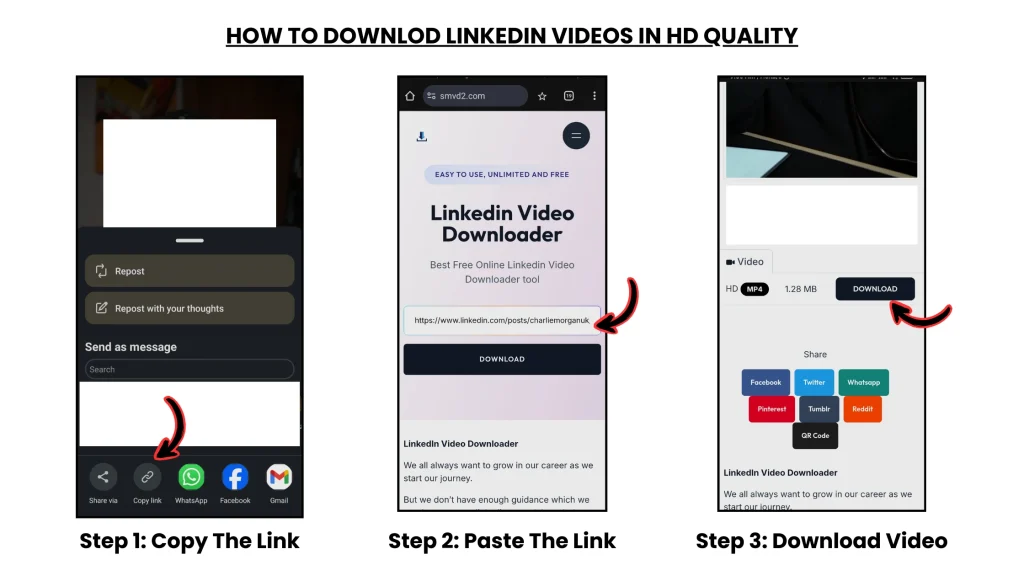
- Open LinkedIn and locate the video
- Copy the full LinkedIn post URL
- Use a reliable LinkedIn Video Downloader tool
- Allow the tool to process all available stream versions
- Select the highest-quality option available
- Save the video without additional compression
Best Practices to Maintain Video Quality
If you regularly download or work with LinkedIn videos, these practices help significantly.
Use Stable Internet
A stable connection improves access to higher-quality adaptive streams.
Weak connections often trigger lower bitrate versions automatically.
Practical Tip:
Wi-Fi usually performs better than unstable cellular networks for HD stream detection.
Avoid Screen Recording
Screen recording usually reduces:
- sharpness
- motion clarity
- frame stability
- and text readability
It may appear convenient,
but it often produces lower-quality results compared to capturing the original stream directly.
Prefer Original Stream Capture
Use methods that:
- access the original adaptive stream
instead of - reprocessing the video afterward
This avoids:
- additional compression
- unnecessary bitrate reduction
- and visual artifacts
Allow the Video to Fully Load First
In some browser workflows, allowing the video to stabilize at higher quality before saving can improve results.
This is especially relevant on:
- slower networks
- mobile browsers
- or adaptive streaming systems
Best Settings for Uploading High-Quality LinkedIn Videos
If you upload LinkedIn videos yourself, these settings generally preserve better quality after LinkedIn processing.
Recommended Settings:
- Resolution: 1920 × 1080 (Full HD)
- Format: MP4
- Codec: H.264
- Bitrate: 5–10 Mbps
- Frame Rate: 30 fps
Important Creator Insight:
Uploading at extremely high bitrate does not always improve final quality because LinkedIn will still transcode and compress the video afterward.
The goal is:
clean source quality,
not unnecessarily oversized files.
Common Myths About LinkedIn Video Quality
“All LinkedIn downloads are low quality”
Not true.
Quality depends on:
- original upload quality
- selected stream version
- bitrate
- network conditions
- and download method
“If it’s 1080p, it should look perfect”
Not always.
A low-bitrate 1080p video can still appear:
- blurry
- soft
- pixelated
- or compressed
Bitrate matters just as much as resolution.
“Screen recording gives better quality”
In most situations, it actually reduces:
- clarity
- frame consistency
- and sharpness
especially during:
- fast motion
- scrolling
- UI transitions
- or presentations
FAQs
Why are LinkedIn videos blurry after download?
Usually because LinkedIn compresses videos and many download methods capture lower-quality adaptive streams instead of the highest available version.
Can I download LinkedIn videos in 1080p?
Yes—if:
- the original upload supports 1080p
- and the correct adaptive stream is captured
Does LinkedIn reduce video quality?
Yes.
LinkedIn compresses and transcodes videos to optimize:
- playback speed
- buffering stability
- bandwidth efficiency
- and mobile performance
What format is best for LinkedIn videos?
MP4 with H.264 codec generally provides the best balance of:
- compatibility
- quality
- and playback efficiency
Why do downloaded screen-recording tutorials look worse?
Because:
- text
- interface details
- and motion-heavy transitions
require higher bitrate to remain sharp after compression.
Final Verdict
LinkedIn videos usually appear in lower quality after download because of:
- platform-level compression
- adaptive HLS streaming
- bitrate reduction
- mobile optimization
- and limitations of some download methods
The solution is not simply downloading faster.
The real solution is:
capturing the highest-quality available stream while avoiding additional compression.
When done correctly, you can preserve:
- better clarity
- higher resolution
- sharper details
- smoother playback
- and more professional-looking output
Key Takeaway
Low-quality LinkedIn downloads are usually not a failure.
They are a direct result of how modern streaming systems prioritize:
- speed
- bandwidth efficiency
- device compatibility
- and playback stability
Once you understand:
- compression
- bitrate
- adaptive streaming
- and browser behavior
you can consistently download the best possible version available—without guesswork or repeated trial and error.
Related Articles:
- How to Download LinkedIn Videos Without Losing Quality
- How to Download LinkedIn Videos in MP4 or HD Format
- How to Download LinkedIn Videos in Low Internet Speed
- Why Downloaded LinkedIn Videos Lose Quality